
Ask customers for an honest Google review
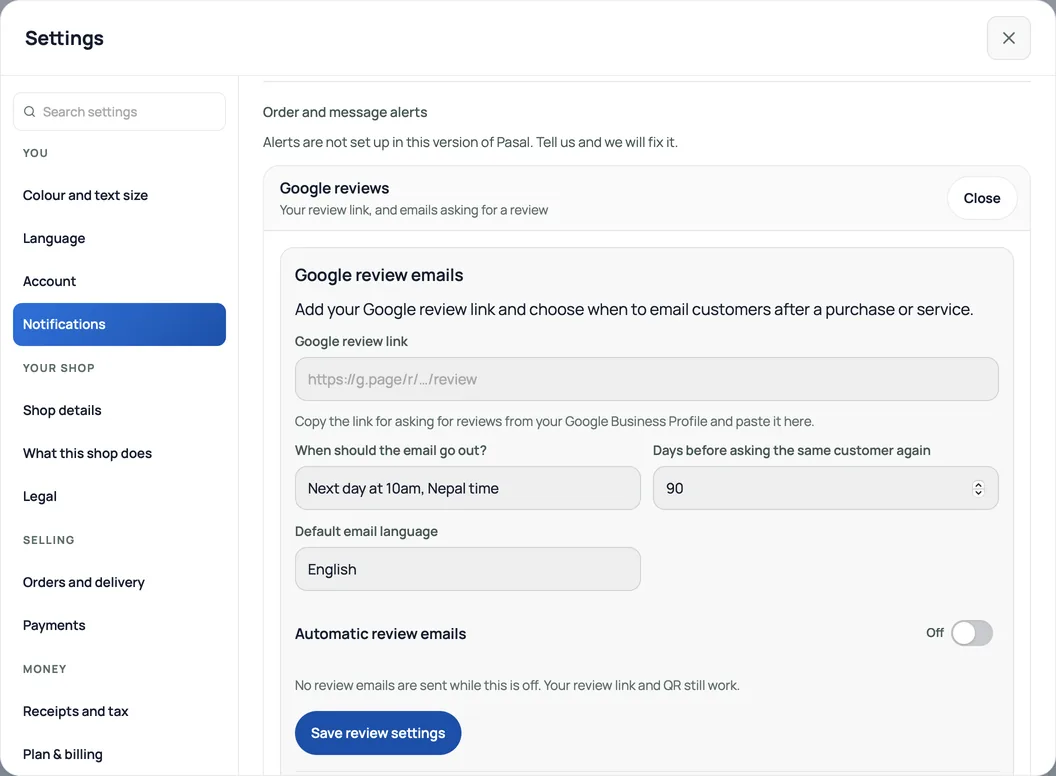
Save the Google link in Settings, Notifications; show its QR after payment and control optional emails.
Give customers a simple way to share their experience on Google. A saved link supplies the QR; automatic emails are a separate, optional choice controlled by the shop owner.
Save the exact review link
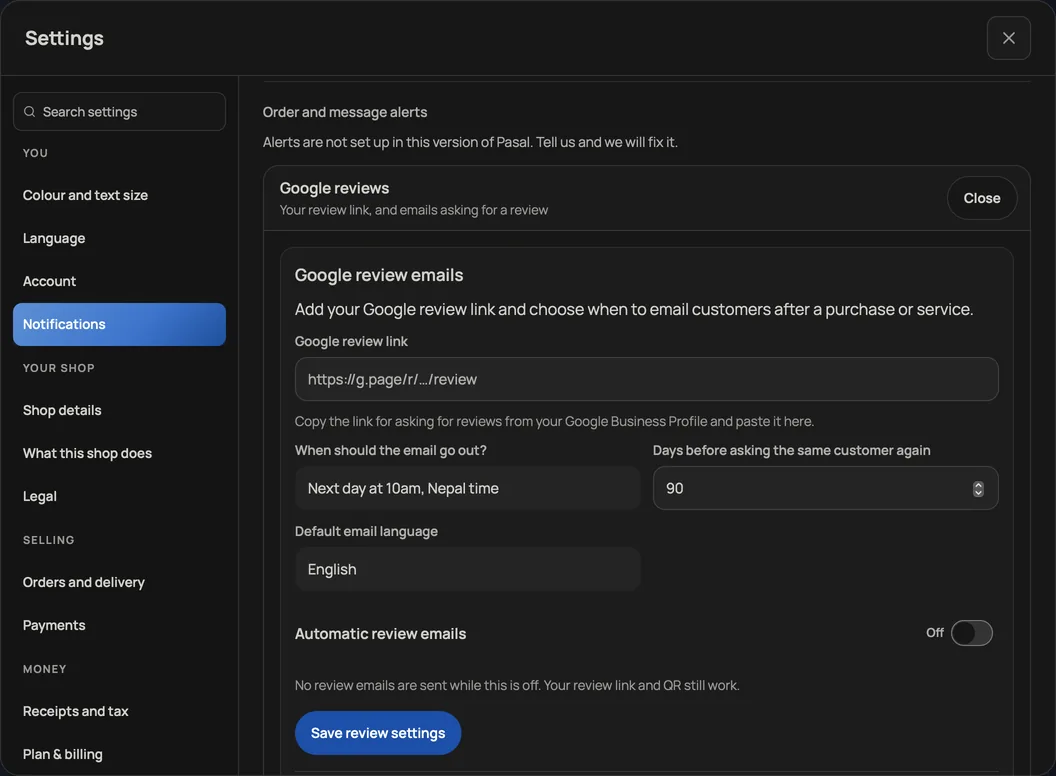
- Open your account menu, then Settings → Notifications and press Edit beside Google reviews. From Marketing → Google reviews, the Edit review settings button opens the same section.
- Paste the exact HTTPS review link Google provides into Google review link. Supported links include g.page, maps.app.goo.gl and search.google.com. Do not invent a link from your shop name.
- Leave Automatic review emails off if you only want the QR. Press Save review settings. The form's changes take effect only after saving.
- Open Marketing → Google reviews. Press Open Google review link to check the destination, or Preview review email to inspect English or Nepali without sending a message.
QR posters and the customer screen
Press Download QR poster in Marketing → Google reviews, or open Link & QR → Google reviews. Both use the saved destination and offer a branded A4 poster. Downloading a poster does not send an email. A shop without a saved link gets setup instructions rather than a placeholder QR.
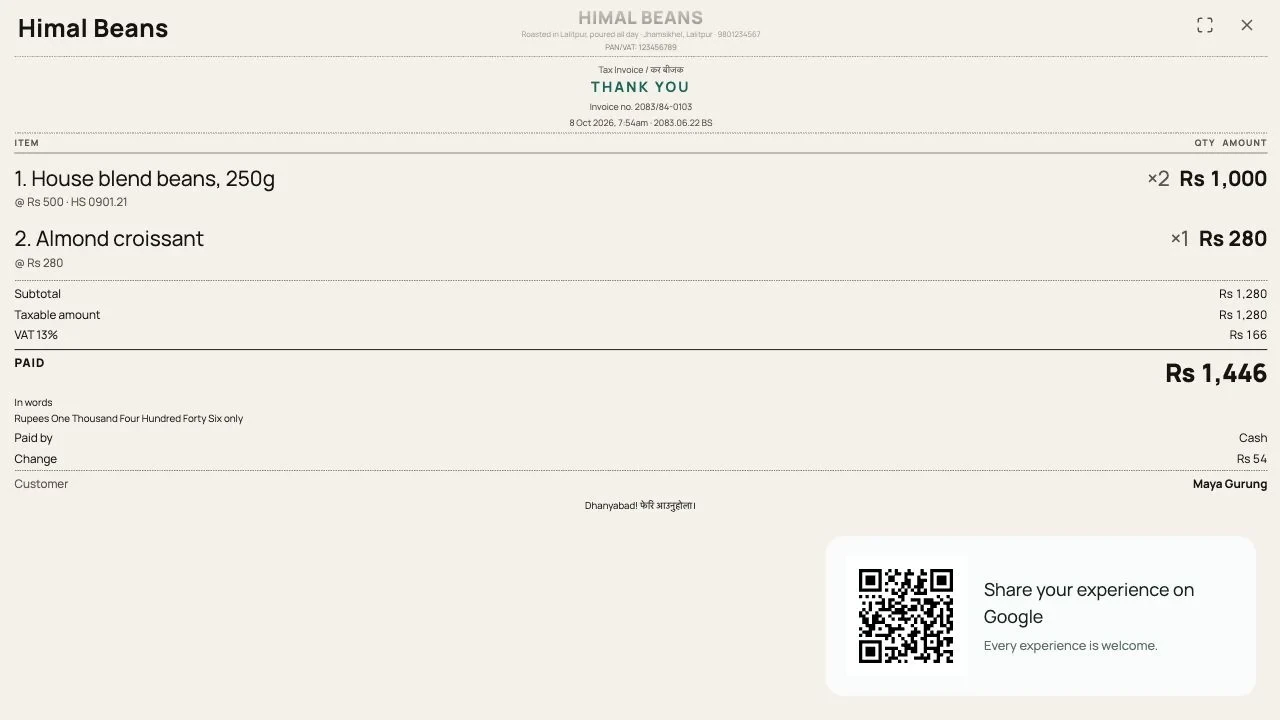
Open the web counter's Customer screen. With a saved review link, its QR appears while idle and after a completed paid sale. The paid screen says Thank you andShare your experience on Google, with Every experience is welcome.It stays hidden during the growing bill, payment QR and an unpaid table send. The code is separate from the payment QR and printed receipt.
Turn on optional automatic invitations
Enable Automatic review emails only when you have appropriate permission to contact customers, then press Save review settings. By default, the ask is due the next day at 10am Nepalafter the completed purchase or visit. Alternatively choose After a few hoursand enter 1–336 hours. Due time is when a request becomes eligible, not a promise of exact delivery.
Days before asking the same customer again defaults to 90; choose 1–365 days to limit repeat asks to the same customer at your shop. The customer's known language takes precedence; otherwise Retriever usesDefault email language.
Completed paid purchases, completed bookings, collected repairs and admitted event tickets can qualify. Paying for a ticket alone is not attendance. Historical purchases are not backfilled. No email, staff, owner, test and demo records are excluded, and current refunds, cancellations and opt-outs are checked again before sending. Saving a link can create waiting records even with sending paused.
Pause, check outcomes and respect opt-outs
Turn the switch off and Save review settings to pause. Requests wait; their history is kept and the QR remains available. In Marketing → Google reviews, the Review emails list shows outcomes and Nepal times. Press Refresh for the latest list. Checking delivery means Retriever could not confirm whether an email was sent. It stays paused to avoid sending the customer the same invitation twice.
The email's opt-out link asks the customer to confirm, then stops review invitations for that shop and email address. Receipts and account messages continue. Retriever does not post a review or fetch its text or rating; customers choose whether to follow the link to Google.
Welcome honest feedback without rewards, selective invitations to happy customers or pressure about ratings. Follow Google's policy.
- Staff email, the customer screen, and several countersSet up named counters in Staff, assign cashiers, and keep a separate cash shift for each drawer. Customer screens still share the shop feed.
- Know your customers: history and pointsSearch anyone who has ordered, open every past invoice, and see the points they have built.
- Where customer replies landChoose the address a customer reaches when they reply to your order or booking email.