
Managing orders on your board
Move tickets through fulfilment, collect payment, and keep the board tidy.
Every order shows the items, customer phone, delivery choice, and total. New customer orders land at the top of the board.
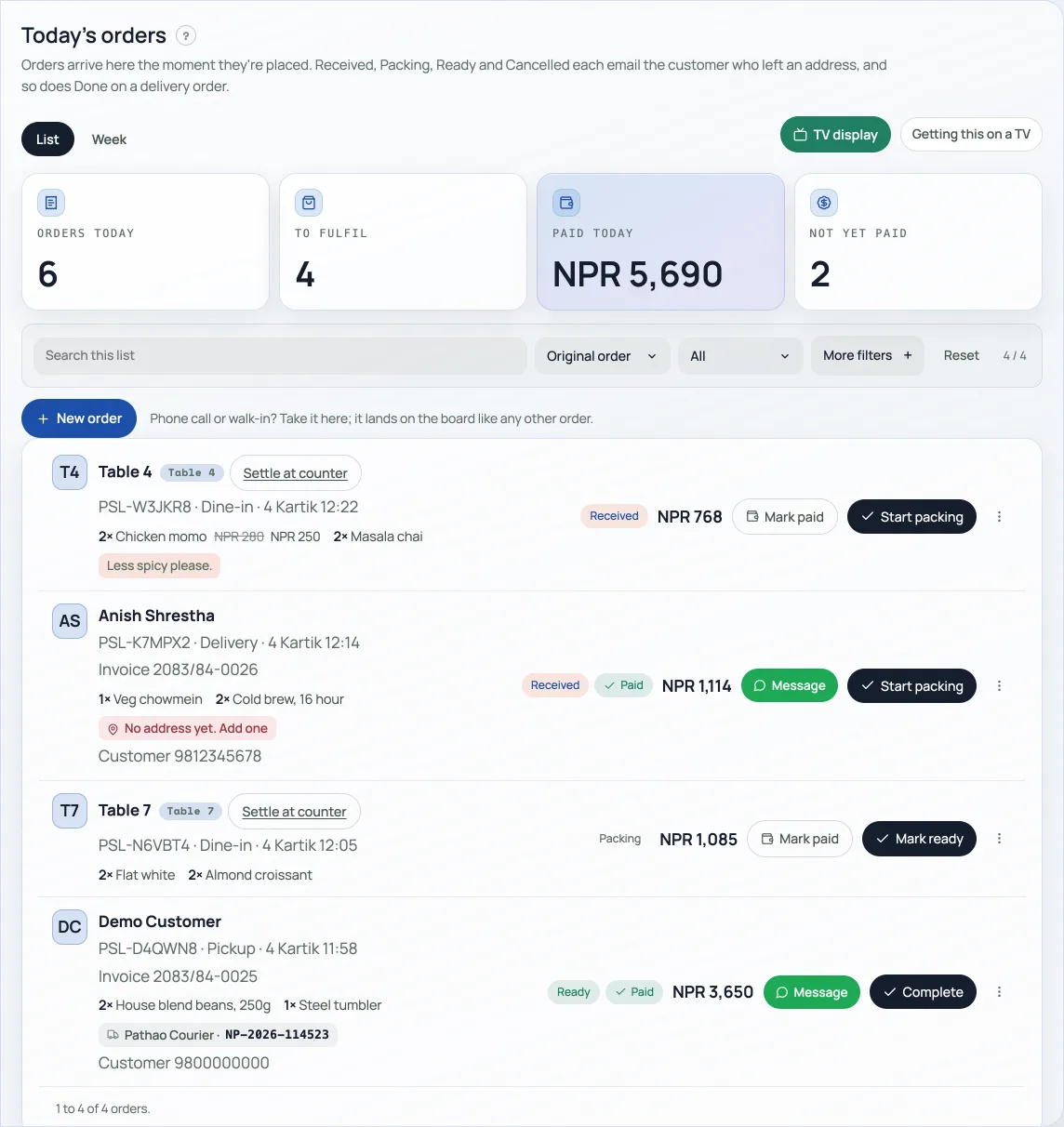
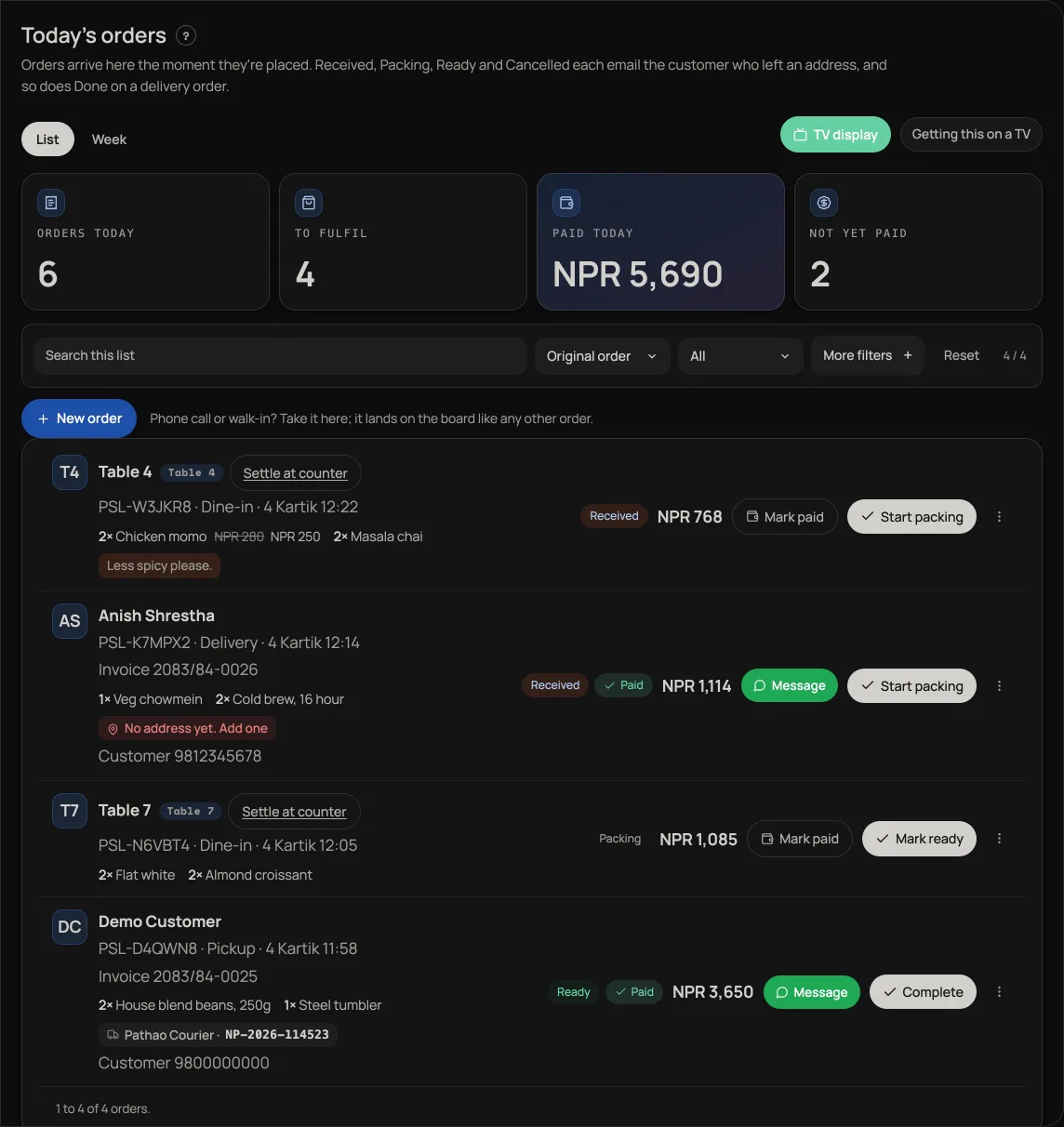
- Move it through fulfilment. Advance the status as you pack or prepare the order.
- Collect payment. Mark paid when cash or transfer is received so your records stay clean. An order that has been paid wears a green Paid badge beside its status chip, on this board and on Sales, so you can tell at a glance what is still owed. A counter bill put on Khata wears On Khata instead. Mark paid and Delete stay off that row, because the book and the bill are one record.
- Open the bill. Invoice opens the order's own document: what it is, the lines, the total, and the buttons to print it or email it. See Tax invoices and sales records.
- Cancel a mistake. Void an order that should not count as a sale.
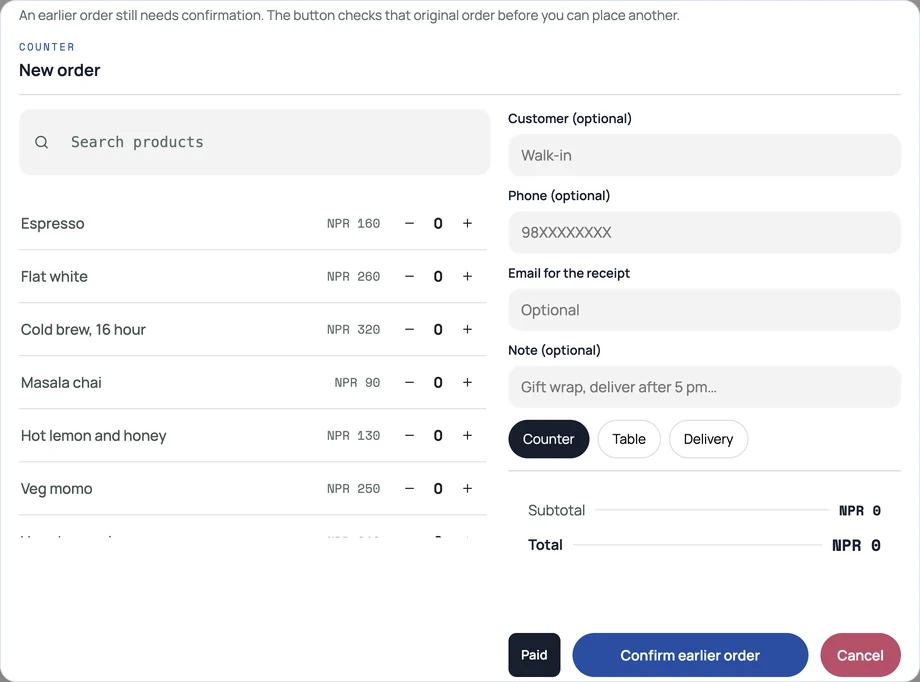
- Take an order yourself. New order lists only items that are live, shown on your shop and not sold out for today. Drafts, hidden items and items sold out for today cannot be ordered here, on your shop page or by a table order from Retriever Desk; a shopper is told one of the items is no longer on sale. See Manage your catalog.
If New order needs confirmation
If a connection problem leaves an earlier order uncertain, use Confirm earlier order. This checks the original order before another can be placed. Do not re-enter it as a new order while confirmation is pending. A failed or unknown check keeps the original attempt available to retry; a confirmed refusal lets you start again.
सम्पर्कको समस्याले पहिलेको अर्डरको नतिजा निश्चित नभए Confirm earlier order थिच्नुहोस्। नयाँ पठाउनुअघि पहिलेको अर्डर जाँचिन्छ। पुष्टि पर्खँदा त्यही अर्डर नयाँ बनाएर नपठाउनुहोस्। जाँच असफल वा नतिजा अनिश्चित भए पहिलेको प्रयास फेरि जाँच्न रहन्छ। अस्वीकार भएको पुष्टि भएपछि नयाँ सुरु गर्न मिल्छ।
Customers who leave an email get status updates as you move the order along, and a receipt with a PDF attached that they can keep or print. See The PDF receipt your customer keeps. Display dates follow your AD or BS choice in Settings → Language and dates. See Dates on your dashboard. Knocked something off over the phone? See Give a discount at the counter, which covers both the order card's discount and the one at the till.
- Manage your catalogAdd products, photos, prices, and take items off the shelf when you are out of stock.
- Get alerted for every new orderInstall the dashboard like an app and turn on notifications so nothing is missed.
- Give a discount at the counterAgree a price out loud and put it on the bill: one line, the whole bill, or an online order.