
Ring a sale at the counter
Open the counter, build a bill, take cash or QR, and hand over a receipt.
The counter is the sales screen: full screen, big buttons, made for standing up with a customer waiting. Every sale it takes is recorded straight away, already marked paid, so your books do not need a second pass at closing time.
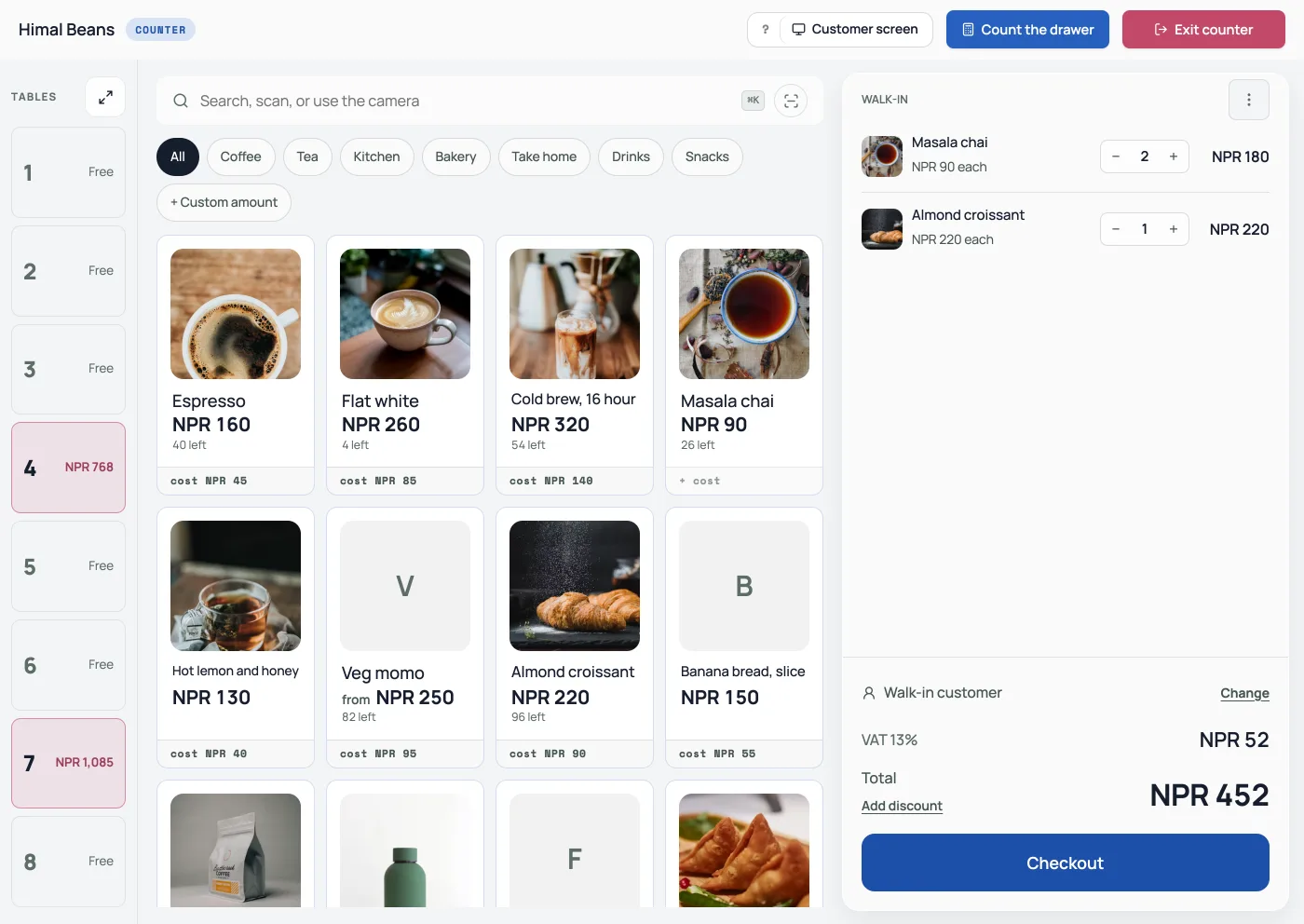
- Open the counter. On a computer it is Open the counter at the top of the left menu. On a phone it is the Counter button in the middle of the bottom bar. It takes over the whole screen. Exit counter puts you back in the dashboard when this is your own login. If the shop phone is signed in as the owner, a PIN does not hide pay: after somebody rings, the till stays until they press Sign in as yourself.
- Build the bill. Tap a product and it joins the bill on the right. The small line under each tile is the cost price, what it costs you; tap it to set or change it without leaving the counter. Only you see that line. Staff on the counter do not. Narrow the tiles with the category buttons, type in the search box, or scan a barcode into it: a USB scanner types the code and presses Enter, which puts the item straight on the bill. On a computer, press Ctrl K, or Cmd K on a Mac, or the slash key, to jump to that search box. An item with sizes asks which size; an item sold by weight asks for the scale reading. A draft is not for sale: publish it first.
- Ring something not in your catalog. Press + Custom amount, type the amount and what it is, and it goes on the bill as its own line. Cost price is optional, only you can type one, and it keeps the profit figures honest on a line that is not in your catalog.
- Correct as you go. The plus and minus on each line change the quantity. On a walk-in bill, the three dots are Bill options: Hold bill parks it, and Clear bill empties it.
- Name them if you need to. Under the bill it says Walk-in customer; press Change to search or add. Walk-in bills can skip this. Loyalty rewards appear here, next to the total they change. Add discount sits under the total. See Give a discount at the counter.
- Press Checkout.

Taking the money
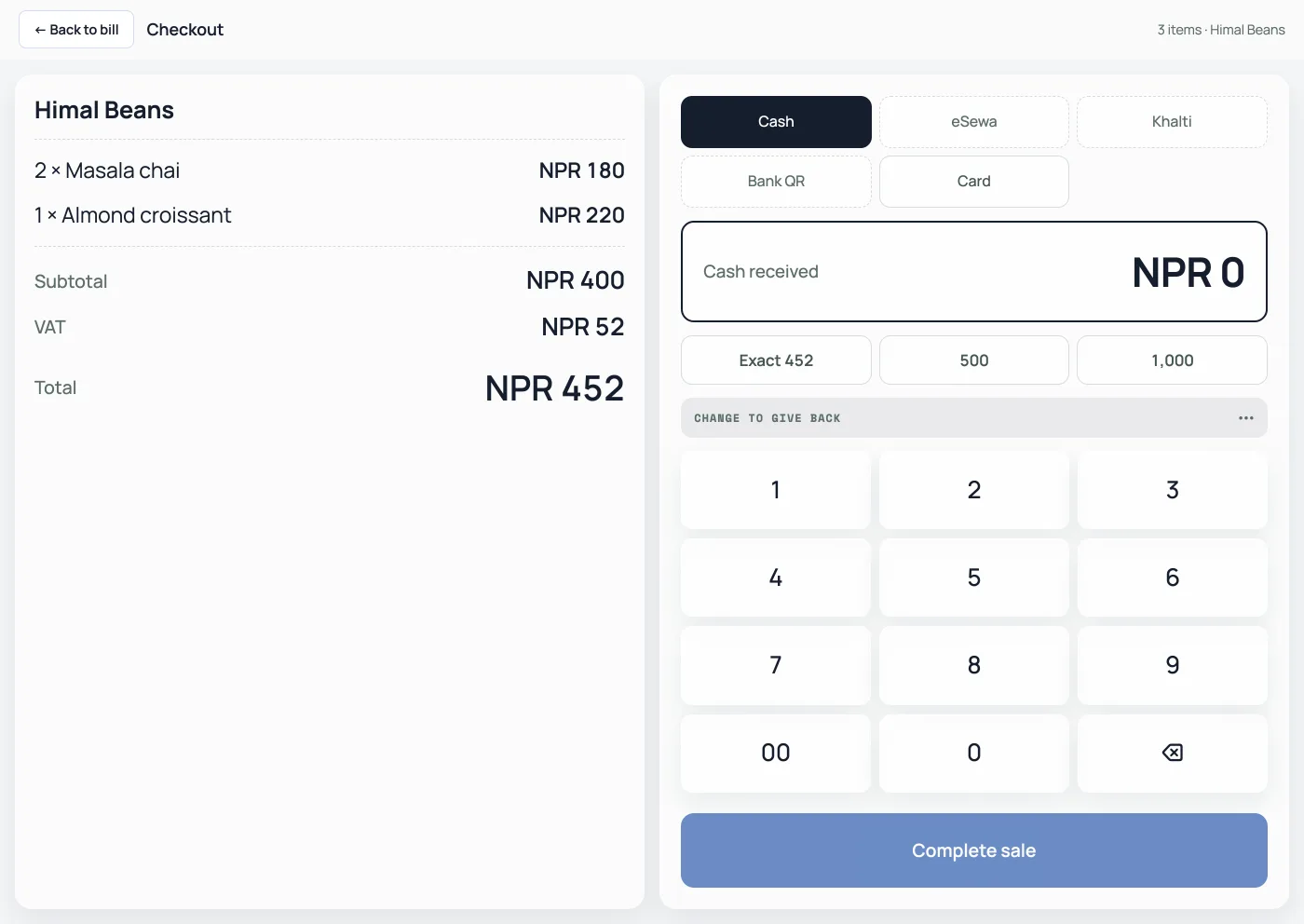
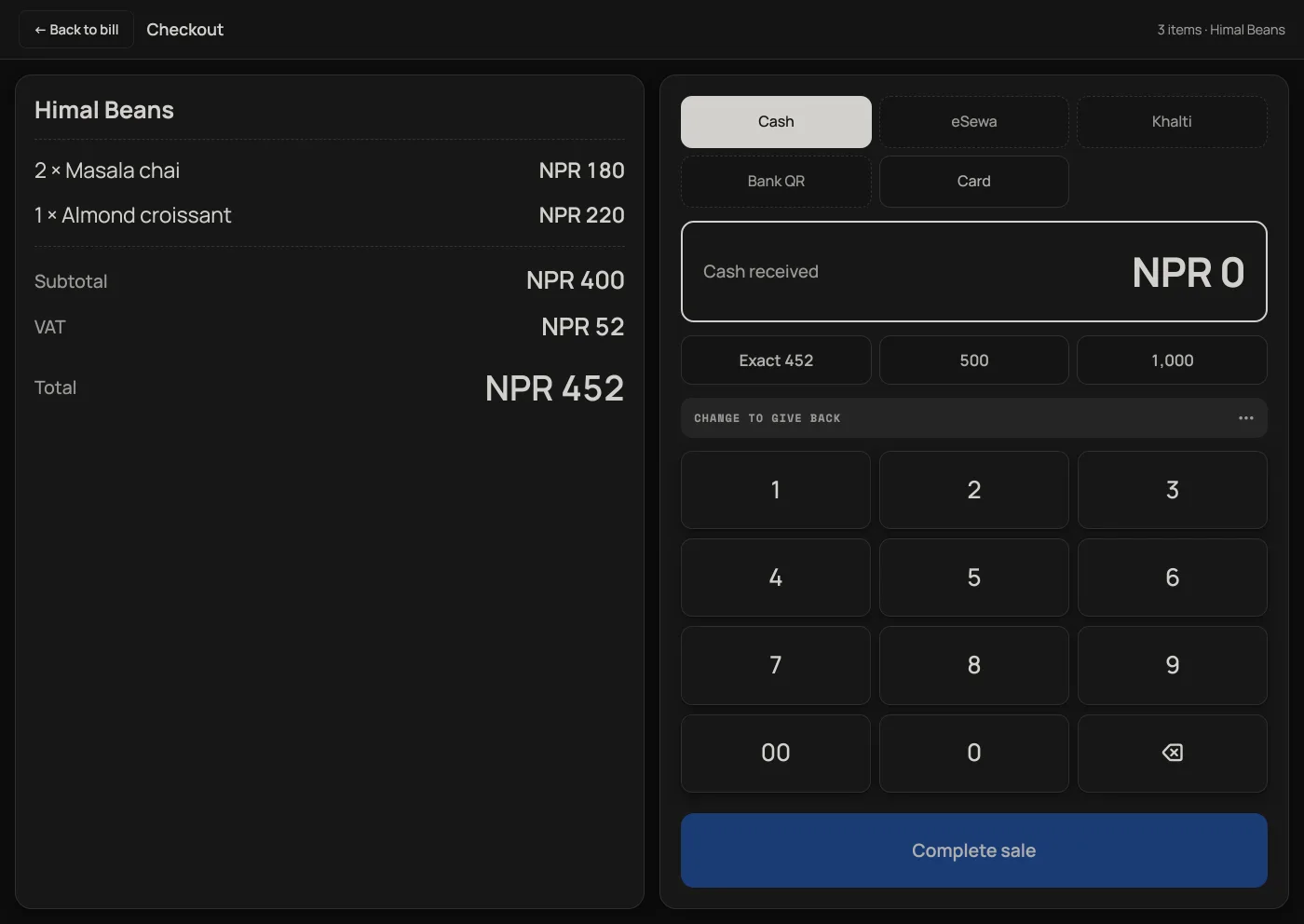
Press Checkout and the bill stays on the left as a receipt. The right side is how they pay. On a phone the bill you just built is already the receipt, so Payment keeps a one-line reminder and the pay controls. Back to bill returns you without taking the money.
Cash is the default. Tap a quick amount (the exact total, or the round note a customer actually hands over) or type what they gave you on the number pad. A short strip says Change to give back or Still to pay. There is no keypad on a wallet sale.
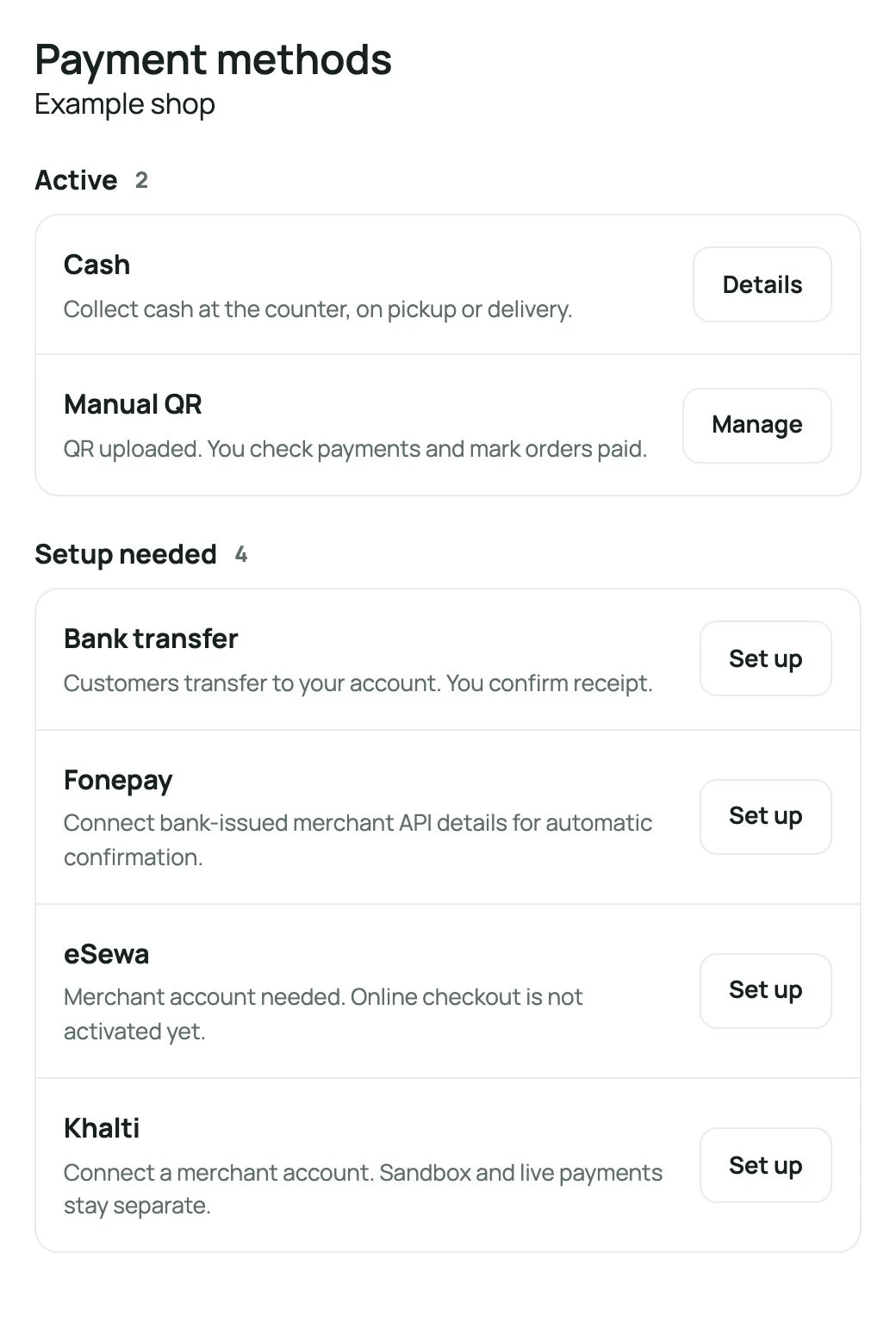
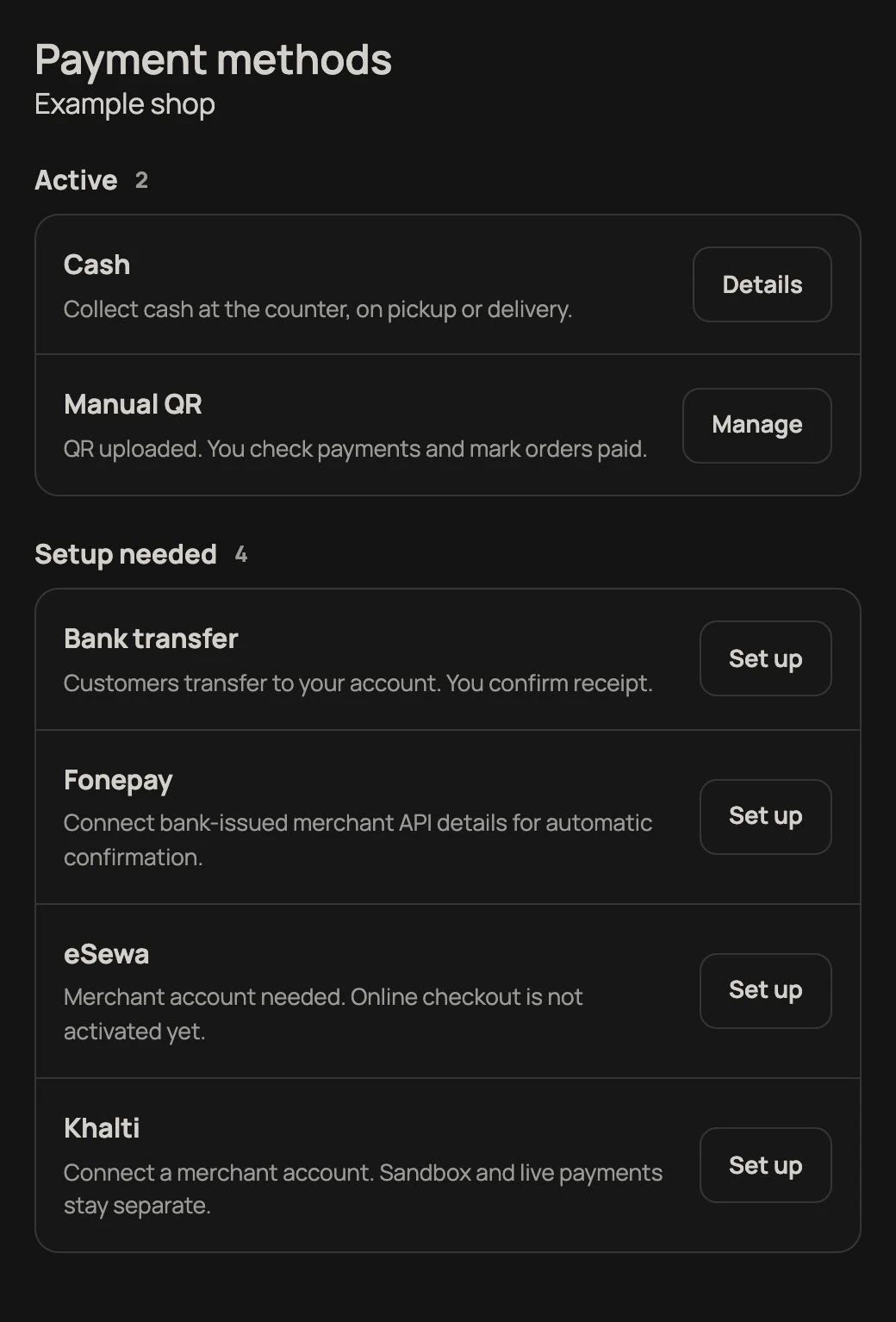
eSewa, Khalti and Bank QR show the shop's own code when one is saved under Settings, Payments. If the code is missing, the screen says so. Finish this sale with Cash or Card first. Do not leave the counter mid-sale to open Settings: that parks the bill while the customer is still waiting. Add the QR between customers. In Payments, press Set up beside eSewa, Khalti or Fonepay and choose Static QR to add that wallet's code. The Bank QR pill shows the Fonepay QR from your bank.
Card has no change to work out: take the money the way you always do, and press Complete sale. Then you can print the receipt, View receipt to read it full screen, send it on WhatsApp, or go straight to the next sale.
Khata sits with those methods, labelled Pay later. It does not mark the sale paid. It opens a popup over checkout. Choose the regular, take part of the money now if needed, and add the rest to their book. Before confirming, Close or Back to checkout returns to the same bill with your payment method and cash amount still entered. See Khata: let regulars pay later.
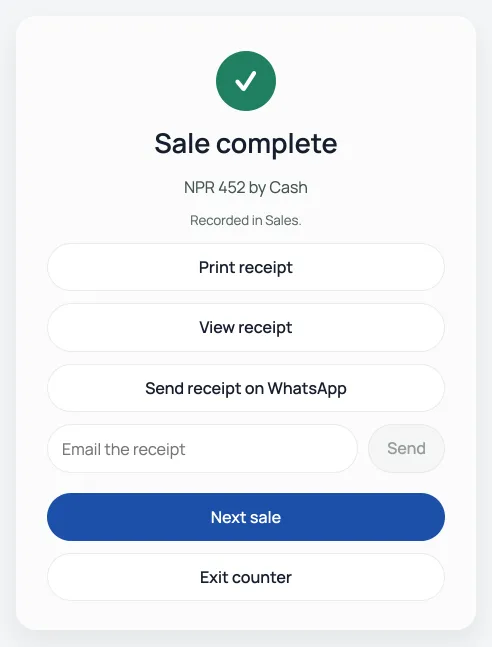
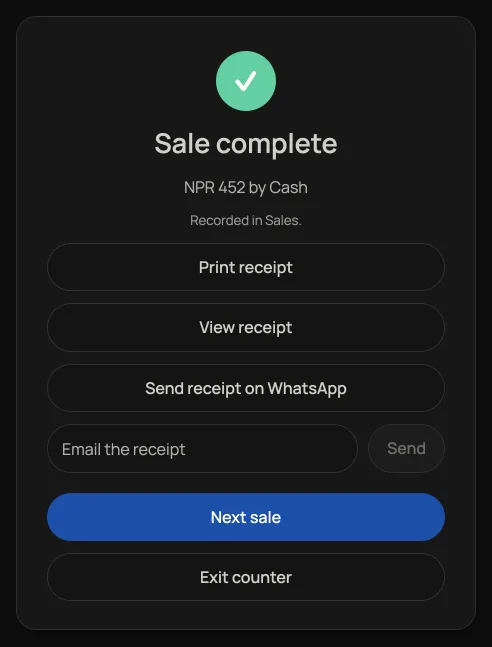
The printed bill is the same document the dashboard prints and emails. Set the roll once under Settings, Receipts and tax. See Print on a 58mm or 80mm roll.
Two customers at once
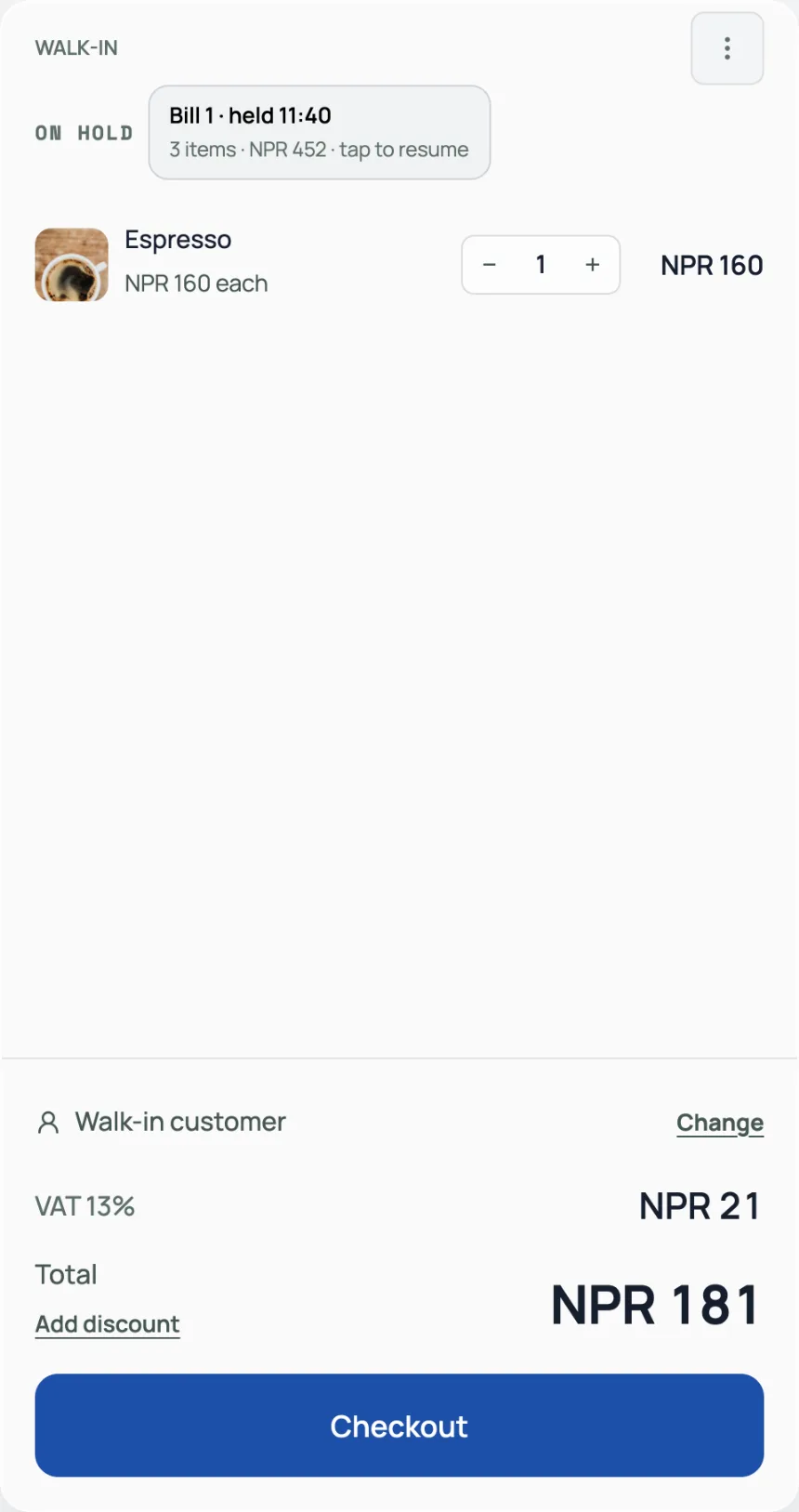
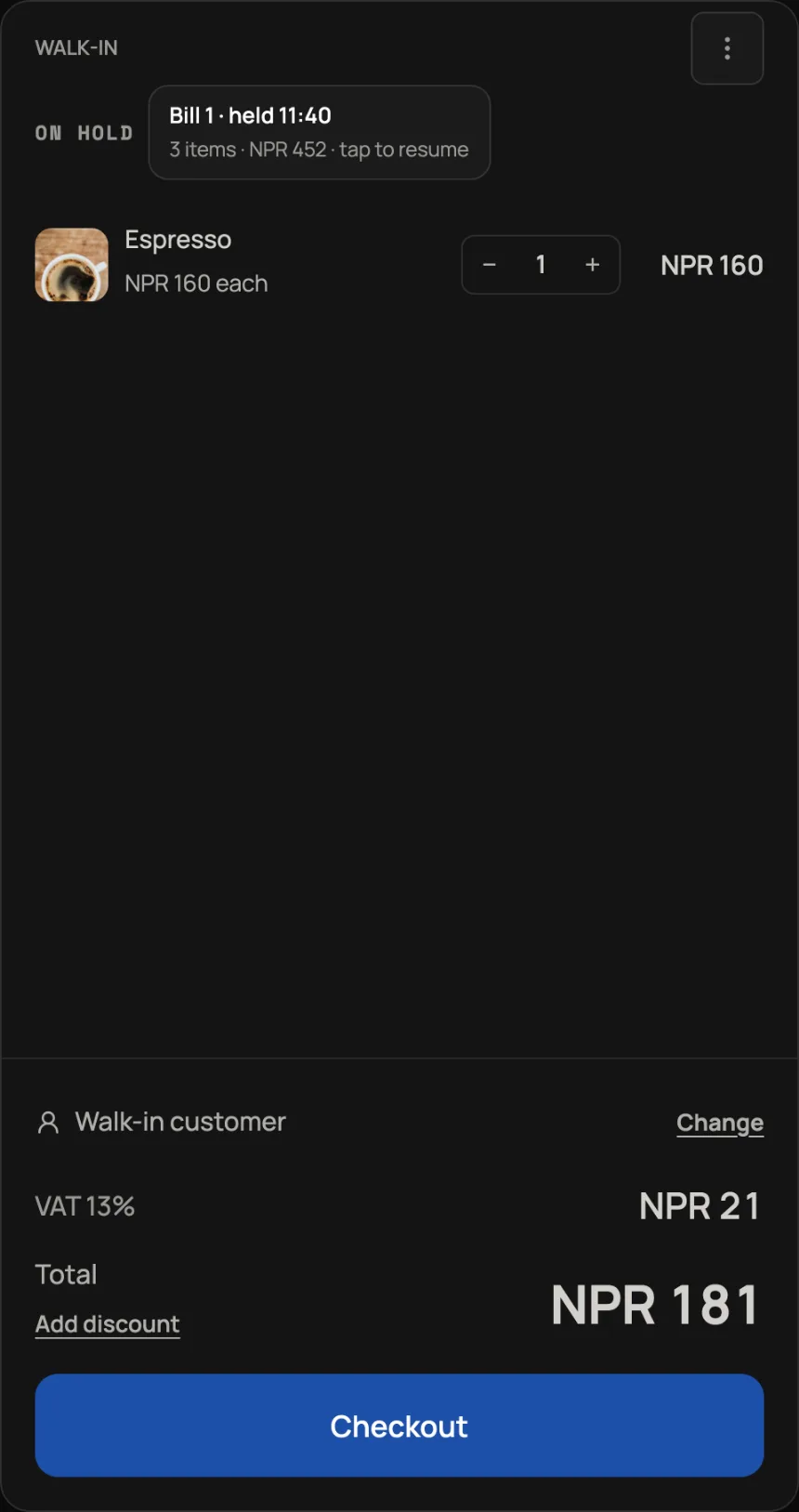
On a walk-in bill, open Bill options and press Hold bill. It waits as Bill 1, Bill 2 above the lines; tap it to bring it back. If a bill is already open when you resume another, it parks itself, so nothing is dropped. A parked bill waits five minutes and then it goes. Leaving the counter parks the open bill the same way. A table bill does not use Hold. Switch to Walk-in and the table draft stays where you left it.
When the internet drops
The customer has paid and is walking away, so the sale completes anyway. It is saved on that device, and a line under the top bar counts how many are waiting to sync. They go up on their own when the connection comes back, so leave the counter open on that device until the line clears.


Who is on the counter
Open Settings, then Who works here, and add them with a till PIN, or leave the PIN blank so they choose one when they open the counter. Once somebody has a PIN, the till asks who is ringing before it will ring anything. The name is stored with the sale and printed on the bill. The Staff tab in the rail then shows who took money today and this week. See See who rang at the counter. Tap the name in the top bar to hand the counter to someone else. If it is just you, nobody else has a PIN and there is no lock. A PIN names the sale. It is not a dashboard login. On a phone signed in as the owner, Exit counter after a PIN stays on the names; Sign in as yourself is how they leave, so Payslips and the tabs you ticked are theirs, not yours.
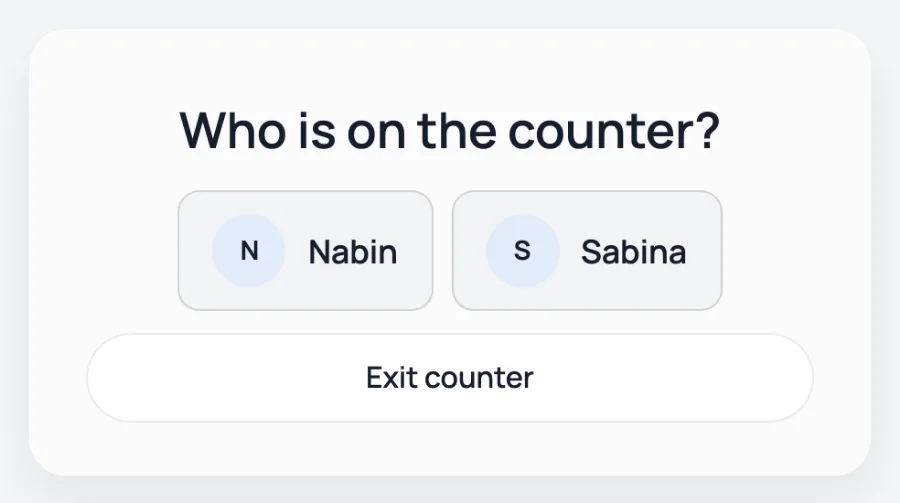
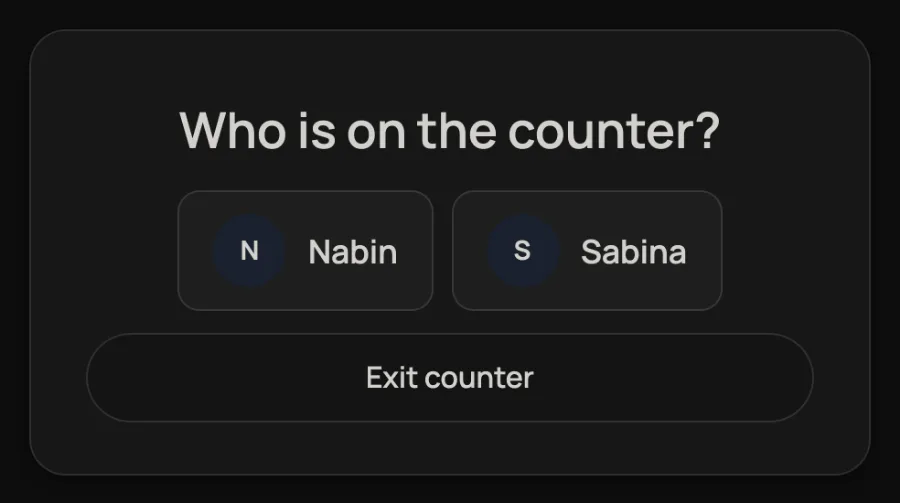
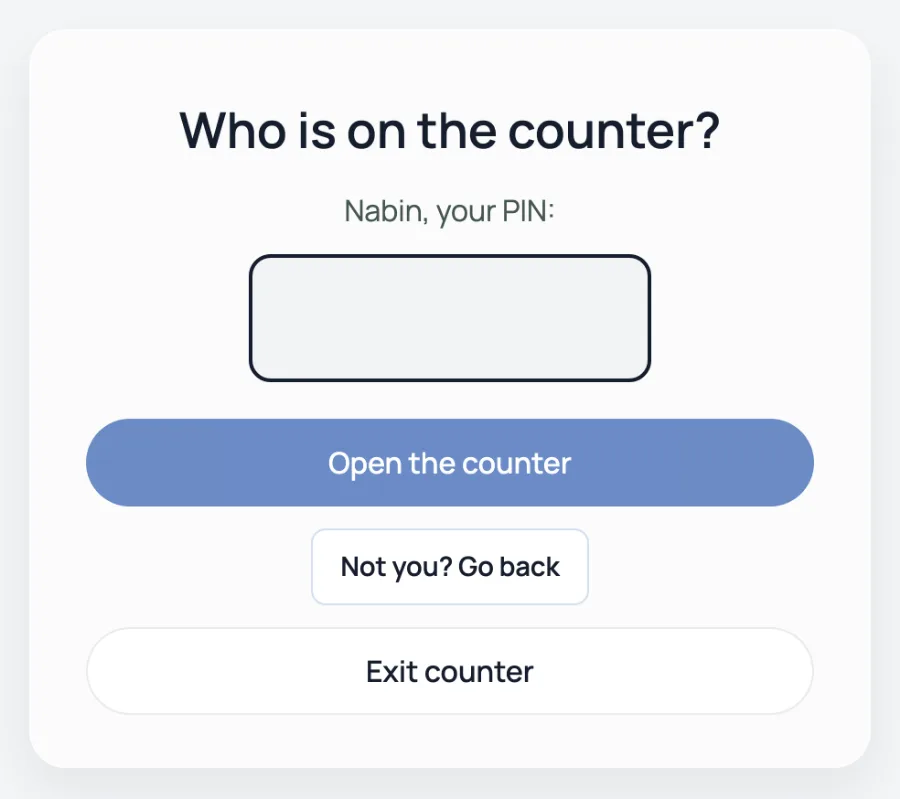
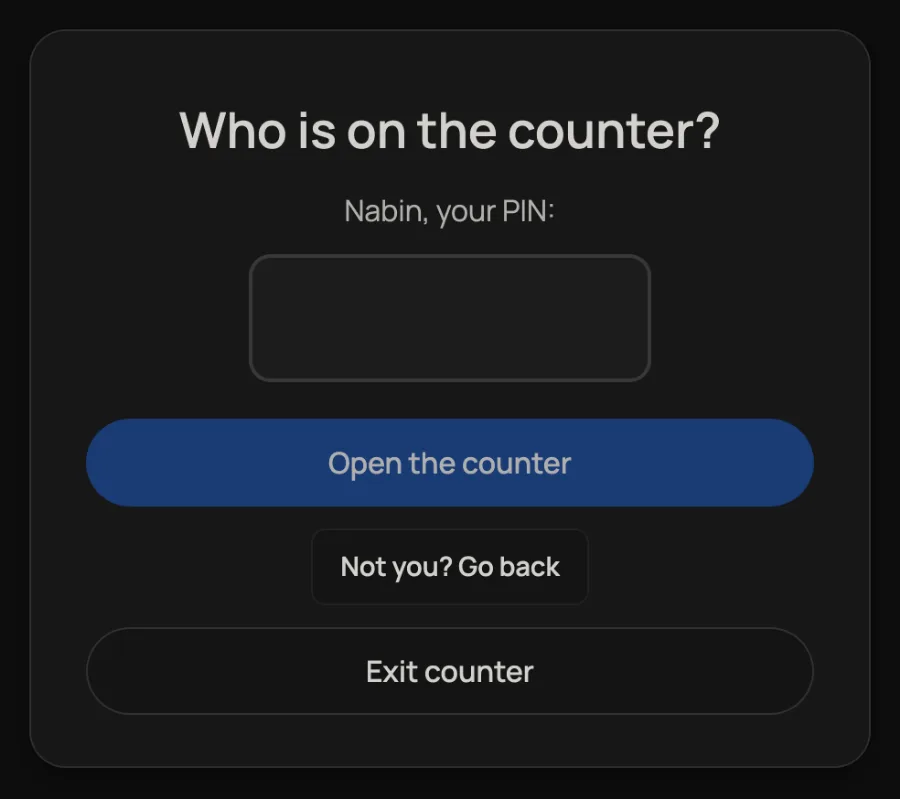
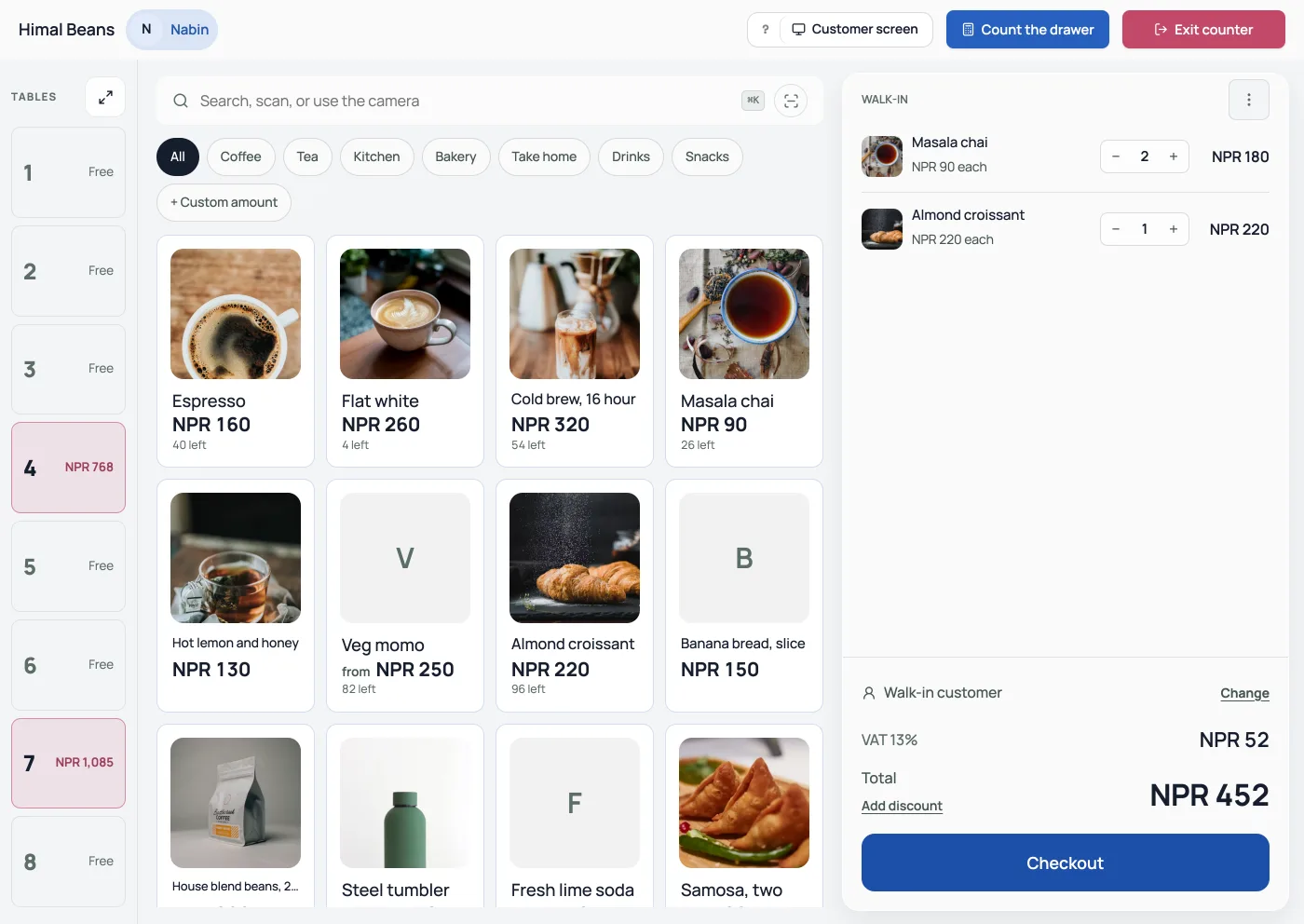
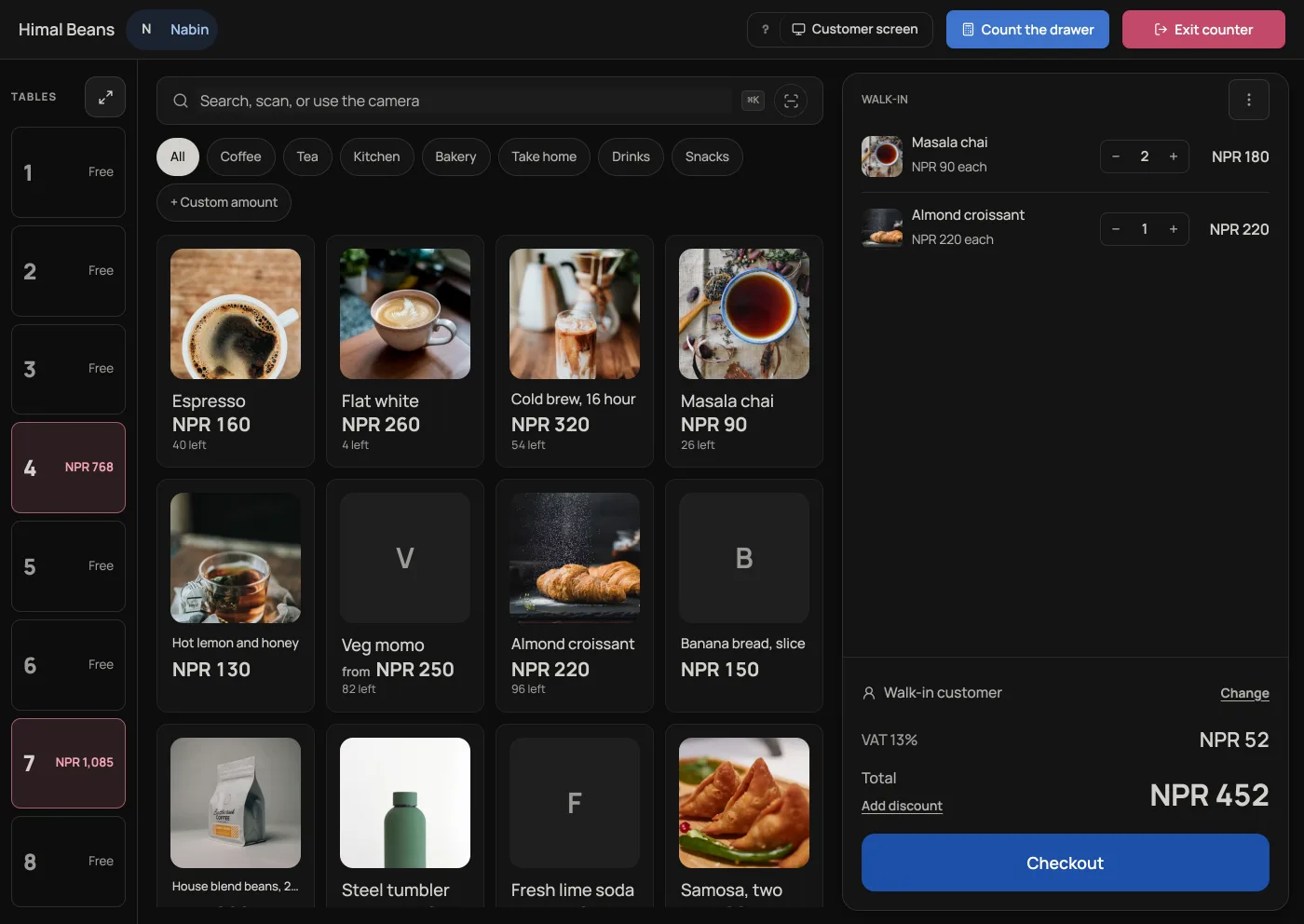
A staff member signed in with their email is named on the sale without a PIN, as long as the till is not asking who is ringing. If you have asked, they still type a PIN, and that name is the one that lands.
Retriever never shows a PIN again once it is saved. If somebody forgets theirs, open Counter PIN on their row under Who works here.
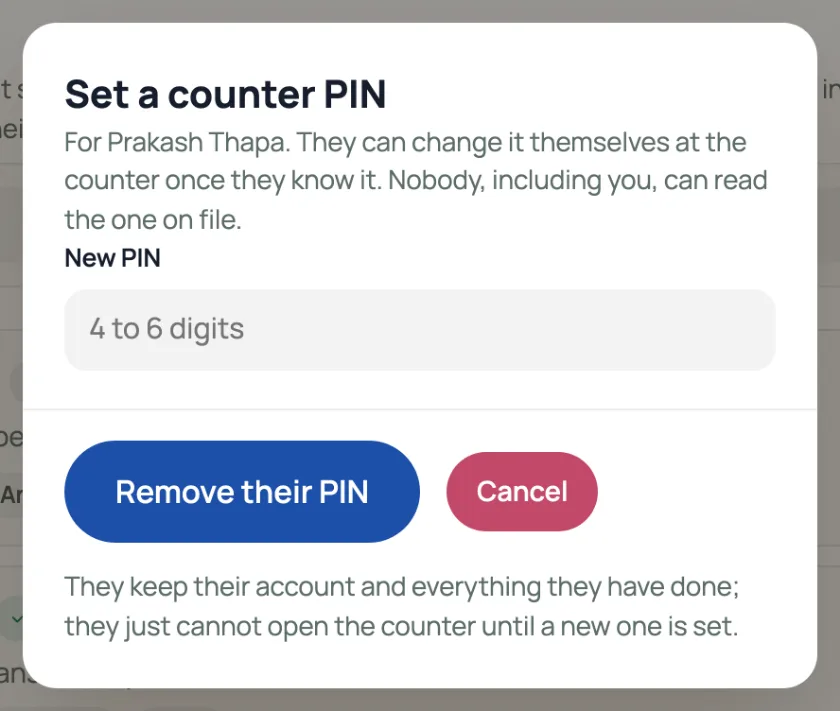
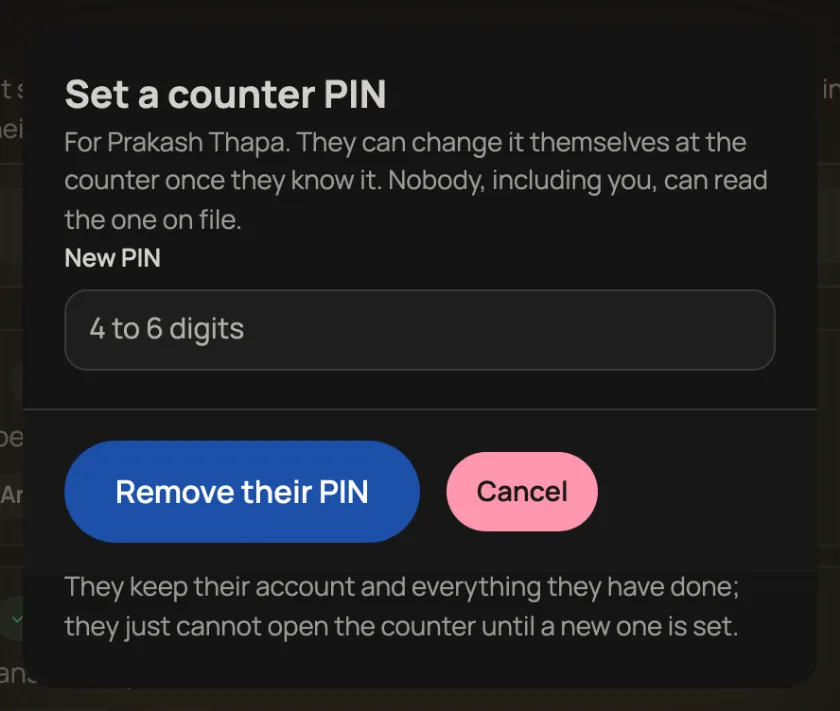
Five wrong tries within five minutes make that person wait a minute before trying again. It is only that person, so the counter still opens for everybody else, and the wait clears itself.
A first PIN check needs the internet. The open tab can then verify that person offline for up to twelve hours. Reload, tab close or sign-out clears it; browser storage keeps no verifier. Offline without one, the counter opens as No name and sales have no staff name.
With a saved review link, the Customer screen shows its QR after payment. SeeGoogle reviews for setup and timing.
A table that already ordered
Walk-in ringing is money now, goods now. A table is the opposite: the kitchen gets the ticket first, and you take the money when they leave. Shops with tables show a Tables strip on the counter. Tap a seat. New items say New items · Not sent, and the button is Send to Table 4, using that seat's number. After the send, that round shows the time it went and how long ago. The button becomes Checkout for what is already on the seat, so another round does not force you through payment. Edit sent items is how you change a saved line. Plus and minus, and the bin, write the kitchen ticket. Taking the last line off a ticket asks first, because that cancels it. Show all tables widens the strip. Walk-in leaves the seat and keeps its draft. Payment or Khata frees the seat. The full walk from Orders is Run a table from the dashboard.
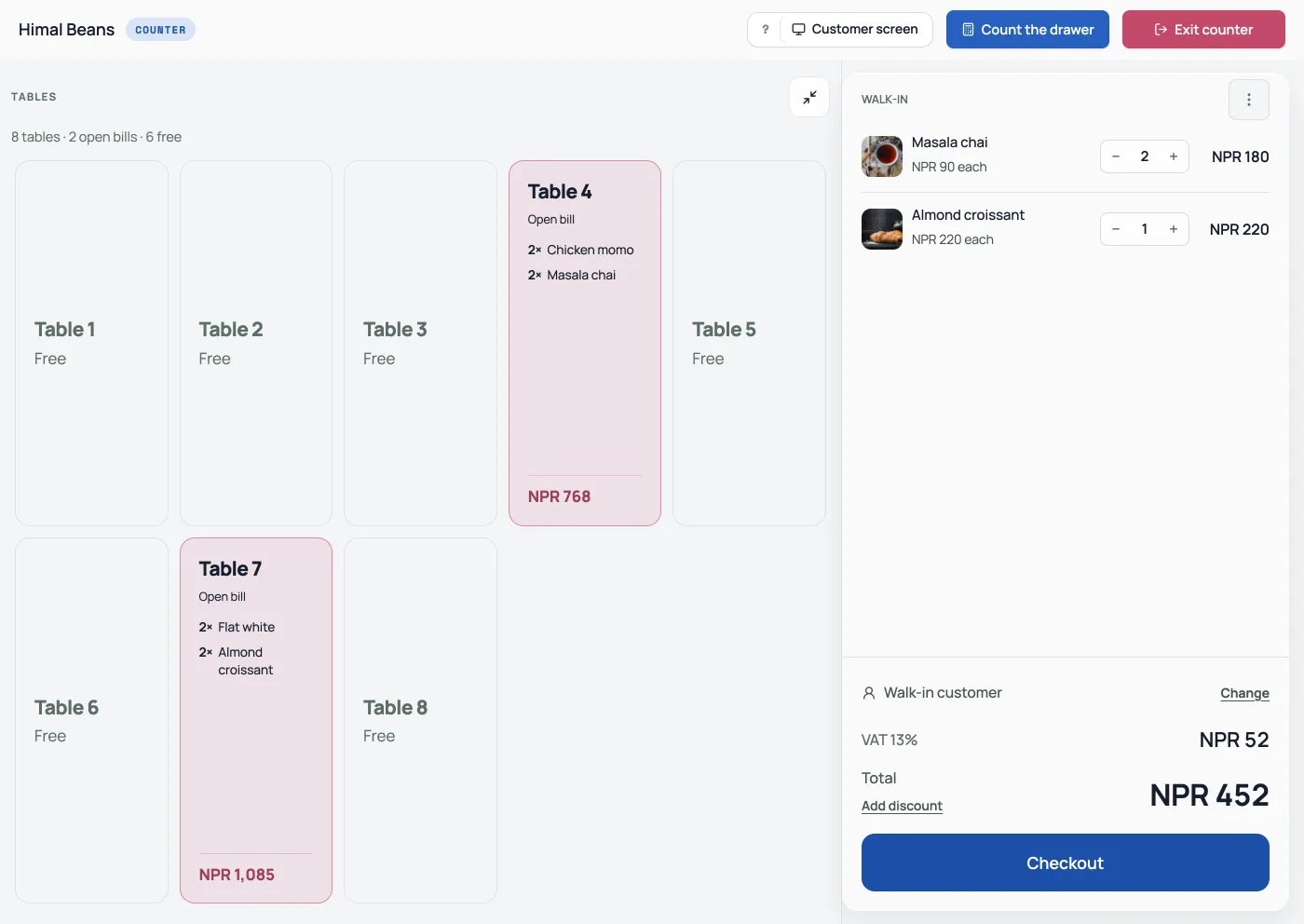
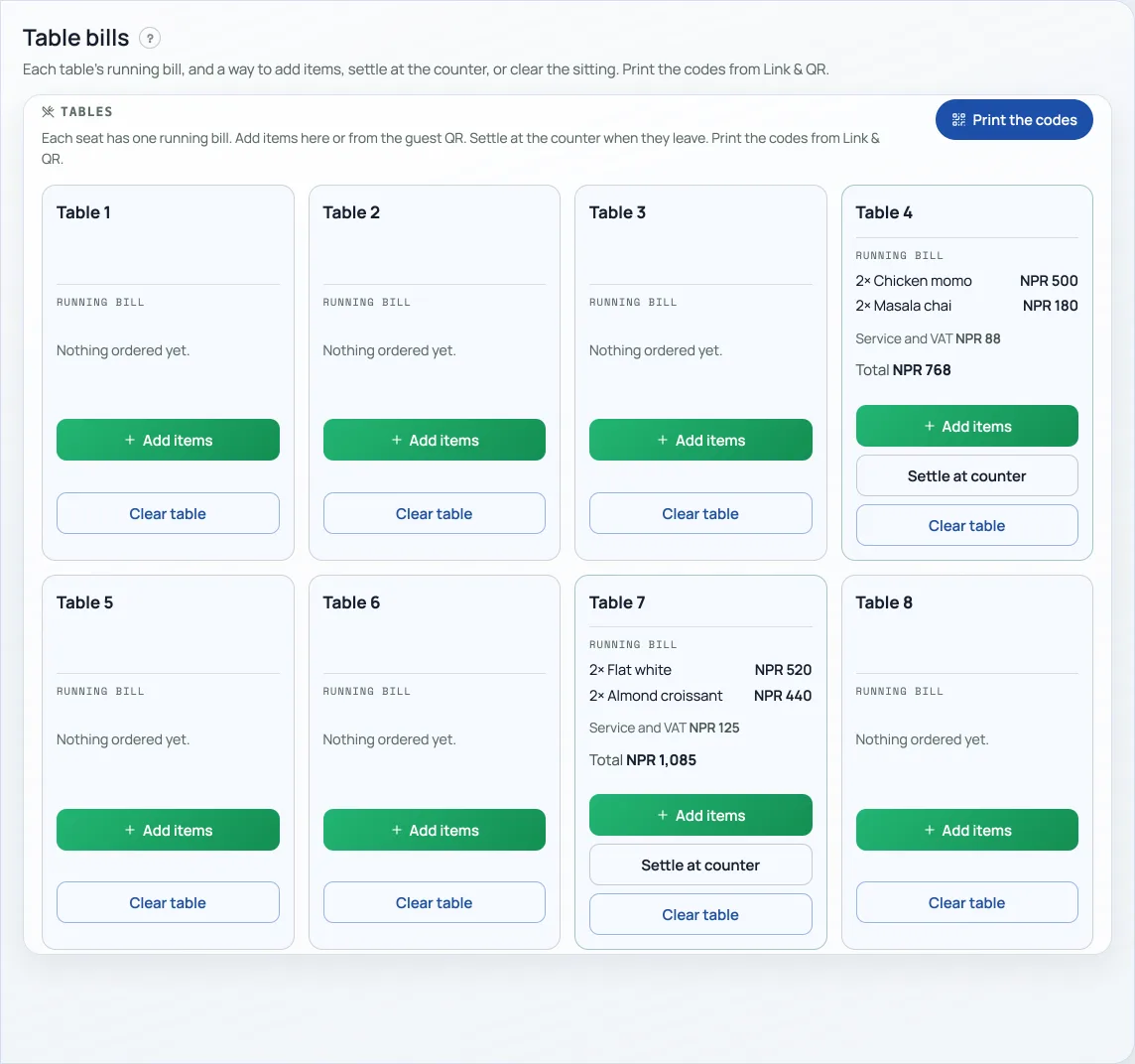
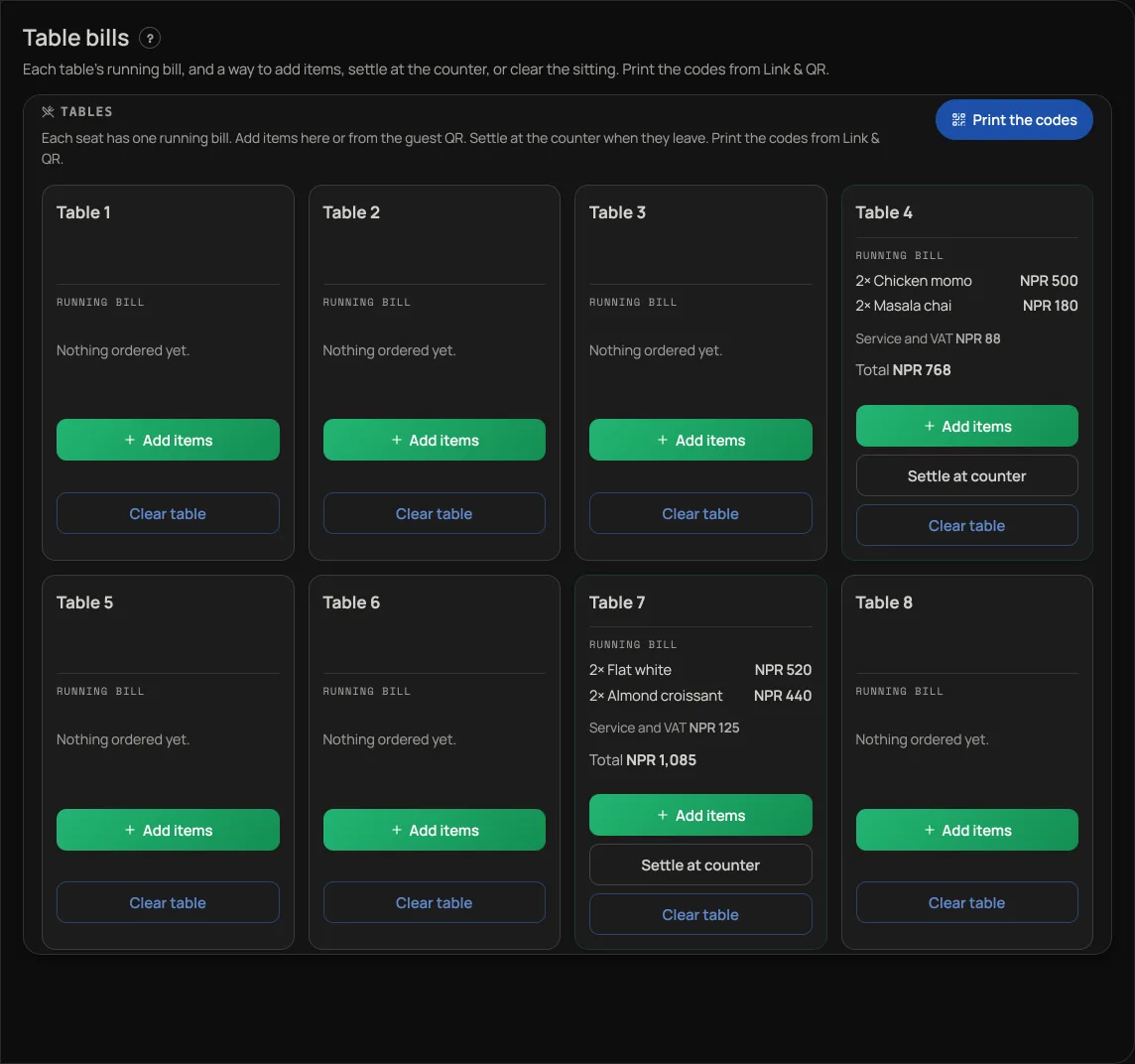
Counter sales land as Done and paid. They show on Sales, and on the Orders tab under Show completed orders, where a mistake can be refunded. Taking a phone order that still has to be packed is a different job: use New order on the Orders tab for that.
A screen that faces the customer
Open the counter, then press Customer screen. On a phone it is in the menu with the three dots. On this computer a second window opens. Drag it onto a TV plugged into the same machine. On an iPad it fills this window. Stay on that screen.
On a different iPad or TV, sign in to the same shop, open the counter, and press Customer screen there. The bill follows from the till you are ringing. That other device must stay on the customer screen. If it is sitting on the dashboard home, it is not listening.
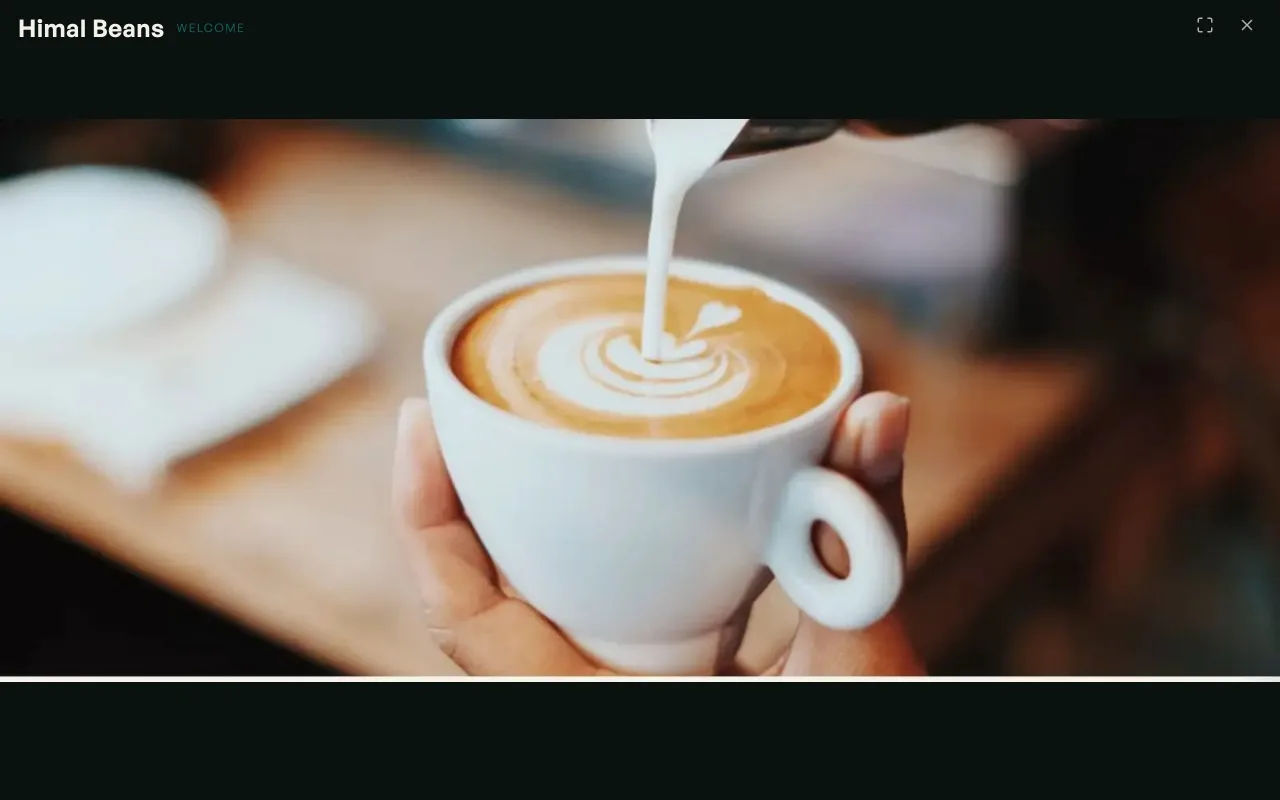
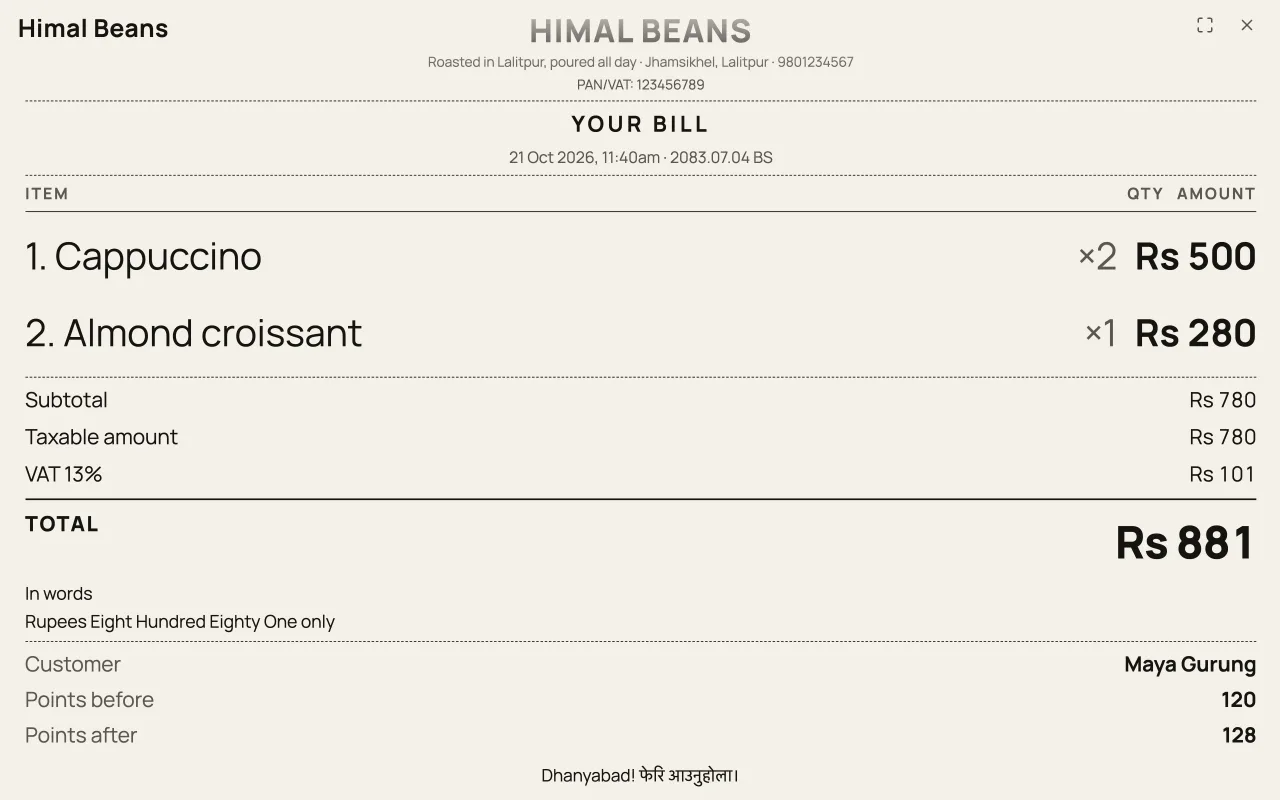
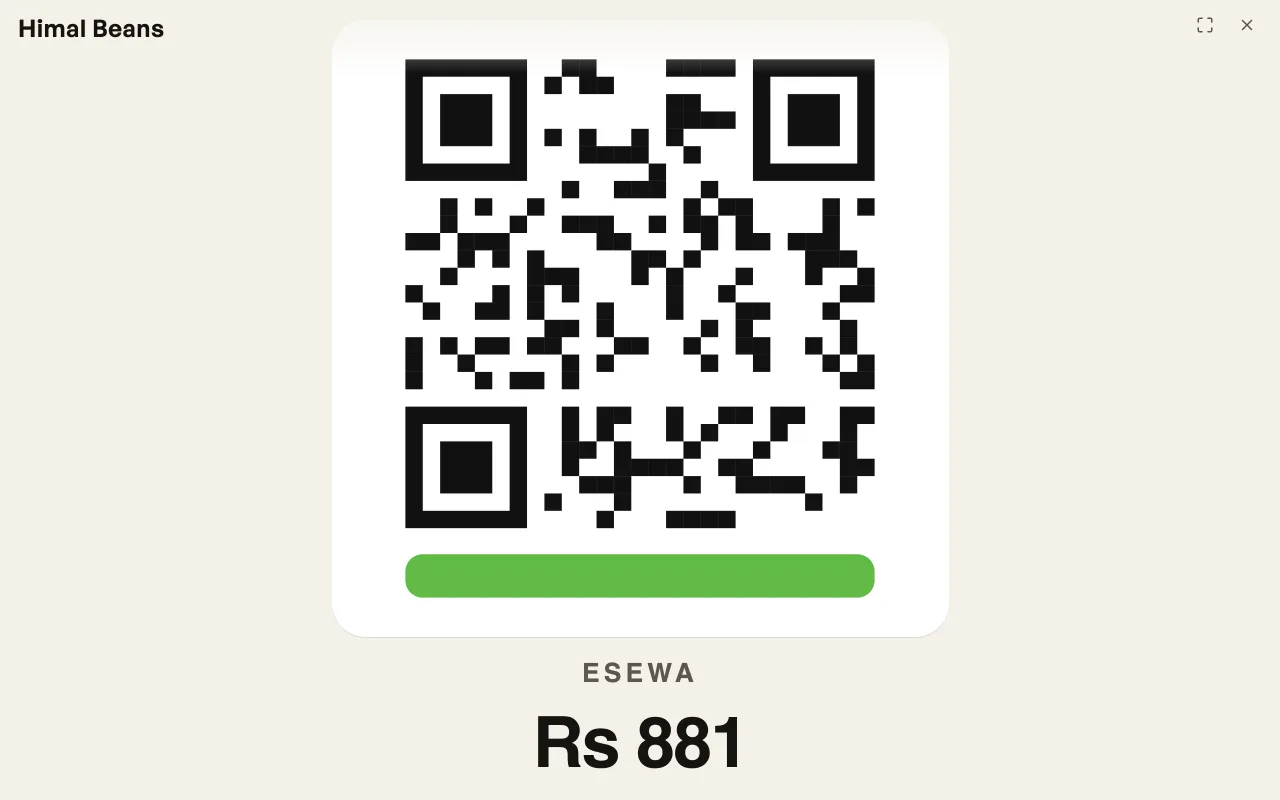
That window keeps showing photographs until you ring something. The pictures come from Marketing, on its Customer screen photos tab. If you have not added any there yet, it uses photographs from your shop page. The moment a line joins the bill, it becomes their bill: each item, the running total, and Please pay when you take the money. If you pick eSewa, Khalti or Bank QR, and that code is saved on Settings, the customer screen shows it so they can scan from where they stand. Cash and Card have no picture. If you attach a customer on the bill, that screen names them and shows points before this bill and points after it. Their phone does not. Clearing the bill, or leaving the counter, puts the photographs back. Count the drawer never appears there.
Sending to a table is not taking money, so that screen does not say Please pay. While you ring for a seat it says This order, only the lines you are about to send. After Send to Table 4 it shows those lines with Sent to Table 4 and Nothing has been paid yet, then the photographs come back. Checkout is when they see the whole seat, then Please pay, then Thank you.
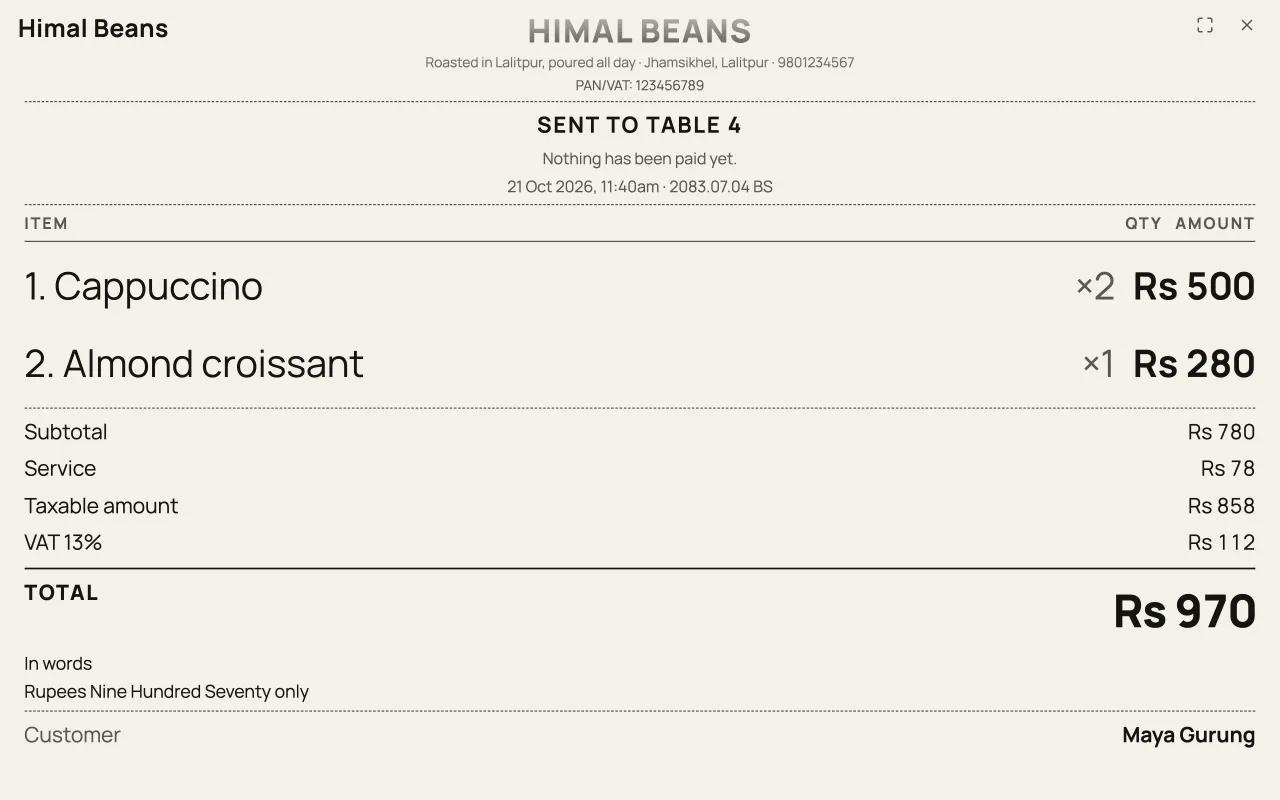
This is not the TV board. The board is for the kitchen and for collection. This screen is the money the person in front of you is about to pay.
Several people, several TVs, a mall, and a supermart with more than one queue are under Staff email, the customer screen, and several counters. A staff email does not give them their own till.
The counter is a Pro tool. When Pro ends the dashboard locks until you subscribe; every sale you have already taken stays in your books. See What Pro costs and how to turn it on.
- Give a discount at the counterAgree a price out loud and put it on the bill: one line, the whole bill, or an online order.
- Check the month's takingsThe Sales tab month by month: what counts as paid, what is still owed, and the spreadsheet for your accountant.
- Khata: let regulars pay laterKeep the credit book on your phone instead of a notebook by the counter.