
Manage your catalog
Add products, photos, prices, and take items off the shelf when you are out of stock.
Your catalog is what customers see when they open your shop link. Keep it current and orders stay accurate.
A brand new shop starts with an empty shelf: nothing is added for you. Home points you to Add your first product, and every product on your shop page is one you put there.
Add a product
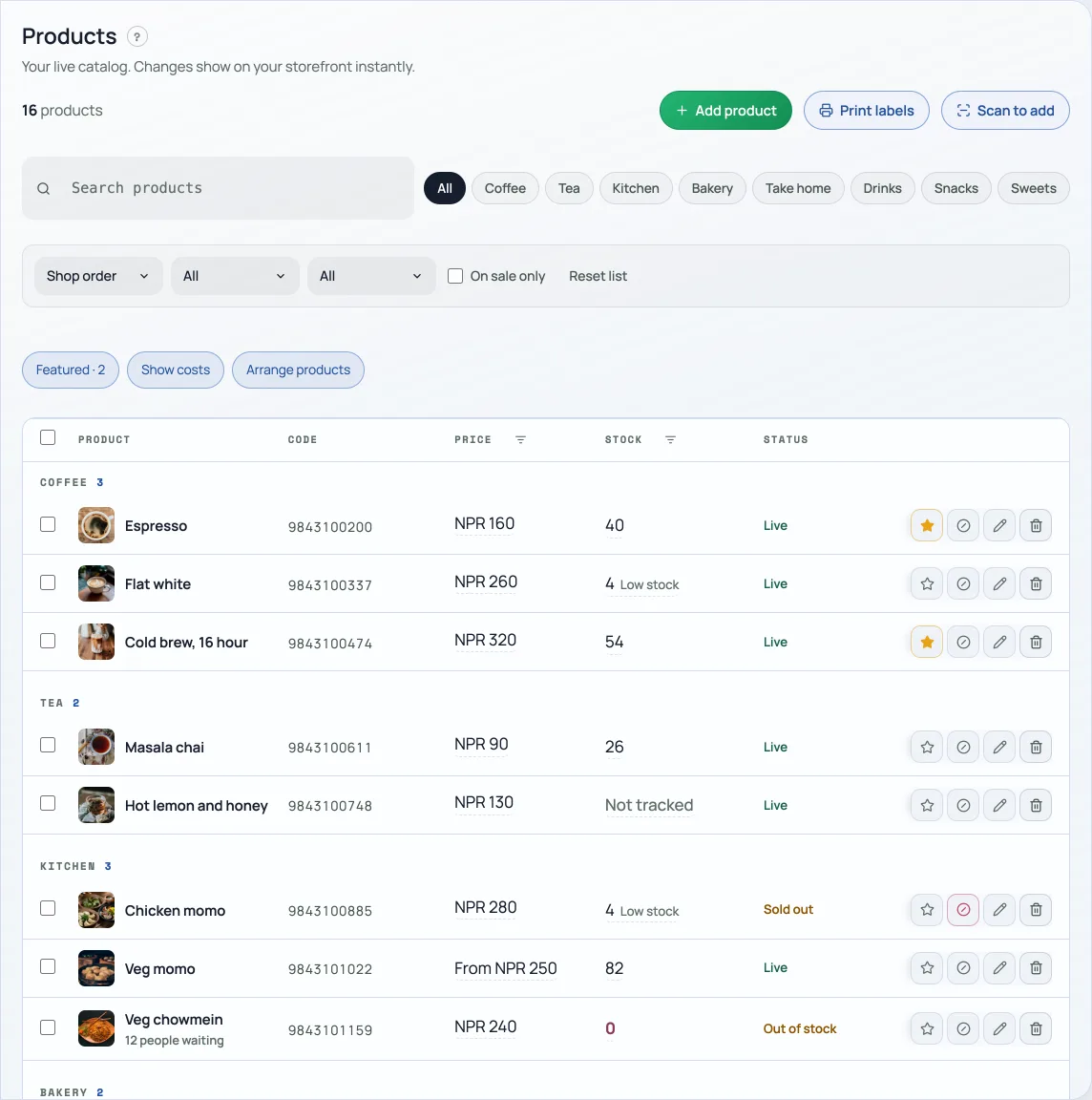
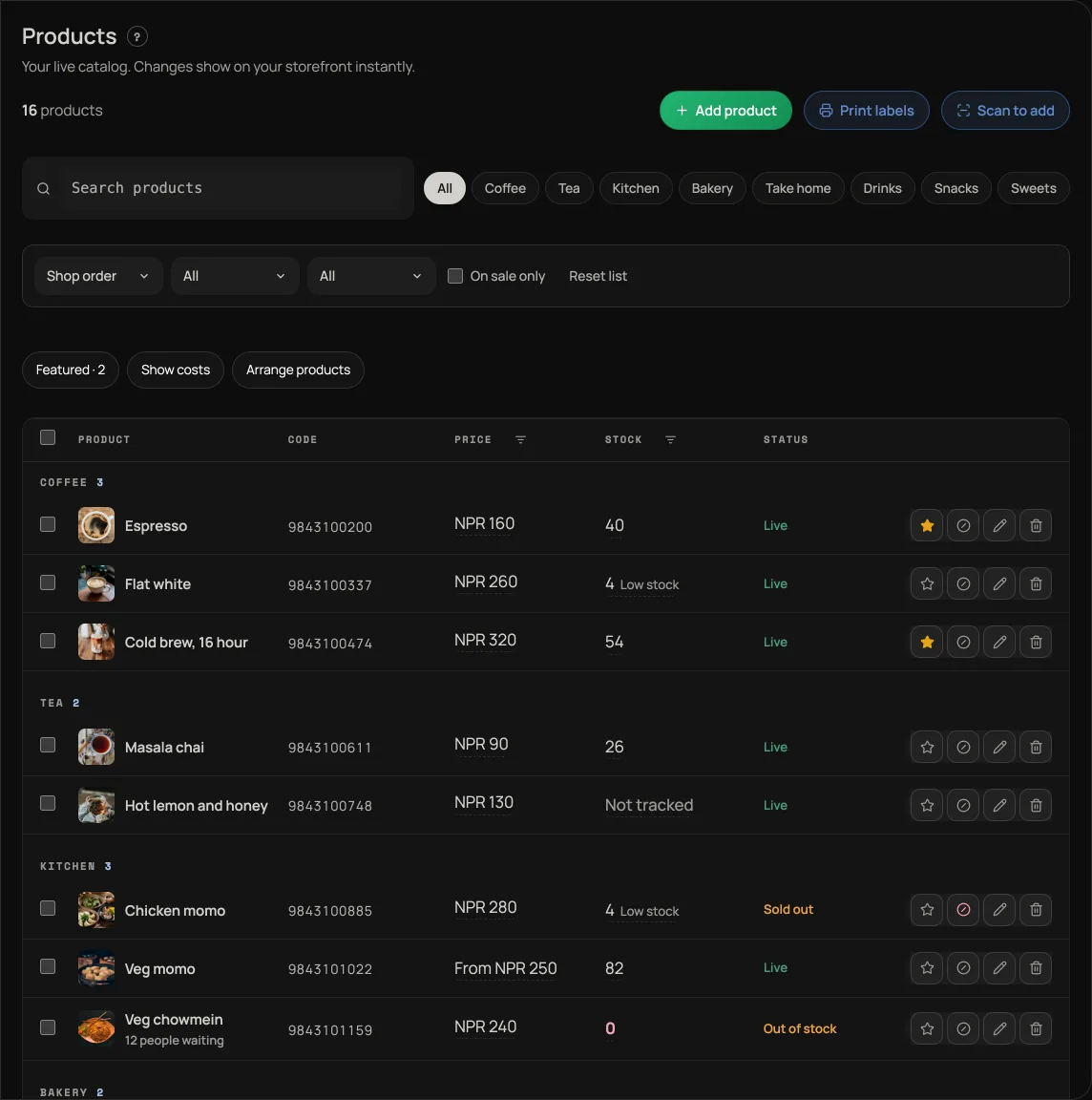
Open Products and press Add product. The editor is two columns: what you are selling on the left, its photos and category on the right. To start from a picture instead of typing, use Add from photo at the top of the screen; see Add a product from a photo.
- Name and description. Open Description to write the optional description. Leave a blank line between paragraphs and they stay separate on the product page.
- Price, in NPR. Sale price in Cost and offers is what you are charging instead; leave it empty for no sale, and the old price shows struck through on your shop.
- Cost price in Cost and offers is what the item costs you. Only the shop owner sees product cost prices, and it turns your takings into profit everywhere money is shown. See Track cost price and profit.
- Stock counts down as you sell and stops the counter at zero, if you want it counted. See Count stock so you cannot oversell.
- Badge is the small word on the card: New, Bestseller. Barcode is for scanning at the counter; a USB scanner types straight into the box.
- Photos. Tap the photo preview to open its popup. The first one is the cover. Press Make cover on another shot to move it first. Pick Fill the frame if you want the picture cropped tight, or Show the whole photo if nothing on it must be cut off.
- Tag a colour onto this photo. With a colour on the product, tap Black or Cream under the strip. That shot is what the shop page shows when a shopper picks that colour. A colour with no photo of its own falls back to the product gallery. Sizes do not get photographs.
- Category. Type a new one or tap a chip of the ones you already use. Categories are what the filter row on your shop is built from.
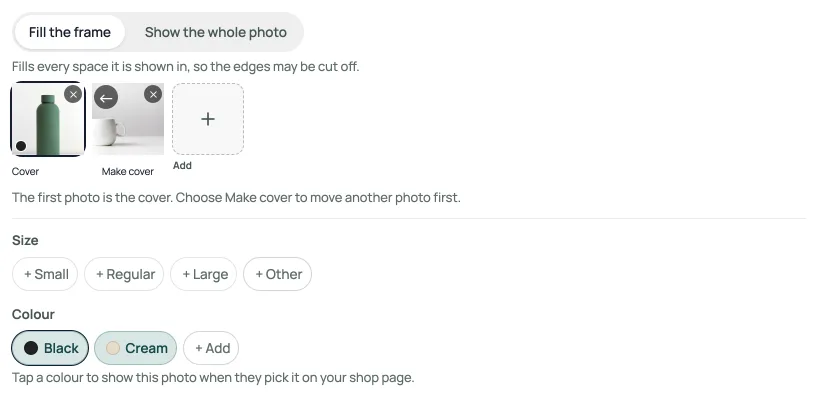
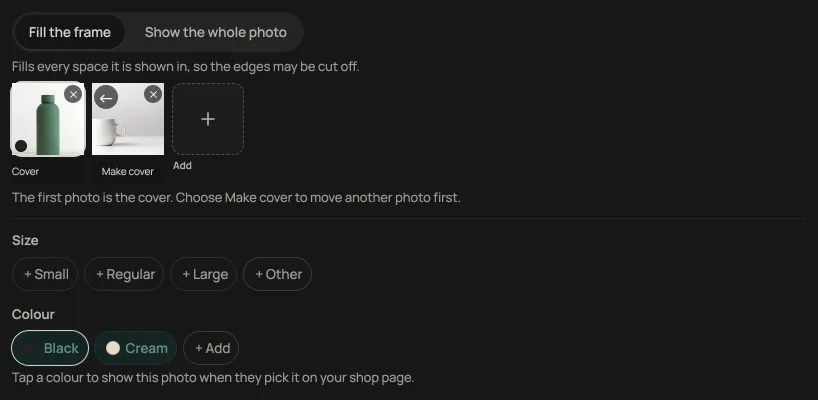
Detailed sections open in popups so the main editor stays short. Done keeps your edits in the product form; use the main Save button to save them. Serial-number records save as you record them.
Sizes and colours
One product, many versions: a kurta in three sizes, a mug in four colours. Open Manage options (or Add options) to edit them. The Photos popup also has quick size and colour chips. Each size can carry its own price, and any single size or colour can be marked sold out without taking the product down. See Sell one product in several sizes and colours.
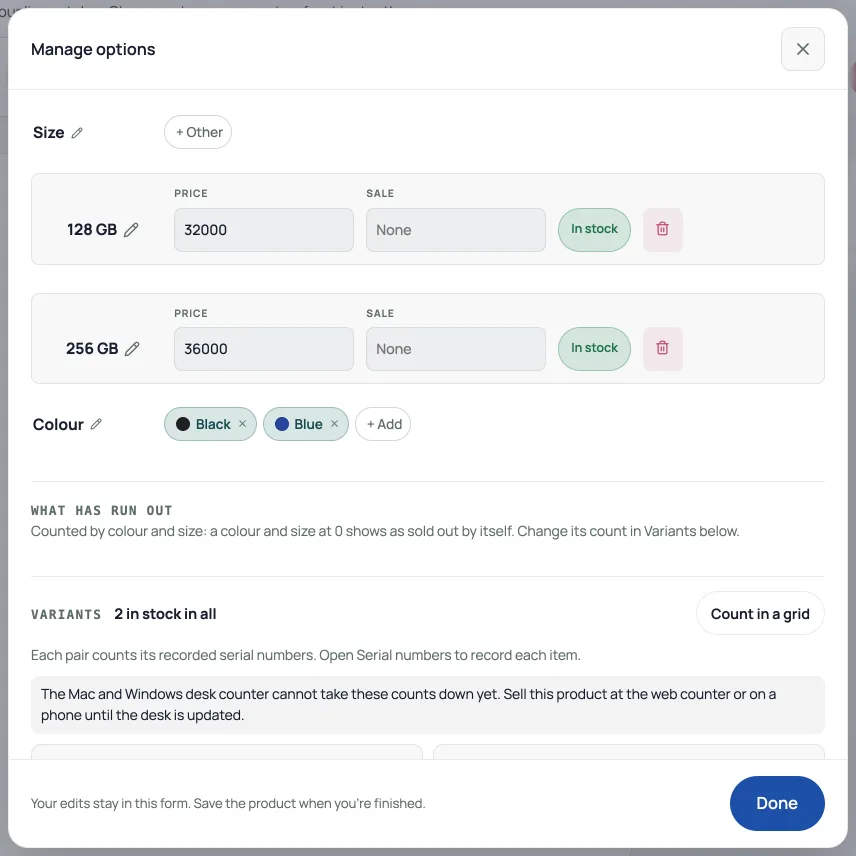
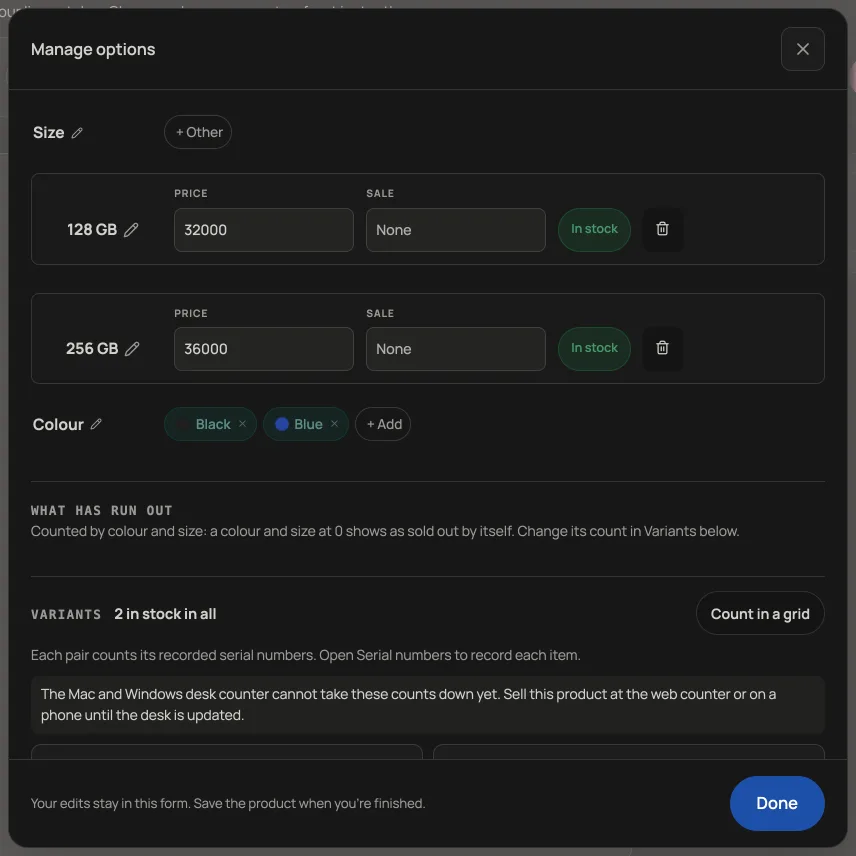
Each colour/size pair can now have its own stock count and barcode. At the web counter choose the pair, or scan its own tag. For individually identifiable items, use serial numbers.
Feature the ones you want seen
For clothing descriptions, angle photos and Instagram style codes, follow Prepare a clothing product for your website and Instagram.
The star at the end of a product row pins it to a Featured shelf at the top of your shop. Use it for what is fresh, what has margin, or what you want to move this week. See Feature a product on your shop.
Publish or keep it as a draft
A new product has two buttons. Publish product puts it on your shop page straight away. Save draft keeps it off the shop page, so you can start it on your phone and finish it later. A draft shows Draft in its Status column; tap that word to publish it. Once a product is live, Save in its editor changes it on your storefront immediately.
When you run out
Toggle a product off and it disappears from the shop immediately (its Status reads Hidden); turn it back on when stock returns. A cafe that only wants it gone until tomorrow should use the sold-out toggle instead, which leaves the item on the menu greyed out rather than pretending it never existed, see Mark an item sold out for the day.
What cannot be sold
A Draft, a Hidden item and one Sold out for today cannot be sold anywhere:
- Your shop page: none of them can be ordered. A shopper whose bag still holds one from earlier is told one of the items is no longer on sale.
- Orders → New order lists only items that are live, shown and not sold out for today.
- The counter does not show them in its grid. Scanning a draft's barcode says This item is a draft. Publish it in Products to sell it.
- Table orders sent from Retriever Desk with one of them in are refused, the same as an online order.
- A draft cannot be picked as a product card in the Inbox. A hidden or sold-out item still can, so you can tell a customer when it is back.
A sale Retriever Desk already rang offline is kept even if the item became a draft before Desk sent it, because the customer has paid.
- Mark an item sold out for the dayRun out of momo at eight? Grey it out on the menu and let it come back tomorrow.
- Sell one product in several sizes and coloursOne product page, a price per size, and stock and barcodes for each colour/size pair.
- Count stock so you cannot oversellGive a product a number, watch it fall as you sell, and let it stop itself at zero.