
Chat with shoppers on your shop page
Turn on a chat button on your shop page from the Inbox. Shoppers write to you there, you answer from the Inbox, and automatic product help can answer product questions for you until you reply.
Shop page chat puts a small button in the corner of your shop page. A shopper taps it, writes a question, and you read and answer it in the Inbox, beside Instagram, Messenger and WhatsApp. Nobody needs an account or an app to write to you.
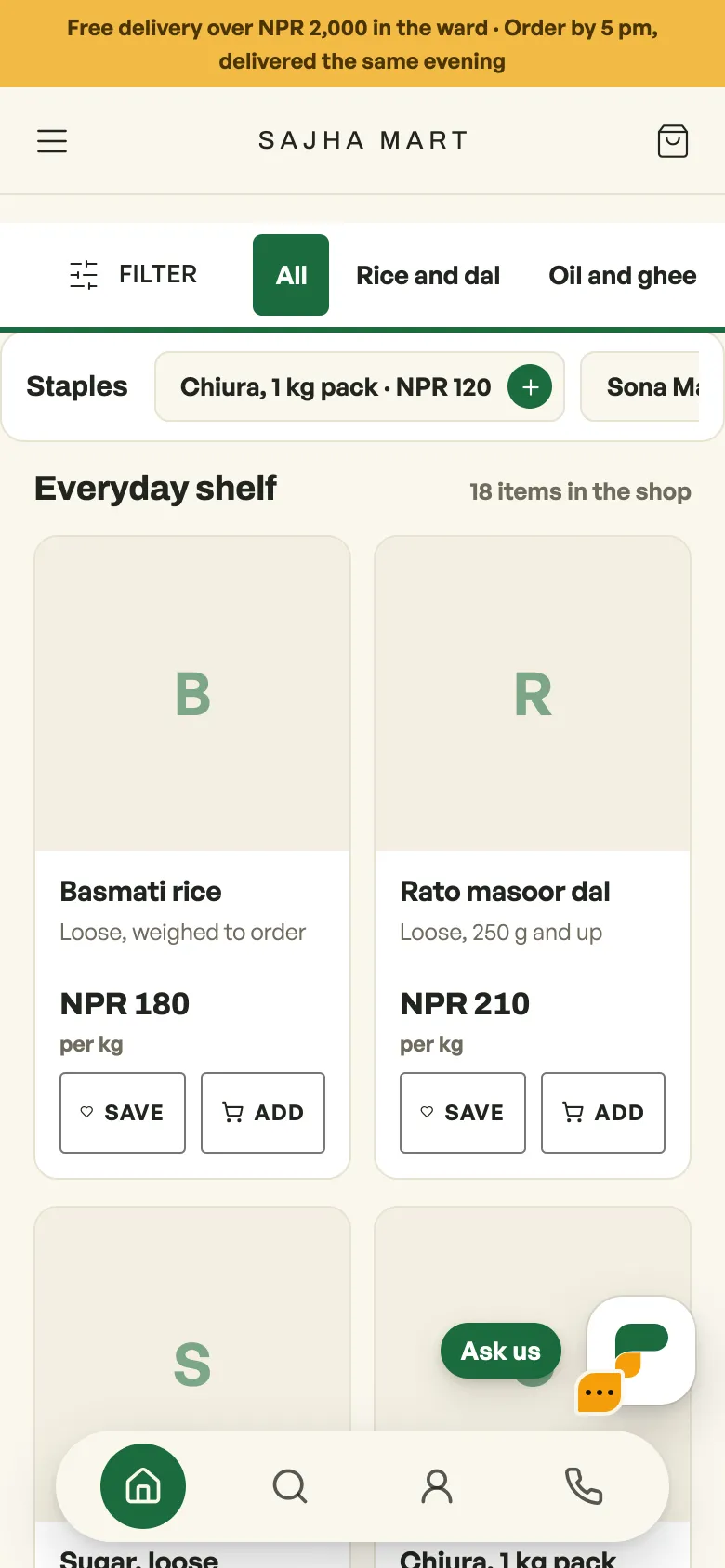
Turn it on
- Open the Inbox and choose the Shop page tab.
- Press the settings button next to your shop's name at the top of the list. On a phone or in a narrow list, press ⋮ there and choose Shop page chat settings.
- Turn on Chat on your shop page.
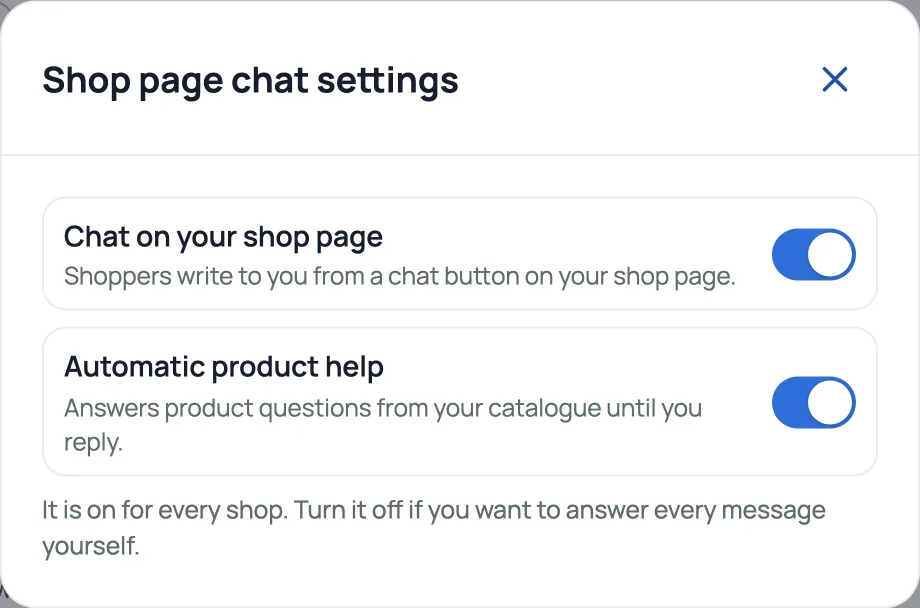
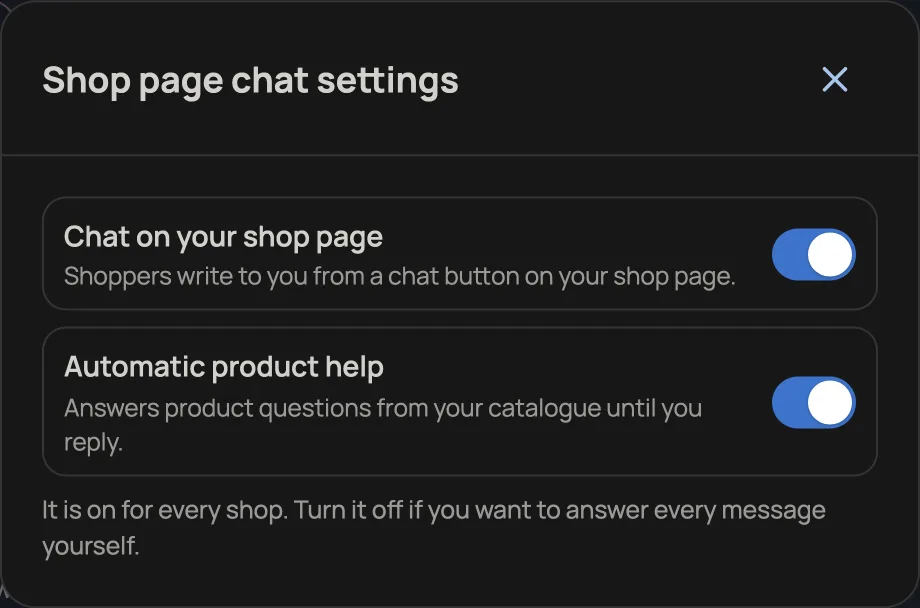
While the chat is off, the Shop page tab says "Chat is off on your shop page." with a Turn on button. Turn the same switch off to take the chat button away. Conversations from the last 30 days stay in your Inbox. Settings → Orders and delivery has a link to the same place.
What a shopper sees
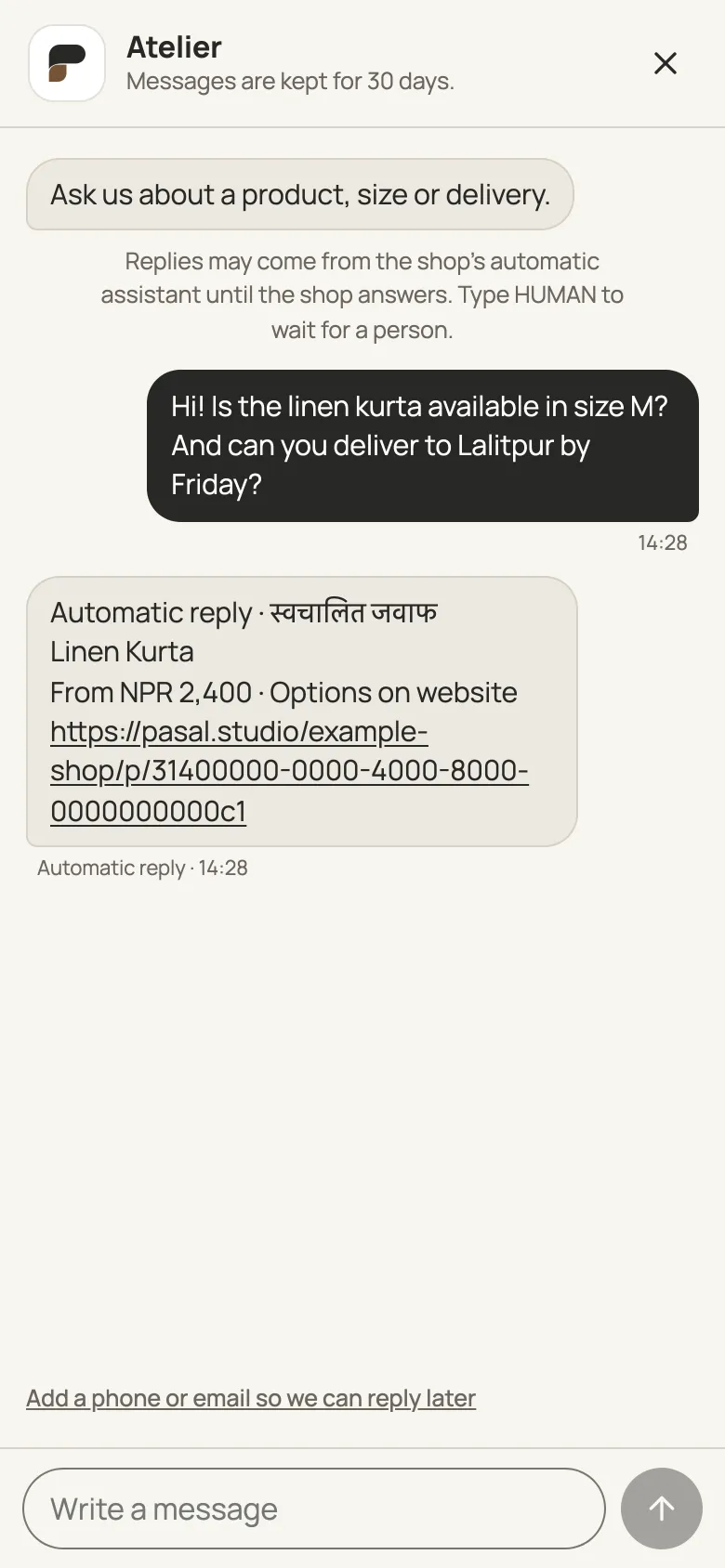
The chat opens with your shop's name and a short line: "Ask us about a product, size or delivery." Before they write, it asks how you can reach them if they leave: a name, phone number or email, all optional. On a phone the chat fills the screen and stays above the keyboard. It follows the language of your shop page.
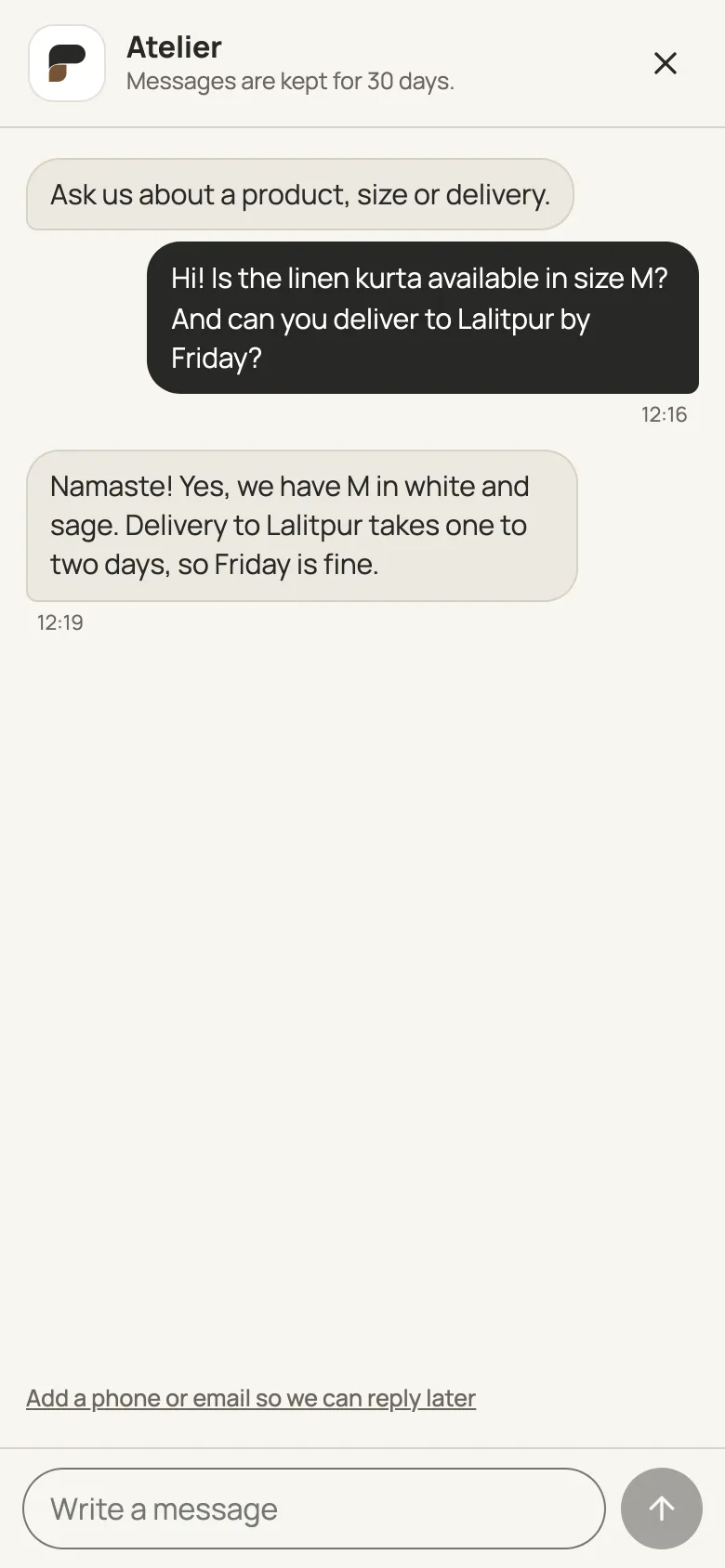
Answer from the Inbox
New messages appear under Shop page in the Inbox and in All messages, with the unread count on the Inbox in the menu. If you turned on phone alerts, your phone rings for a new chat, at most once every 15 minutes for the same shopper. Priority, Follow up, Unread and Done work as on your other channels.
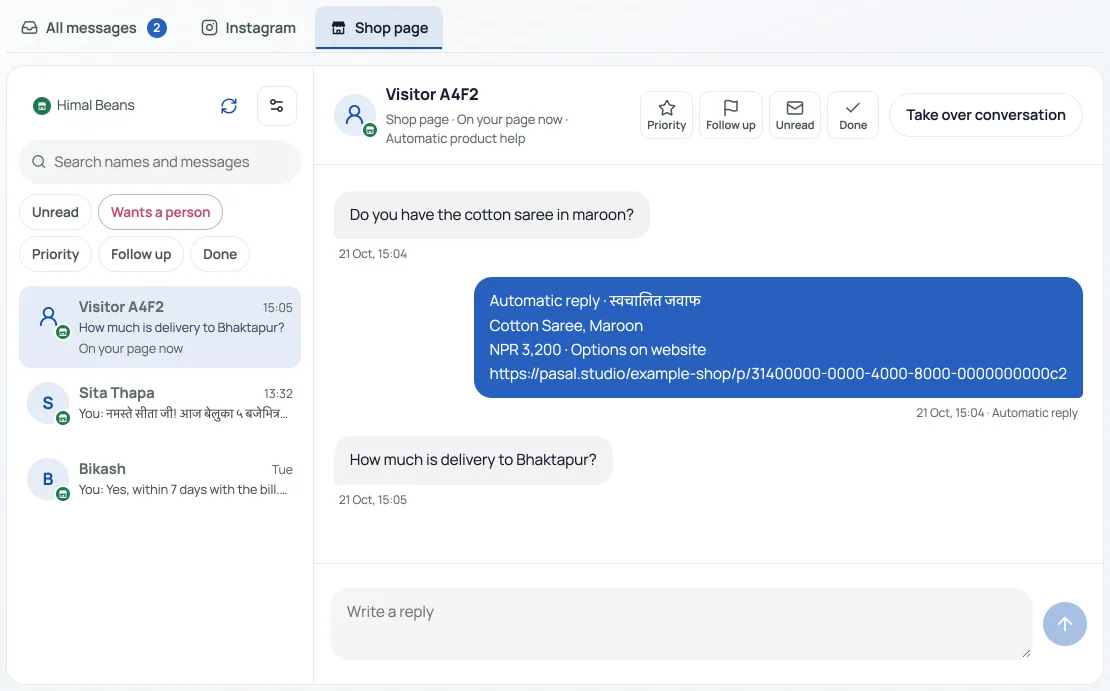
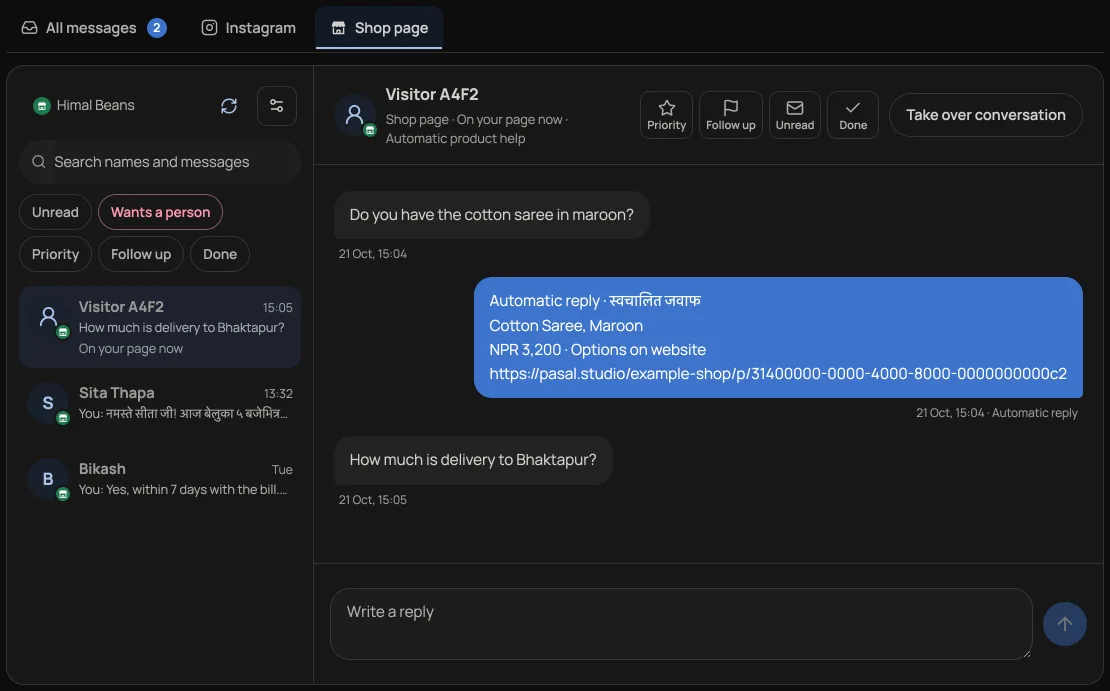
- Who wrote. A shopper who gave a name shows by that name. One who did not shows as "Visitor" and four letters, such as Visitor 4F2A.
- Signed-in shoppers. If the shopper is signed in to their shopper account on your page (the one they use for order history), the chat is tied to that account. You see their name and phone without asking, and how many orders they placed with your shop under that email, with a link to your orders. Their chat follows them to another phone or computer when they sign in there. If they started chatting before signing in, those messages join their account's chat for your shop. Another shop never sees it.
- On your page now means they are still reading. Left your page means they have gone.
- When they have left. If they are signed in, or gave an email and confirmed it, your reply is also emailed to them a few minutes after you send it, at most once every 30 minutes. The email comes from your shop's name "via Retriever", with your shop's address on retriever.com.np. If they gave no email, they see your reply when they open your page again on the same phone or computer. If they gave a phone number, you can call them from the conversation.
- Confirming an email. When a shopper types an email, Retriever first sends them one short email with a link, so nobody can have your replies sent to someone else's address. Until they press it, the Inbox shows the address with "not confirmed yet" and no reply is emailed.
Automatic product help
Where Retriever has switched it on for your shop, the chat answers product questions for you while you are busy, as on Instagram and Messenger: a product's name or code gets its price and a link, "Recommend products" gets three from your catalogue, and a hello gets a short welcome. Automatic replies are in English. Shoppers still choose options and check out on your website; the chat never places an order. When a message needs more than your catalogue, it goes to Anthropic's Claude with your public catalogue, as Retriever's Privacy Policy describes.
It is on for every shop. To turn it off, open Shop page chat settings (the settings button, or ⋮ on a phone or in a narrow list) and turn off Automatic product help. Then you answer every message yourself. If you keep it on, say so in your own privacy notice for your customers.
While it is on, the chat tells shoppers that replies may come from your shop's automatic assistant until you answer. Its first reply in a conversation, the first in a day and the first after a pause start with "Automatic reply · स्वचालित जवाफ", and in the Inbox each one is marked Automatic reply.
- You take over by replying. Any reply you type stops automatic replies for that shopper. You can also press Take over conversation, and Resume automatic product help to hand it back.
- Shoppers can ask for you. A shopper who types HUMAN, or asks for a person, is marked Wants a person in the Inbox until you answer, and automatic replies stay off for them. If you answer, they stay off until you press Resume automatic product help. If you have not answered, they also come back when the shopper sends START.
- Limits. Only messages up to 500 characters are answered automatically. Each shopper gets at most 10 automatic replies an hour, one internet connection 20 an hour, and your shop 200 an hour, and at most 50 a day can use the AI; over that, messages simply wait for you.
Spam and limits
A message can be up to 1,000 characters. Each shopper can send a few messages a minute and 60 a day, and one internet connection can open only a few new chats a day and send only so many messages an hour. Robots that fill in hidden form boxes are ignored. There is no puzzle to solve for your shoppers. If your page gets more than 600 messages in an hour, the Inbox tells you; nobody is stopped, and you can turn the chat off for a while.
How long messages are kept
Messages are deleted 30 days after they were written. When a chat has no message left, it is deleted with the name, phone or email the shopper gave.
पसल पेजको च्याटले तपाईंको पसल पेजको कुनामा सानो बटन राख्छ। ग्राहकले त्यहाँ प्रश्न लेख्छन्, र तपाईं इनबक्सको "पसल पेज" मा पढेर जवाफ दिनुहुन्छ। इनबक्सको "पसल पेज" ट्याबमा पसलको नामछेउको सेटिङ बटन (फोन वा साँघुरो सूचीमा ⋮) थिचेर "पसल पेज च्याटका सेटिङ" खोल्नुहोस् र "पसल पेजमा च्याट" स्विच खोल्नुहोस्। च्याट बन्द हुँदा ट्याबमा "खोल्नुहोस्" बटन देखिन्छ। साइन इन गरेका ग्राहकको नाम, फोन र तपाईंको पसलसँगका पुराना अर्डरको संख्या आफैं देखिन्छ। ग्राहक गइसकेपछि, साइन इन गरेको वा इमेल दिएर पुष्टि गरेको भए तपाईंको जवाफ इमेलमा पनि जान्छ। सन्देश ३० दिनपछि मेटिन्छन्।
रिट्रिभरले तपाईंको पसलका लागि सुरु गरेपछि, Instagram र Messenger जस्तै च्याटले नमस्ते, सामानको नाम वा कोड, र "Recommend products" को जवाफ तपाईंको सामान सूचीबाट आफैं दिन्छ (स्वचालित जवाफ अङ्ग्रेजीमा आउँछ)। यो सबै पसलमा खुला हुन्छ; बन्द गर्न उही सेटिङमा "स्वचालित सामान सहयोग" स्विच बन्द गर्नुहोस्। यो खुला हुँदा च्याटले ग्राहकलाई पसलले जवाफ नदिएसम्म जवाफ पसलको स्वचालित सहायकबाट आउन सक्छ भनी बताउँछ। तपाईंले जवाफ लेख्नासाथ त्यो ग्राहकका लागि स्वचालित जवाफ रोकिन्छ, र "स्वचालित सहयोग फेरि सुरु गर्नुहोस्" नथिचेसम्म रोकिइरहन्छ। ग्राहकले HUMAN लेखेमा इनबक्समा "मान्छे चाहियो" देखिन्छ।
- Connect Instagram to your dashboardRead customer DMs, share products and enable product recommendations on Instagram, Messenger and WhatsApp.
- WhatsApp automatic product helpLet automatic product help answer customers who message your shop on WhatsApp, and take over a conversation when you want to reply yourself.
- Add your own 360° photos or a 3D product modelLet shoppers rotate a set of product photos or explore a GLB model, alongside the usual gallery.