
Choose how your products and events are shown
Pick the shelf your catalog sits on, and the stage your events take.
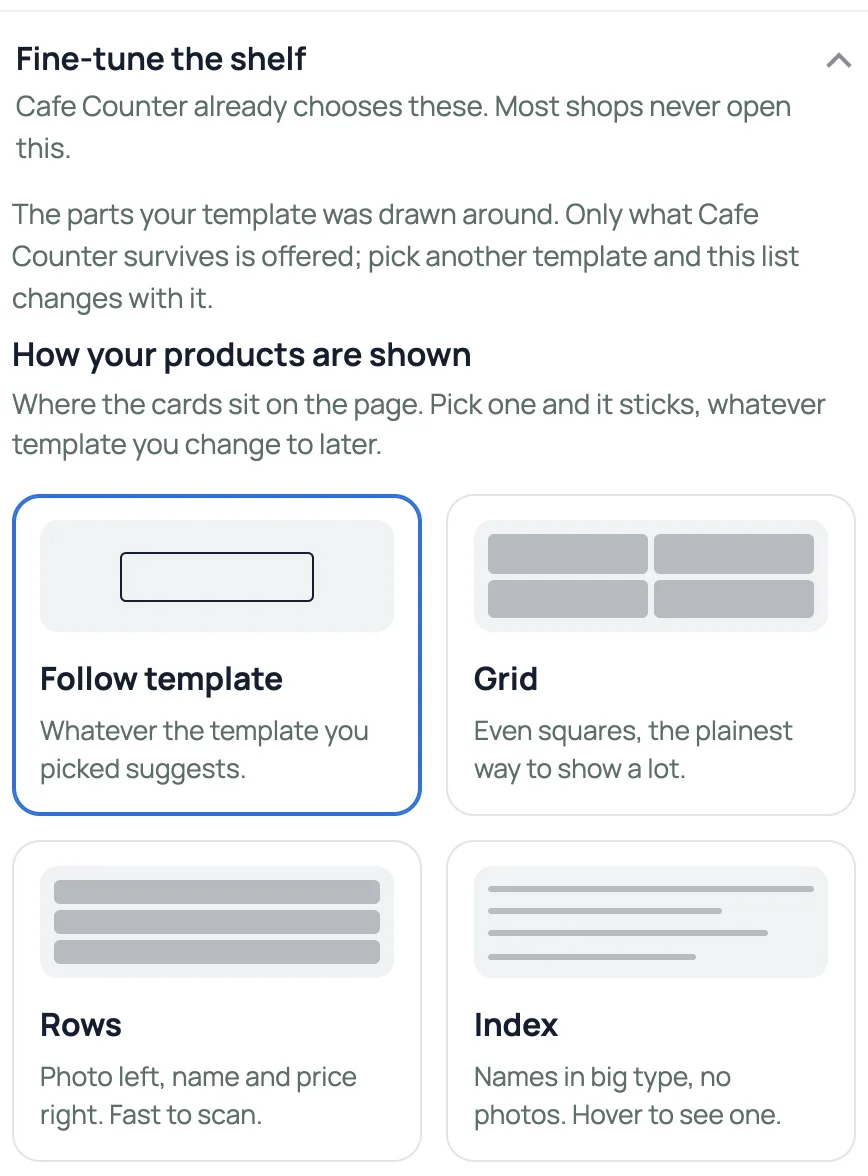
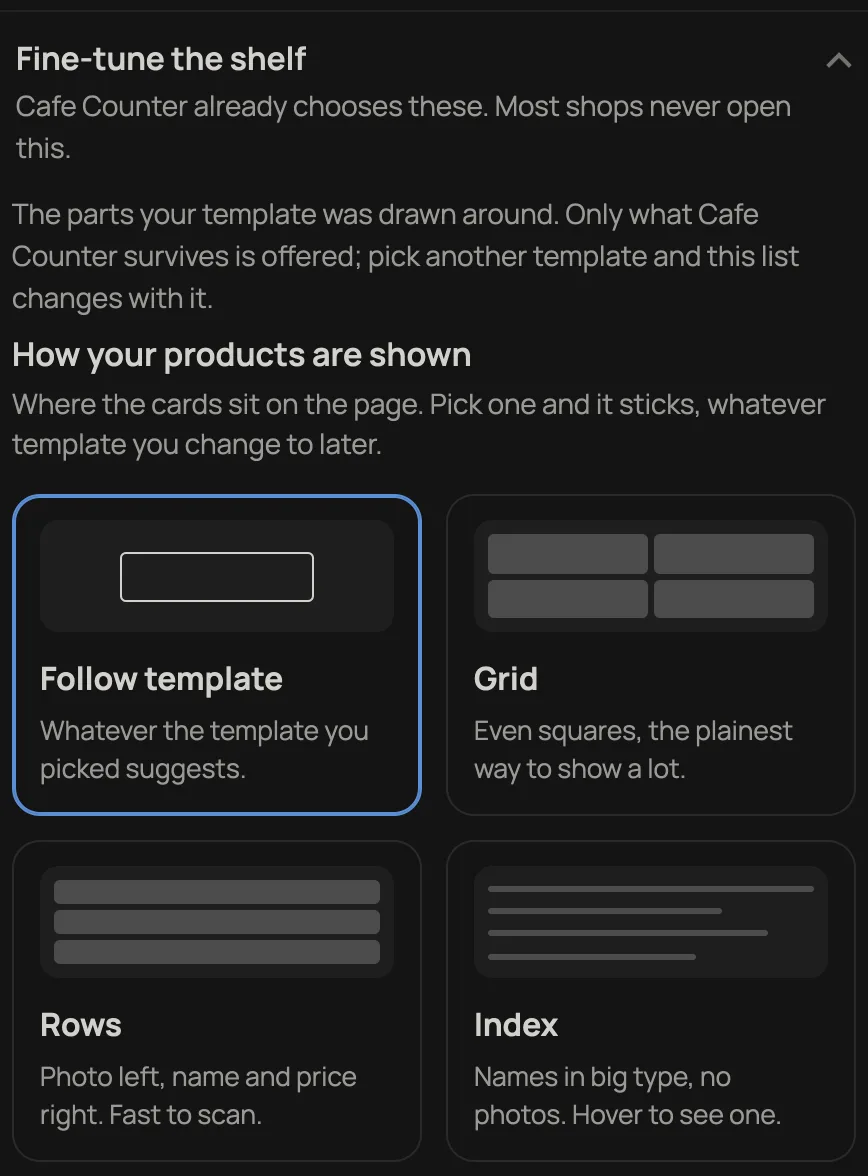
Your template suggests a layout, but you do not have to accept it. Open Design, tap Your products, and open Fine-tune the shelf: pick your own and it sticks, whatever template you switch to later. It offers the choices your template was drawn around, so you may not see every option listed here. How shoppers move between categories, and the Filter, sit above the fold on the same screen.
Products
- Follow template keeps whatever your template suggests.
- Lookbook: tall images with room to breathe. Good for clothing.
- Rows: photo left, name and price right. Fast to scan.
- Shelf: scrolls sideways per category on a phone.
- Grid: even squares, the plainest way to show a lot.
- Gallery: one big picture at a time, with a floating info bar.
- Index: names in big type, no photos. Hover to see one.
Moving between categories
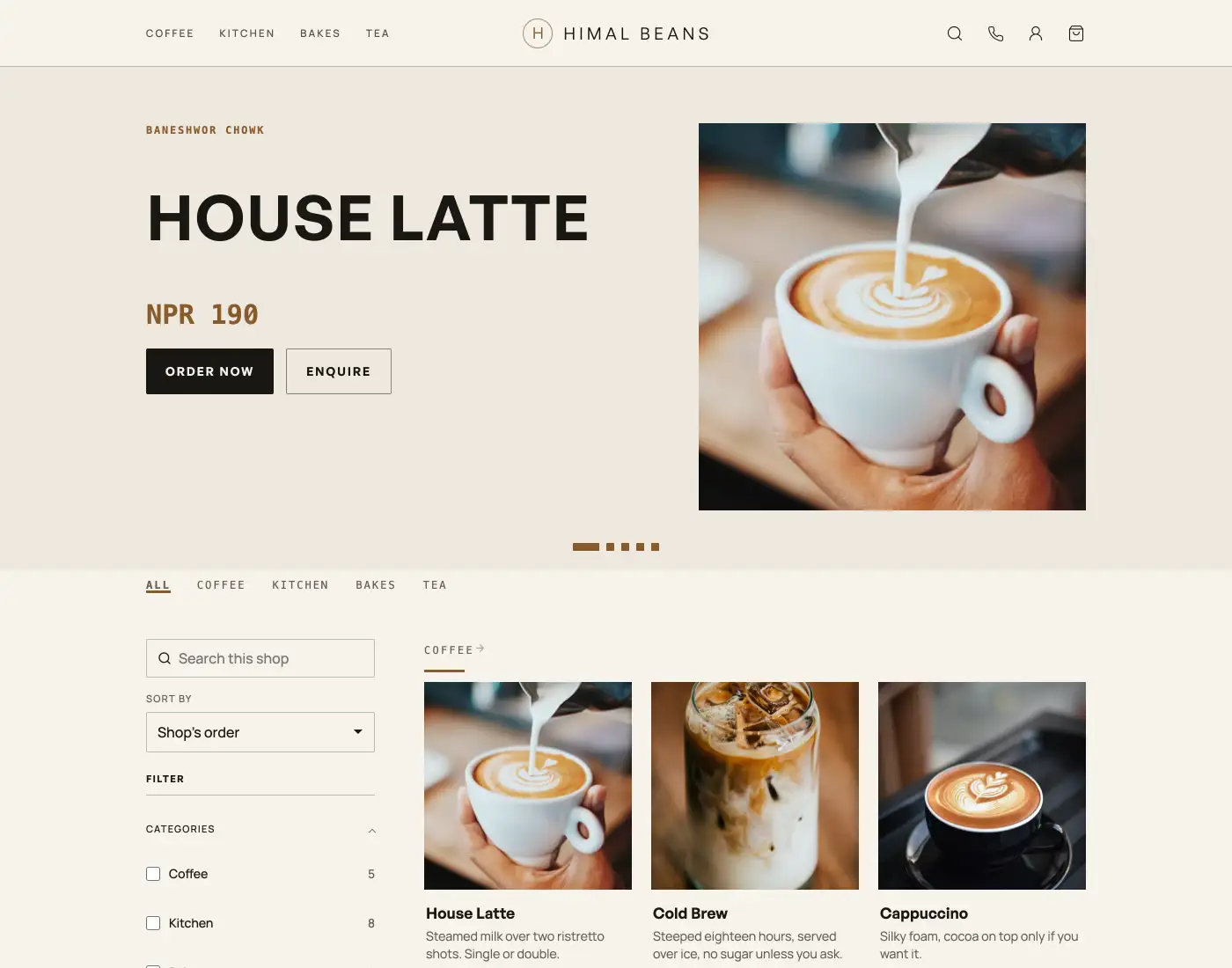
How a shopper gets from one part of your shelf to another, with four ways to do it. Headings runs every category down the page under its own heading. On the shop front each category is a sideways row, with See more opening that category's own page when there are more items than the row can hold. Rail puts one scrolling row of category links under the header; Cards gives each category a picture that opens its own page; and Chips is a filter row that swaps the products in place. The first choice, Follow design, lets your design choose and says what that is today, for example Follow design · Rail. Press another and it sticks, whatever design you change to later, until you press Follow design again.
Events
Three stages: Cards (poster on top, details underneath), Poster wall (big artwork with the details laid over it) and Agenda (one row per night, date first, best for a long season). Nothing is lost between them; the same details move into a different shape.
- Scan a barcode with your phone cameraPoint the phone at a packet and the counter adds it. Stocking a shelf works the same way, one scan per packet.
- Manage your catalogAdd products, photos, prices, and take items off the shelf when you are out of stock.
- Add a product from a photoTake or choose a photo on the Add a product screen and Zuno fills in a name, a short description and a category. You check them and type the price.