
Mark an item sold out for the day
Run out of momo at eight? Grey it out on the menu and let it come back tomorrow.
Kitchens run out. You want the dish to stay on the menu, so regulars know you do it, but nobody should be able to order it tonight.
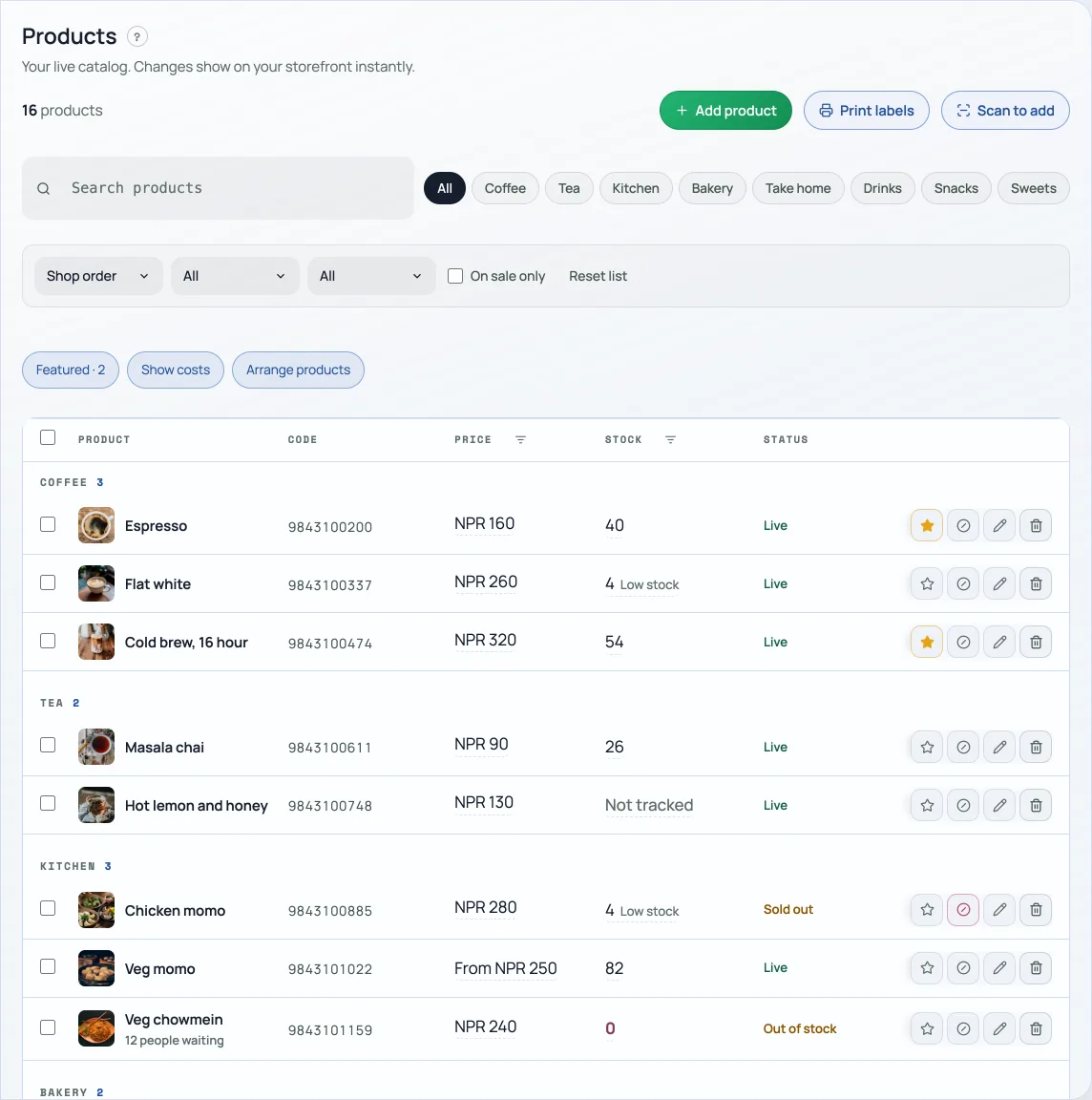
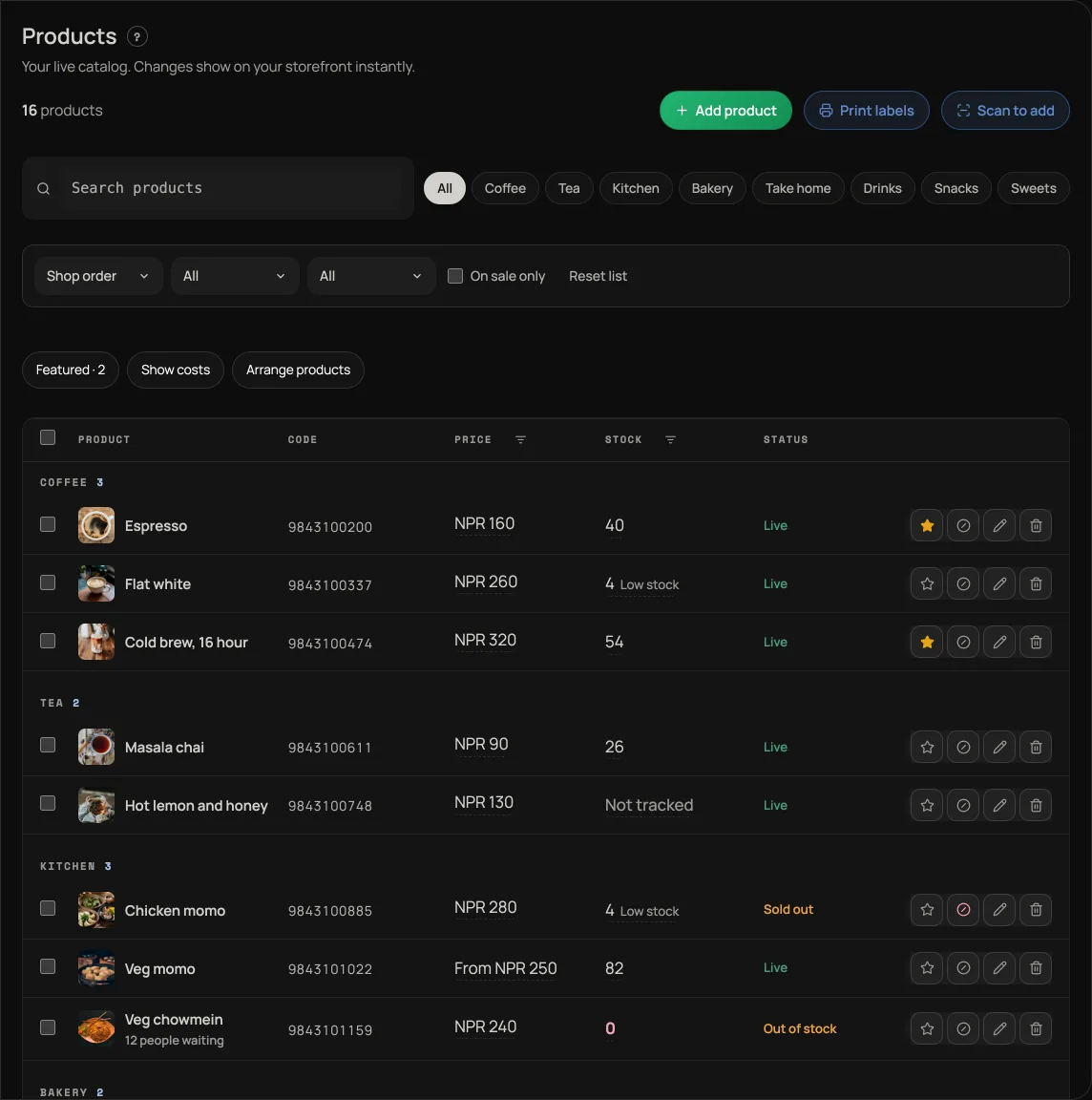
- Open Products.
- Press the ⊘ button in the item's row, beside the pencil. Its Status turns to Sold out.
- To put it back before tomorrow, press either that button again or the Sold out word itself.
On your storefront the item stays visible but goes grey, with a Sold out flag and a "Back tomorrow" note where Add would be. It cannot be added to a bag.
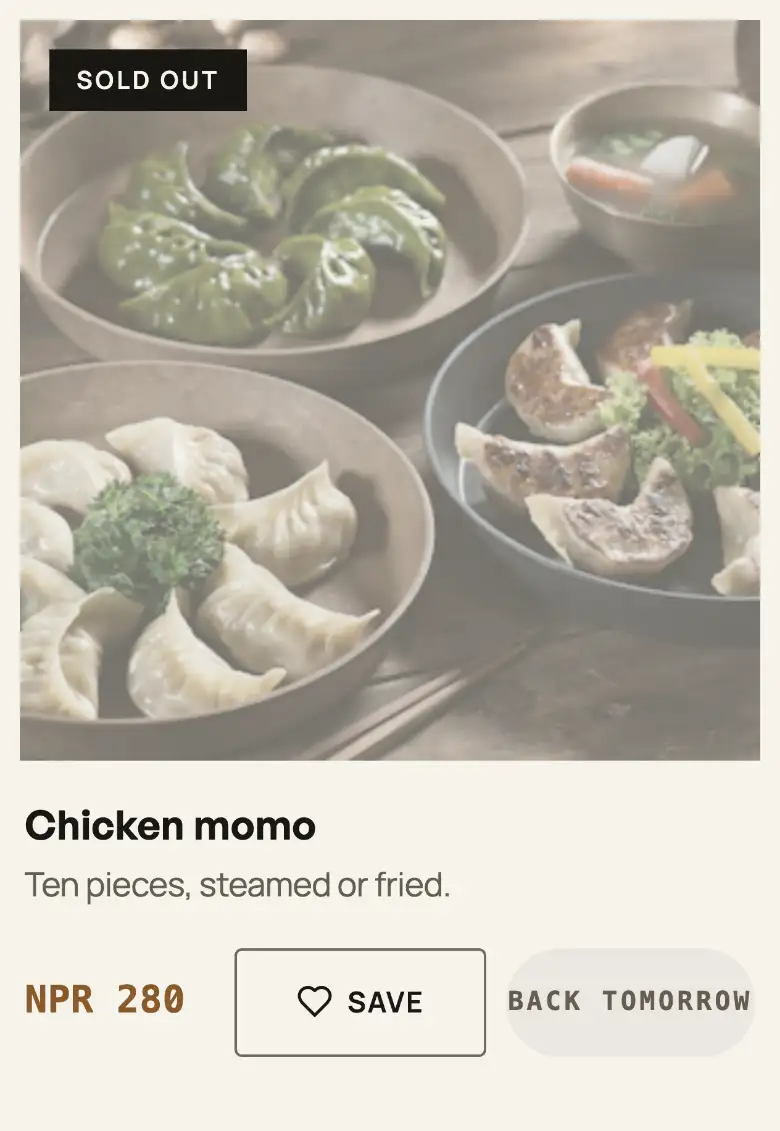
It comes back on its own. Sold out means sold out for today: the item returns to the menu overnight, so you do not have to remember to switch it back before you open. Tap it again any time to bring it back sooner.
This is different from Hidden. Sold out keeps the item on the menu, greyed. Hidden takes it off the storefront entirely, which is what you want for something you are not selling this season.
While it is sold out it cannot be sold anywhere else either: it leaves the counter's tiles and the New order list on Orders, and a table order from Retriever Desk with it in is refused. The same goes for hidden items and drafts.
An item that is sold out until you restock it (not just for today) offers customers Notify me instead: see Notify me: tell customers when an item is back.
On by default for food shops; any shop can install it under Settings, "Apps".
- Notify me: tell customers when an item is backOn a sold-out item, a signed-in customer can press Notify me and get one email when it is back. You see how many are waiting.
- Manage your catalogAdd products, photos, prices, and take items off the shelf when you are out of stock.
- Add a product from a photoTake or choose a photo on the Add a product screen and Zuno fills in a name, a short description and a category. You check them and type the price.