
Your About us page
Tell your shop's story on a page of its own, with every way to reach you.
Every shop gets an About us page at your-shop/about, in your own colours, with your logo, your story and a grid of ways to reach you.
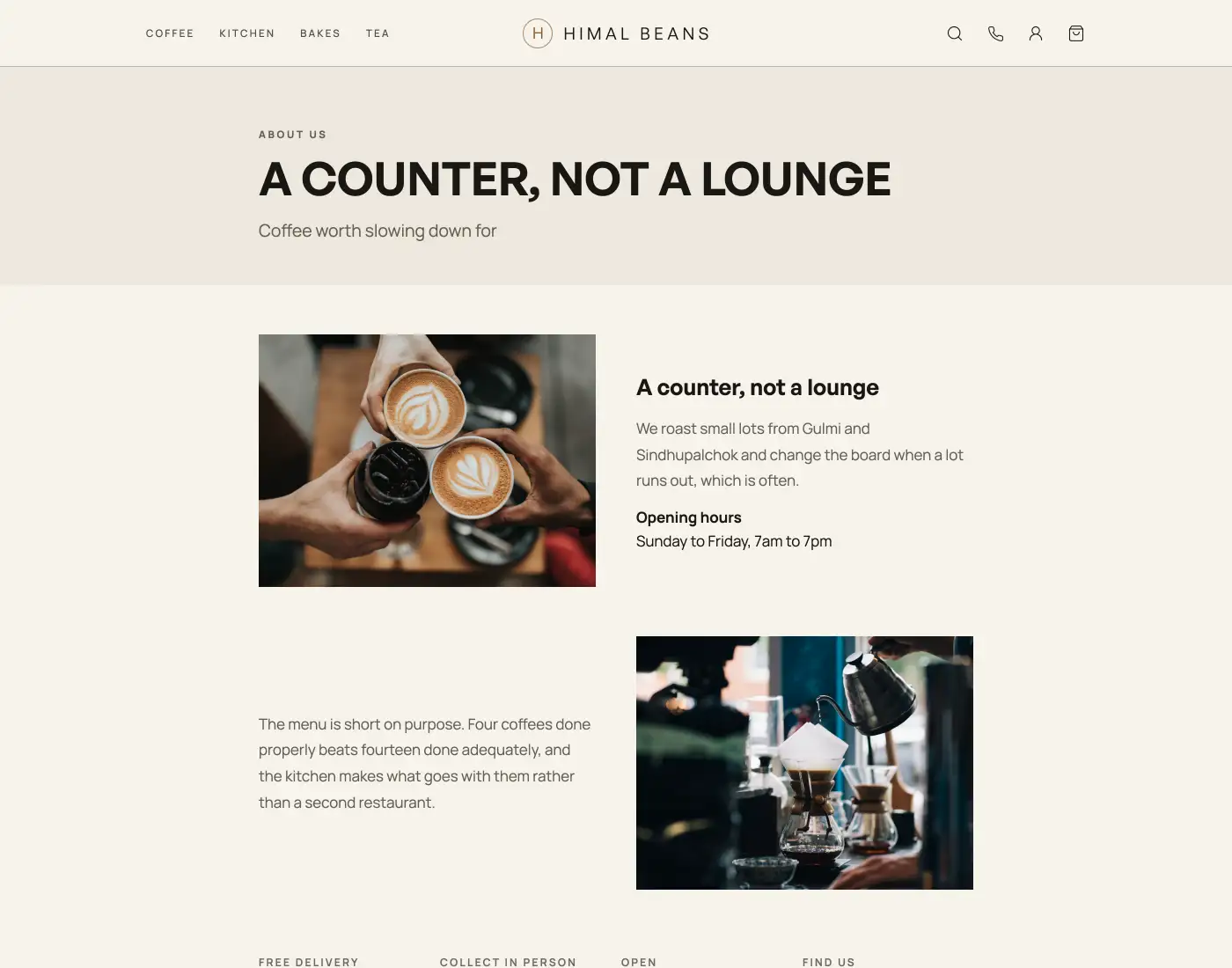
- Open Design and tap Your story. Fill in the Page heading, then the Words for Story 1 and Story 2: the opening part, then one more thing worth knowing. Each story is one paragraph, so a blank line inside a Story box is closed up. Anything else goes in More about you further down, where a blank line does start a new paragraph.
- In the same panel, Story 1 and Story 2 each carry a Photograph slot: the picture, a line saying where it shows, and Add a photo (Change and Remove once it has one). The first sits beside your opening words, the second further down beside your second part, and Story 2's slot opens only once Story 1 has a picture. Show the workshop, your people, the street outside. Leave a slot empty and the page borrows your big photo, or failing that a picture from your catalog, and the slot shows you which, with Add your own under it. Photographs from before this panel existed sit under Photos your page does not show, each with Use in story 2 and Remove.
- The contact grid builds itself from Settings, Shop details: opening hours, address, WhatsApp, phone and Instagram. Whatever you have filled in shows up.
The page also builds a row from your catalog, one photo per category, headed in your trade's own words: What we serve for a cafe, What we bake for a bakery, What we make otherwise. It needs two or more categories to appear. Under it sits a row of promises from your delivery, pickup, hours and address settings, which needs three of those filled in. Neither asks anything else of you.
Your storefront shows the first paragraph with a More about us link, so the shop stays about shopping and the story lives on its own page.
Your footer

The footer carries the same links: About us, plus Terms and Privacy once you write them.
- Add your own 360° photos or a 3D product modelLet shoppers rotate a set of product photos or explore a GLB model, alongside the usual gallery.
- Make the shop look like yoursTemplate, colours, logo, hero photo, and the order of the page, all from the Design tab.
- Preview a look before you save itTry a card in Browse designs, check the Not saved bar, then save the look or discard the trial.