
Make the shop look like yours
Template, colours, logo, hero photo, and the order of the page, all from the Design tab.
Your shop should look like your shop, not a template. Everything visual lives on the Design tab: it takes over the whole screen with one list of every part of your shop. On a computer the list runs down the left and your shop preview is on the right. Opening a part replaces the list with its controls; on a phone the list is the screen and each part opens over it. Ordinary edits save automatically; a template trial waits for Save this look, and Back to Dashboard (the back arrow on a phone) brings you home.
- Template, colours & logo: pick a design, then one of its colourways or your own colours, and upload a logo so the shop, receipts, and link previews carry your brand.
- Homepage sections: the parts of your home page in the order a customer meets them. Change order moves them, the switch on a row hides one, and tapping a row opens it.
- Big photo and promo cards: tap Big photo and headline to write the greeting at the top of your shop and set its photo, and Promo cards to highlight a drop or an offer.
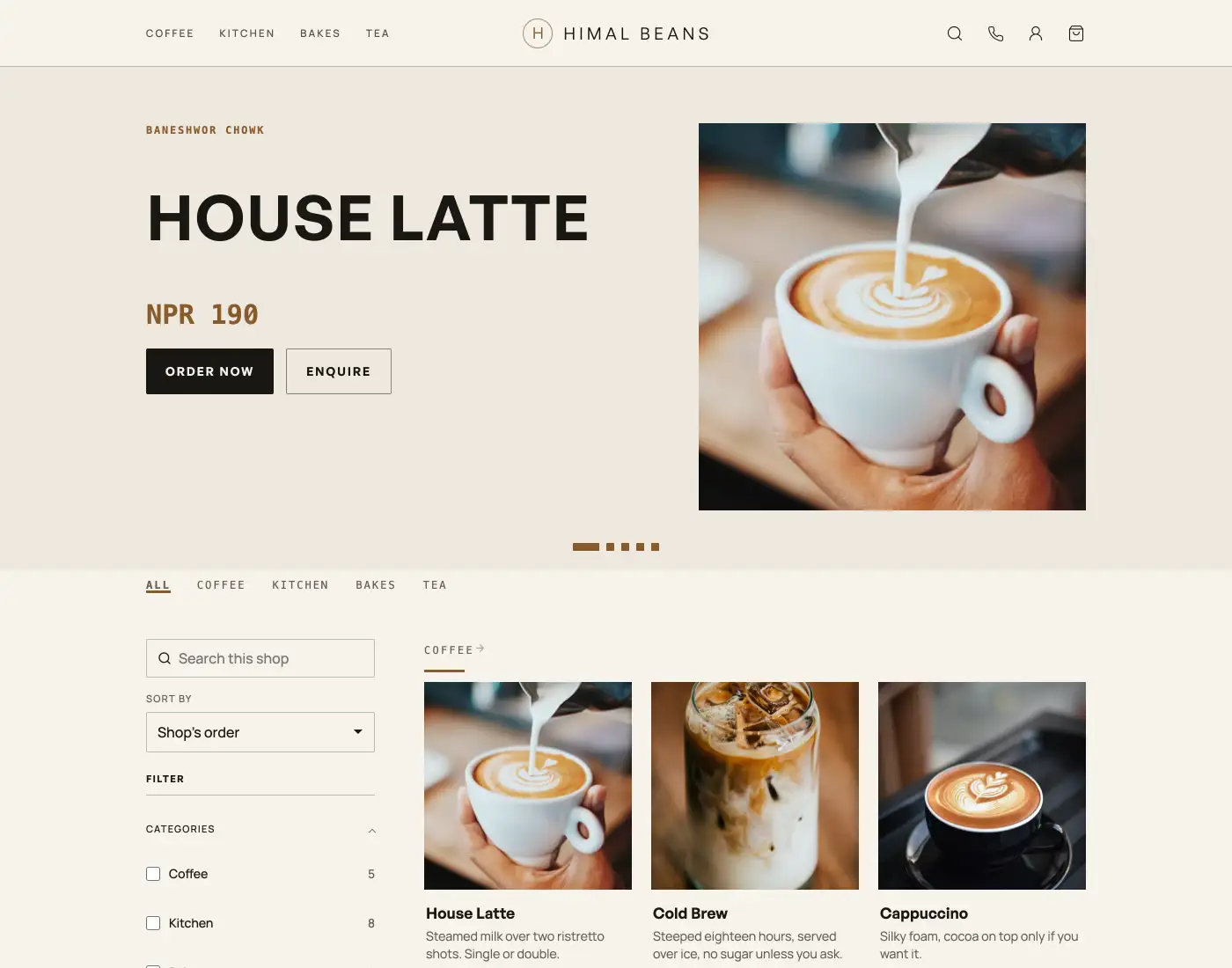
On a computer your shop preview stays on the right; on a phone, See it at the top of every part shows it to you at that spot. Share your shop link once it looks right. Photographs on the screen that faces the customer are on Marketing, not here.
- Share your shop linkPut your catalog on Instagram, WhatsApp, a QR at the counter, or your own domain.
- Google reviews, customer reach, photos and codesGoogle reviews first, then email and WhatsApp, customer-screen photos and promo codes, when available to your shop.
- Pick a template, keep your coloursSwap the whole look of your shop in one tap, and put your own colours back if the new ones are not yours.