
Design your shop with ChatGPT
Add Retriever to ChatGPT, preview looks without saving, say yes on retriever.com.np before it saves, and take that yes back. Saving needs the owner's AI assistants switch and Retriever Pro.
ChatGPT can read your shop's look, suggest a new one, and show you a preview. It saves to your live shop only after you say yes on retriever.com.np.
Before it can save. Two things must be true. The shop owner has switched on Settings → AI assistants, and the shop is on Retriever Pro (a trial counts). Settings → AI assistants shows whether both are true for your shop. Previews need neither. You also need the Design permission to say yes.
Retriever is in ChatGPT's plugin directory, still under its old name there. Search for Pasal in ChatGPT's Plugins and press Connect; on retriever.com.np, tick Draft, publish and undo looks to let it save looks. If your plan or workspace does not show the directory, add it by its address:
- Open Settings → AI assistants, press Open beside Connect ChatGPT or Claude, and copy the connector address, https://retriever.com.np/mcp.
- In ChatGPT, open Plugins → Add → Add custom MCP server (Plugins is at chatgpt.com/plugins, and Add is at the top right). Name it Retriever, paste the address, and choose OAuth for sign-in. ChatGPT warns that custom servers are not checked by OpenAI; read it, continue, and create it. If you do not see this option, your ChatGPT account or workspace may not allow it.
- Ask ChatGPT for a look. It can read your shop, check a look, and make a preview link. A preview never saves: customers still see your saved shop.
- When you ask it to save, ChatGPT sends you to retriever.com.np. Sign in and check the shop name. The page shows one tick, Draft, publish and undo looks. Leave it ticked and press Allow on this shop. One yes covers one shop and lasts thirty days.
If the tick is off with a note, AI assistants are switched off for the shop or the shop is not on Pro. The note says which. The owner can switch AI assistants on in Settings; then ask ChatGPT to save again.
Your own colours. Ask ChatGPT for colours of your own, for example "make the buttons my brand red, #b4234a". It sets the same three colours the Design tab does (buttons and links, background, text, and cards if you want), and Retriever checks them the same way: a pair that cannot be read is refused, and ChatGPT is told by how much and a colour in the same shade that reads well. The preview link shows them, a draft keeps them, and undo brings back the colours you had before. Asking for the template's own colours takes them off. Some templates do not take your own colours (the Design tab lists which); ChatGPT is told so, and any colours you already saved stay saved.
Drafts it kept. A look ChatGPT or Claude saves as a draft waits in the Design tab under Looks from ChatGPT and Claude, with the app that made it and what it would change. Press Try it to put it on the Design tab without saving, then Save this look if you like it. None goes live until you save it or say yes to publishing it. Undo last changeputs back the look your shop had before its last change.
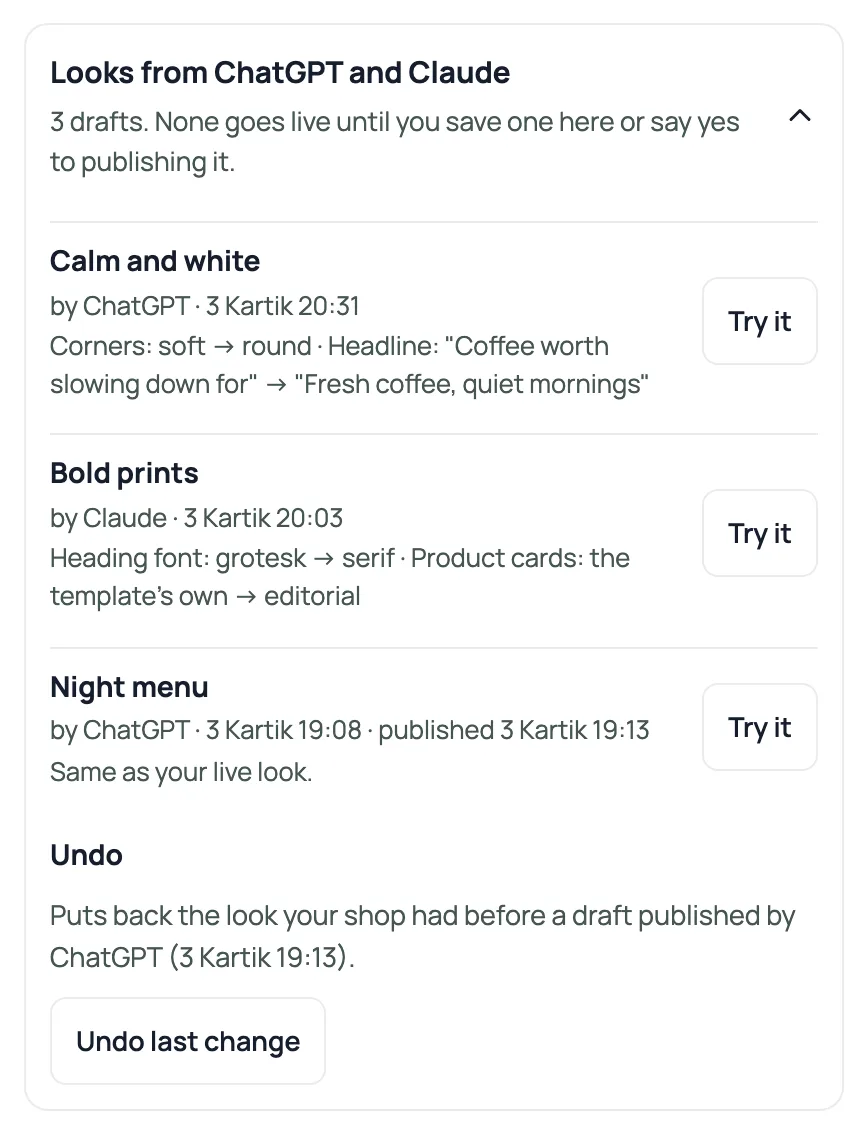
What the looks tick covers. Draft, publish and undo looks changes the look only: design, colours, fonts, the page's parts and their words, promo cards, the logo and the big photo. It can only pick from designs Retriever already has. Changing products, prices or orders is a separate tick, Make changes, which works only when the owner allows it: see Let ChatGPT or Claude make changes to your shop. Nothing it does moves money or changes staff or your plan.
Take it back. A yes ends by itself after thirty days. To end it sooner, open Settings → AI assistants. The owner sees every connection; staff with the Design permission see the ones that can save looks. Each is listed with who gave it, when, and when it was last used. Revoke stops one; Revoke all stops every one for this shop, including any yes given before the list existed. After that ChatGPT can still preview, and must ask you again before it saves. Removing a staff member's Design permission also stops theirs.
Switching it off. When the owner switches off Settings → AI assistants, ChatGPT and Claude stop reading the shop and stop saving looks, straight away. A yes that was not revoked works again when the switch is back on, for what is left of its thirty days.
See Preview a look before you save it for the Not saved bar. For the whole first connection step by step, with pictures, see Connect Retriever to ChatGPT or Claude.
- Connect Retriever to ChatGPT or ClaudeA first-time guide: turn on AI assistants in Retriever, find Retriever in Claude's connectors or add it to ChatGPT by address, say yes on retriever.com.np, ask your first questions, and take access back.
- Let ChatGPT or Claude make changes to your shopTurn on changes from AI assistants, tick Make changes when you connect, say yes to each change in the chat, and undo it in Settings → AI assistants → Changes.
- Preview a look before you save itTry a card in Browse designs, check the Not saved bar, then save the look or discard the trial.