
Connect Retriever to ChatGPT or Claude
A first-time guide: turn on AI assistants in Retriever, find Retriever in Claude's connectors or add it to ChatGPT by address, say yes on retriever.com.np, ask your first questions, and take access back.
You can ask ChatGPT or Claude about your shop in plain words: today's sales, what sold best, what is running low, which orders are waiting, and how much is owed on khata. This guide walks you through the first connection, step by step.
The assistant reads your figures. If the owner allows it and you tick it, it can also make everyday changes, each after your yes: see Let ChatGPT or Claude make changes to your shop. It never moves money. It can save a new look for your shop only if you tick that separately.
Before you start
- Retriever Pro. Asking from ChatGPT or Claude is part of Pro. A trial counts.
- The owner switches it on. It is off for every shop until the shop owner turns it on in Settings. Staff cannot turn it on.
- Who can connect. Once it is on, the owner and staff can each connect their own ChatGPT or Claude. Each person signs in with their own Retriever account and sees only what their own Retriever permissions allow. A cashier without Analytics, for example, gets no sales figures.
- A ChatGPT or Claude account. Adding Retriever by its address needs a plan or workspace that allows custom connectors. Not every one does; see If something goes wrong below.
1. Turn it on in Retriever
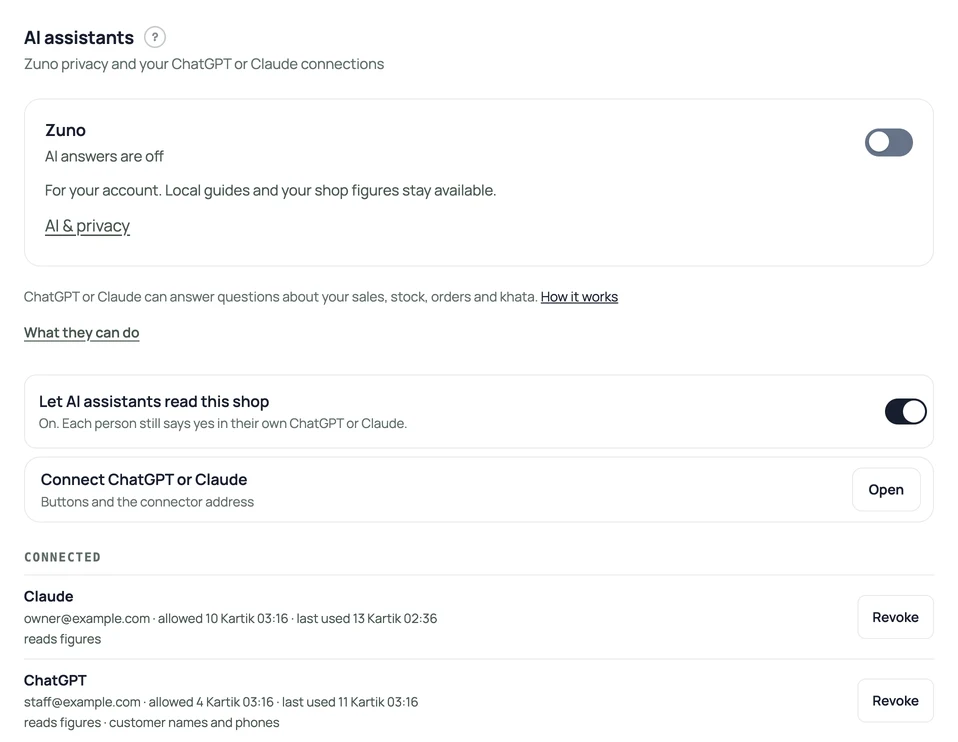
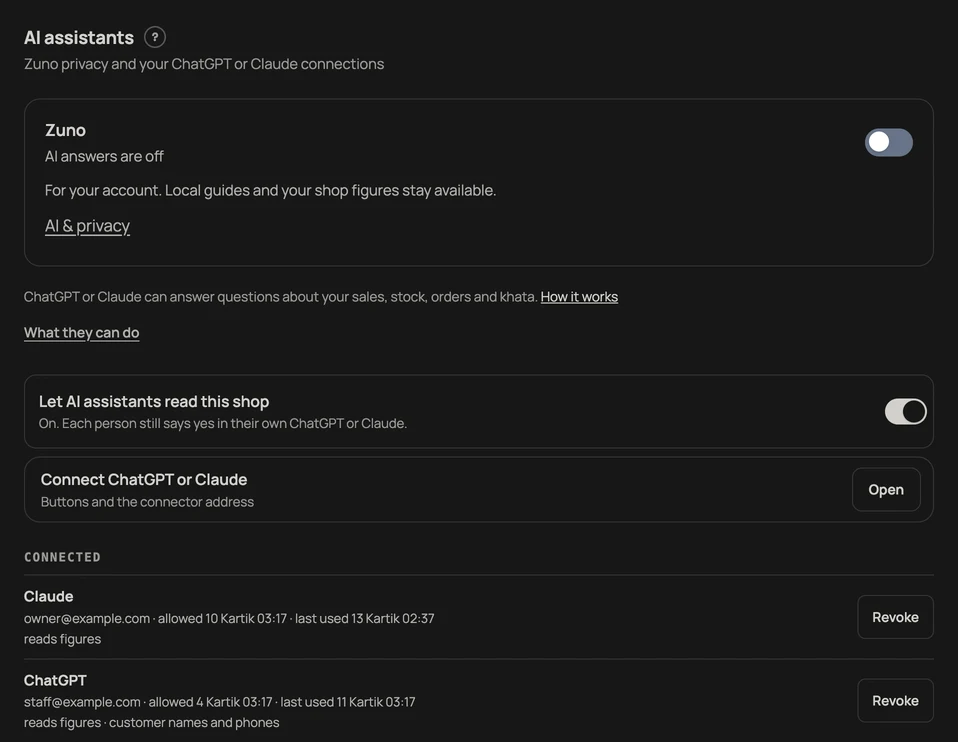
- In your Retriever dashboard, open Settings → AI assistants.
- Switch on Let AI assistants read this shop. The line under it changes to "On".
- Press Open beside Connect ChatGPT or Claude. Under Connector address, press Copy. The address is https://retriever.com.np/mcp. It is the same for every shop: Retriever knows which shop from the Retriever account you sign in with.
2. Connect ChatGPT
Use this if you use ChatGPT. For Claude, skip to section 3.
Retriever is in ChatGPT's plugin directory, still under its old name, Pasal. In Settings → AI assistants, open Connect ChatGPT or Claude and press Connect ChatGPT: it opens Retriever's page in ChatGPT, where you press Connect, then go to section 4 below. Or search for Pasal in ChatGPT's Plugins.
If your ChatGPT plan or workspace does not show the directory, add Retriever by its address instead:
- Open chatgpt.com on a computer and sign in. In the left sidebar, open Plugins (or go to chatgpt.com/plugins).
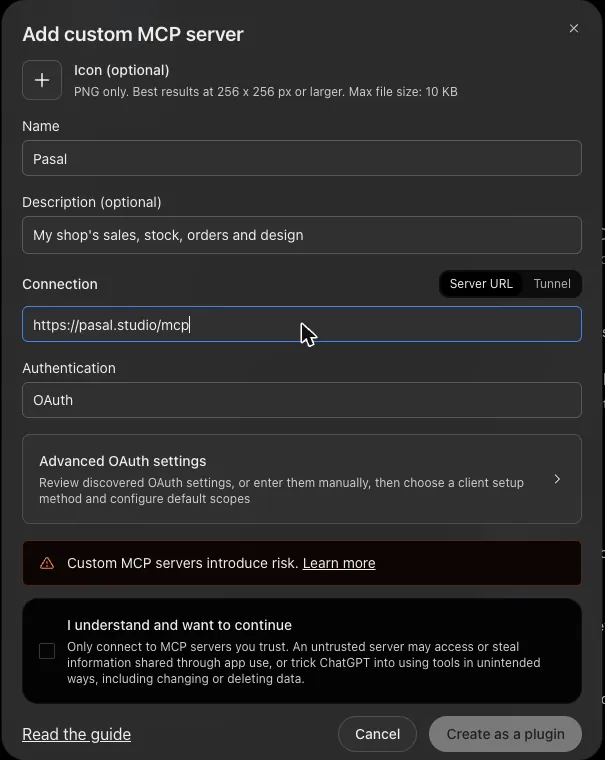
- Press Add at the top right, then Add custom MCP server.

- Fill in the form:
- Name: Retriever.
- Description: optional. For example "My shop's sales, stock and orders".
- Connection: keep Server URL selected and paste https://retriever.com.np/mcp.
- Authentication: OAuth. Leave Advanced OAuth settings as they are; ChatGPT fills them in from Retriever.
- ChatGPT warns that custom servers are not checked by OpenAI. Read it, then tick I understand and want to continue.
- Press Create as a plugin.
- ChatGPT opens retriever.com.np so you can say yes. Follow section 4, Say yes on retriever.com.np, then come back to ChatGPT.
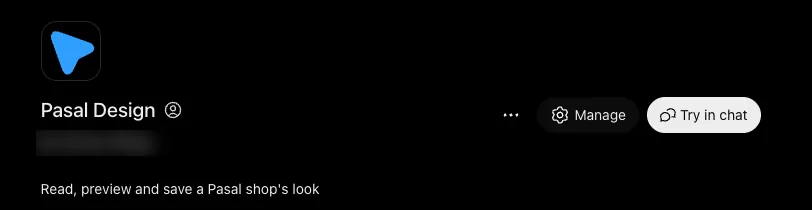
- Retriever now has its own page in ChatGPT. Press Try in chat to start a chat with it. In any chat later, type @Retriever at the start of your question to use it.
3. Or connect Claude
Retriever is a community connector in Claude's directory, still under its old name, Pasal; Claude says it is not verified by Anthropic, as for any new listing. Open Connect ChatGPT or Claude in Settings → AI assistants and press Connect Claude, or search for Pasal in Claude's Customize → Connectors. Press Connect, then follow section 4.
If Retriever does not show yet, add it by its address: press add it by address under Connect Claude (the form opens filled in), or by hand:
- Open claude.ai and sign in. In the left sidebar, open Customize, then Connectors. (Claude's old Settings → Connectors page now points here.)
- Press Add at the top right, then Add custom connector.
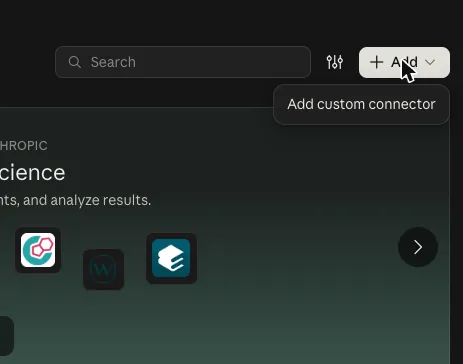
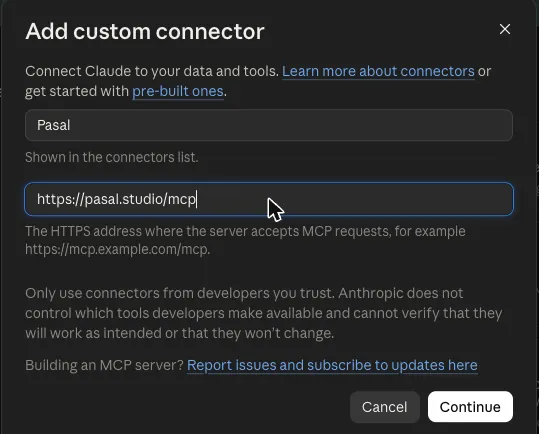
- Type Retriever as the name and paste https://retriever.com.np/mcp as the MCP server URL.
- Press Continue. Claude opens retriever.com.np so you can sign in and say yes: follow section 4, Say yes on retriever.com.np.
- Back in Claude, Retriever shows in your connectors list. Start a new chat and ask. If Claude does not use Retriever, check that Retriever is switched on in the chat's connectors menu.
On a Claude Team or Enterprise plan, an owner of the Claude organisation may need to add the connector first.
4. Say yes on retriever.com.np
ChatGPT or Claude opens a page on retriever.com.np. Sign in to Retriever if it asks. Check the shop name and that it says it will send you back to chatgpt.com for ChatGPT, or claude.ai (or claude.com) for Claude. Then choose what to allow:
- Read sales, items, stock, orders, bookings and khata totals. Ticked to start with. This is what lets the assistant answer questions. Numbers and product names only.
- Also customer names and phone numbers. Off to start with. Tick it only if you want the assistant to name customers on orders, bookings and khata. Left off, names, phone numbers and emails stay hidden. PAN and VAT numbers are never shown either way.
- Draft, publish and undo looks. Off to start with. Tick it only if you want the assistant to keep draft looks for your shop and, when you say so, make one live; customers see a published look straight away. Drafts stay private, and previews never need it. You can also leave it off now: the first time you ask the assistant to keep or publish a look, it sends you back to this page to tick it.
- Make changes and Update orders and bookings. Off to start with, and they can be ticked only after the owner turns on Let AI assistants make changes in Settings → AI assistants. The assistant shows you each change in the chat and makes it only after your yes. They end after thirty days.
Press Allow. Retriever sends you back to ChatGPT or Claude. Not now sends nothing and connects nothing.

How long a yes lasts. Reading ends after three months unused, counted from its last use. Saving looks ends 30 days after you allowed it; then the assistant asks again.
5. Ask your first questions
Ask the way you would ask a person. In ChatGPT, start with @Retriever, or @Pasal if you connected it from the plugin directory, where it still has its old name. Some to try:
- "How did sales go today compared with last Saturday?"
- "What were my best sellers this month?" Months follow Bikram Sambat unless you ask for AD.
- "What is running low on stock?"
- "Which orders are still to pack?"
- "How much is owed on khata, and on how many accounts?"
- "What bookings do I have today?"
- "Make my corners rounded and show me a preview." A preview is a link only you see; it does not change your shop.
The numbers are the same ones your Retriever dashboard shows. If an answer looks wrong, check it against Analytics or the order board, and tell us.
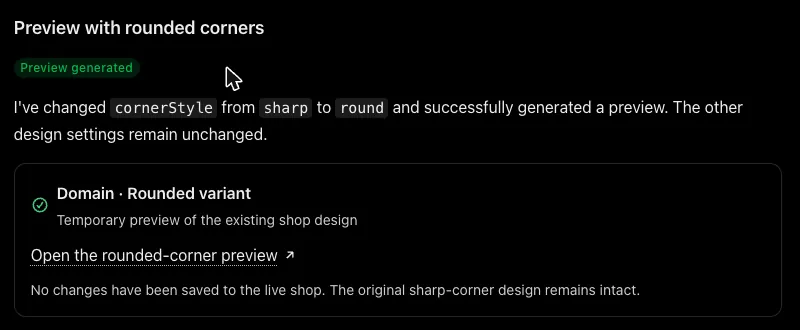
When ChatGPT is about to save a look, it asks you first.
6. See or take back access
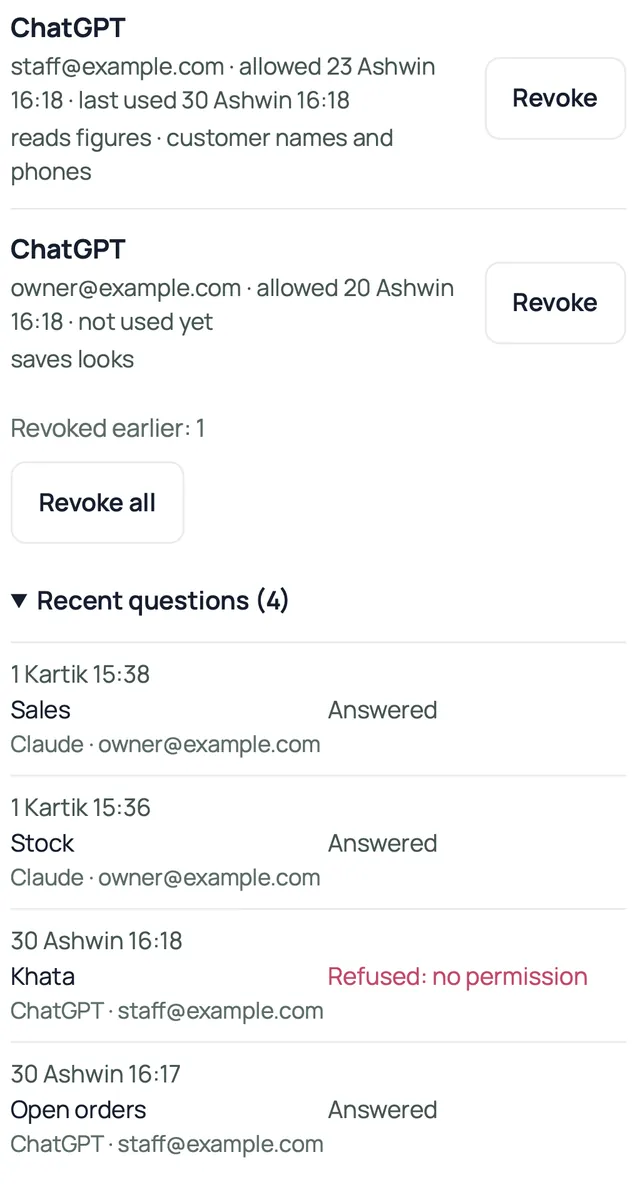
- In Retriever (owner): the owner opens Settings → AI assistants. Under Connected, each connection shows who allowed it, when, what it covers and when it was last used. Revoke stops one; Revoke all stops every one for the shop. Staff with Design see the switch greyed out and Connections that can save looks, with Revoke (it ends reading too).
- Recent questions, also on the owner's page, shows the last 50 questions: the kind of question (sales, stock and so on), who asked, when, and whether it was answered. Retriever does not keep the words or the answer, and keeps this list for three months. Retriever's product analytics, PostHog, also gets which tool answered, which assistant asked, whether it was answered and how long it took, never the question or the answer (Privacy Policy).
- Switch it off. Turning off Let AI assistants read this shop stops all reading at once until you turn it on again. It does not end a yes to save looks; use Revoke for that.
- In ChatGPT or Claude: remove Retriever from ChatGPT's Plugins list, or from Claude's Customize → Connectors. That stops the app asking; revoking in Retriever is what ends the yes.
Developers and other AI tools
Any app that takes a remote MCP server can use the same address, https://retriever.com.np/mcp. The rules above stay the same: the owner's switch, Pro, and a yes on retriever.com.np (section 4). When the app opens retriever.com.np, sign in and press Allow. For these tools the yes page names "an app on this computer" and sends you back to localhost or 127.0.0.1, not to chatgpt.com or claude.ai.
- Claude Code: run this in a terminal, then type /mcp in Claude Code to sign in.
claude mcp add --transport http retriever https://retriever.com.np/mcp - Cursor: add this to .cursor/mcp.json in your project (or ~/.cursor/mcp.json for every project), then press Connect next to Retriever in Cursor's MCP settings. If sign-in fails with "invalid_redirect_uri", update Cursor; older versions use a sign-in address Retriever does not accept.
{ "mcpServers": { "retriever": { "url": "https://retriever.com.np/mcp" } } } - Codex: add this to ~/.codex/config.toml, then run codex mcp login retriever to sign in.
[mcp_servers.retriever]
url = "https://retriever.com.np/mcp"
Claude Code, Cursor र Codex जस्ता विकासकर्ताका औजारमा पनि यही ठेगाना, https://retriever.com.np/mcp, थप्न सकिन्छ। माथिका आदेश वा फाइलका पङ्क्ति प्रयोग गर्नुहोस्। औजारलेretriever.com.np खोलेपछि साइन इन गरी Allow थिच्नुहोस्। त्यहाँ "यही कम्प्युटरको एप" भनेर देखिन्छ, र तपाईंलाई localhost वा 127.0.0.1 मा फर्काइन्छ। मालिकको स्विच, Pro र अनुमतिका नियम ChatGPT र Claude कै जस्तै हुन्। Cursor मा "invalid_redirect_uri" देखिएर साइन इन भएन भने Cursor अपडेट गर्नुहोस्; पुराना संस्करणले रिट्रिभरले नस्वीकार्ने साइन इन ठेगाना प्रयोग गर्छन्।
Where your shop's data goes
What the assistant reads goes to the company that runs it: OpenAI for ChatGPT, Anthropic for Claude, under their own terms. Other tools send it to the company that runs them, under their terms. Customer names and phone numbers go only if the person ticked that when they said yes, and their Retriever sign-in can see customers.
सहायकले पढेको कुरा त्यो चलाउने कम्पनीमा जान्छ: ChatGPT का लागि OpenAI, Claude का लागि Anthropic, उनीहरूकै सर्तअनुसार। अरू औजारले त्यो चलाउने कम्पनीमा, उसकै सर्तअनुसार पठाउँछन्।
If something goes wrong
- ChatGPT has no "Add custom MCP server". Your ChatGPT plan or workspace may not allow custom servers. On a work or school workspace, ask its admin. Claude is the other option.
- Claude does not find Retriever, or has no "Add custom connector". Add it by address (section 3). Your plan may not allow that, or on Team and Enterprise an owner of the Claude organisation may need to add it.
- "This shop has not switched on AI assistants". The owner turns it on in Settings → AI assistants (section 1). Then ask again.
- "…is part of Retriever Pro". The shop is not on Pro. The owner can see plans in Settings → Plan & billing.
- "Not allowed to read shop figures". The Read tick was off when you said yes. Remove Retriever in ChatGPT or Claude, connect again, and leave Read ticked.
- The Read tick is greyed out on retriever.com.np. AI assistants are off for the shop, or the shop is not on Pro. The page says which. The owner fixes it in Settings → AI assistants, then you connect again.
- "Does not have the … permission". Your own Retriever sign-in cannot see that part of the shop, for example Khata. The owner can give it under Settings → Who works here.
- "More than 60 questions in a minute". Too many questions at once (60 a minute on one connection, 120 a minute for one person). Wait a minute and ask again.
- It asks you to sign in again. The connection was revoked, or it was not used for three months. For looks, the permission ends after thirty days. Say yes again on retriever.com.np (section 4), and tick Draft, publish and undo looks again if you want the assistant to keep working on looks.
- It asks you to connect again when you ask it to keep a draft, publish a look or undo one. You left Draft, publish and undo looks off. Say yes again on retriever.com.np and tick it this time.
- It says it cannot save a look. AI assistants are off, the shop is not on Pro, or your sign-in cannot change Design. The message says which. Connecting again does not fix these: the owner can (Settings → AI assistants, Plan & billing, or Who works here), or make the change yourself in Design.
- "This request did not come from an app Retriever knows". Close the tab and start the connection again from ChatGPT or Claude, not from a link someone sent you.
More: Ask Retriever from ChatGPT or Claude covers what the assistant can see in detail, and Design your shop with ChatGPT covers saving looks.
- Ask Retriever from ChatGPT or ClaudeConnect Retriever to ChatGPT or Claude and ask about sales, stock, orders, khata, repairs, payment setup and reports, and make changes after your yes. Pro, and off until the owner turns it on.
- Design your shop with ChatGPTAdd Retriever to ChatGPT, preview looks without saving, say yes on retriever.com.np before it saves, and take that yes back. Saving needs the owner's AI assistants switch and Retriever Pro.
- Let ChatGPT or Claude make changes to your shopTurn on changes from AI assistants, tick Make changes when you connect, say yes to each change in the chat, and undo it in Settings → AI assistants → Changes.