
When Add asks the shopper to choose
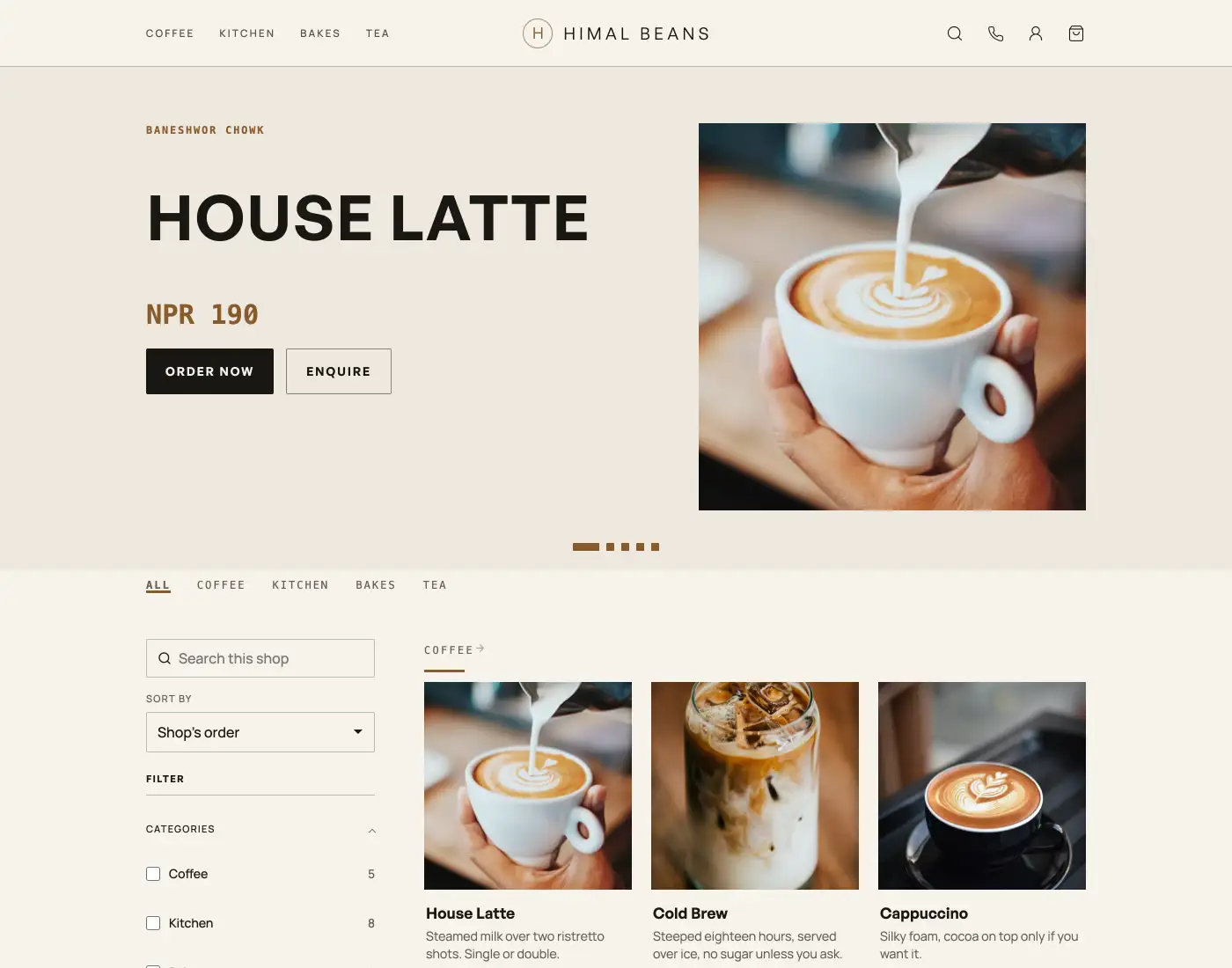
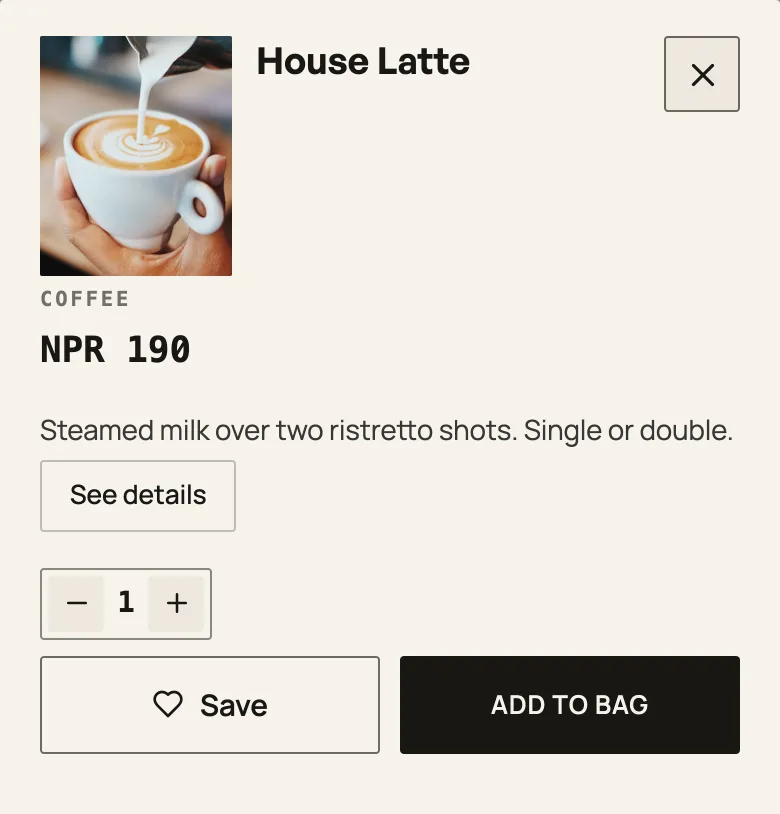
Add opens a sheet on every product: the photo, the price, and any size, colour or weight to choose. Nothing is bagged until they press Add to bag.
There is one Add on the shelf and it always opens the same sheet. The sheet is a preview: the photograph at full size, the price, what is left, the description, and the sizes, colours or amounts if the product has any. Nothing sits in the bag until they press Add to bag on it, so it is one tap to look and two to buy.
What counts as a choice
Retriever only knows what you filed on the product: sizes and colours, or sold by weight. A line in the description that says steamed or fried is not a choice until you add it as a size. Notes and blurbs never open the sheet.
What the shopper does
- Plain item. Add opens the sheet on the photograph and the price. Add to bag on the sheet puts it in the bag, and the floating bar then says View bag, which only opens the bag.
- Item with a choice. Add opens a sheet from the bottom of the phone, with the same chips the product page uses. They pick, then press Add to bag.
- The card itself. Tapping the name or the picture still opens the product page. See details on the sheet goes there too.
At a table the sheet does not change the address, so the table code stays. Sending to the kitchen is still the bag's own button, see table ordering.
- Sell one product in several sizes and coloursOne product page, a price per size, and stock and barcodes for each colour/size pair.
- Sell loose goods by weightPrice rice, dal, sugar or oil per kilo and let customers pick an amount.
- Let dine-in guests order from the tableA QR on every table: guests scan, order to that table, and it reaches your board labelled Table 4.