
Sell one product in several sizes and colours
One product page, a price per size, and stock and barcodes for each colour/size pair.
A kurta in S, M and L is one product, not three. Sizes and colours keep it that way: one page, one row in your catalog, photos you can tag per colour, and the shopper picks which one they want before it goes in the bag.
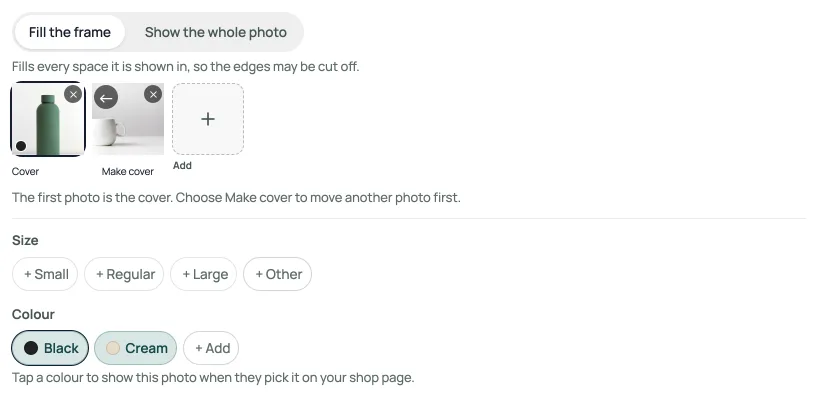
- Edit the product and open Manage options (or Add options). Quick size and colour chips also sit inside the Photos popup.
- Add your sizes. Tap the suggestions, or press + Other and type your own, pressing enter or comma after each. The suggestions are the sizes you already use elsewhere in your shop, so the second garment is faster than the first. A shop with none yet is offered the ones its trade uses: Small, Regular and Large for a cafe, Half and Full for a restaurant, half a pound upwards for a bakery, XS to XXL for a clothing shop. Some trades are offered none at all, and + Other takes anything you type.
- Add your colours the same way with + Add. Type them the way you would say them: Indigo, Off-white, Mustard.
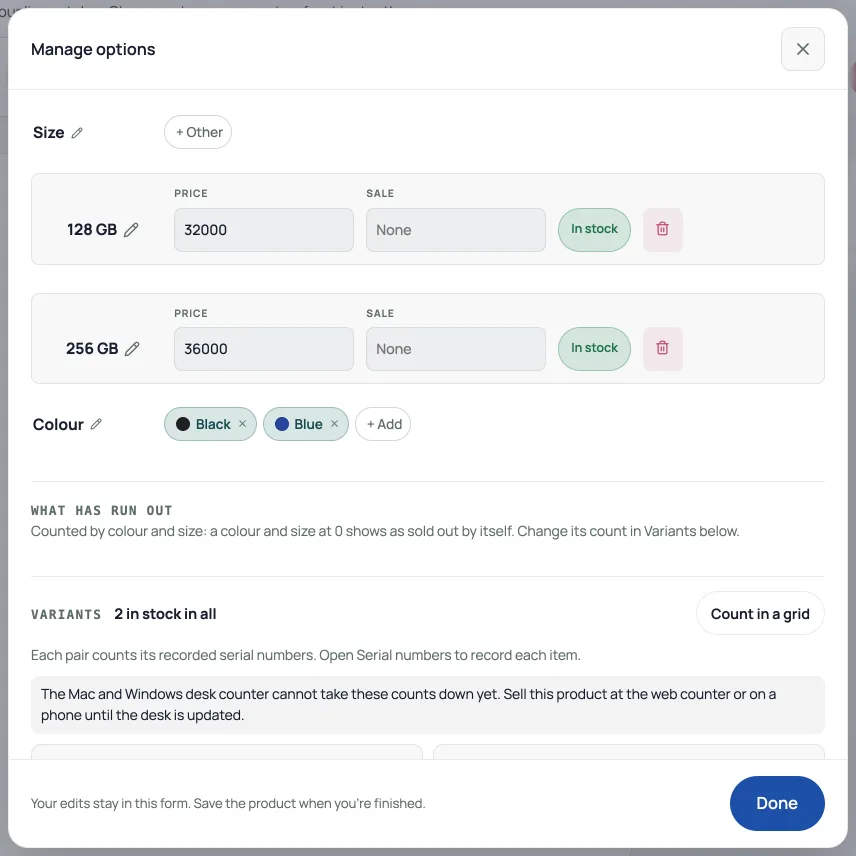
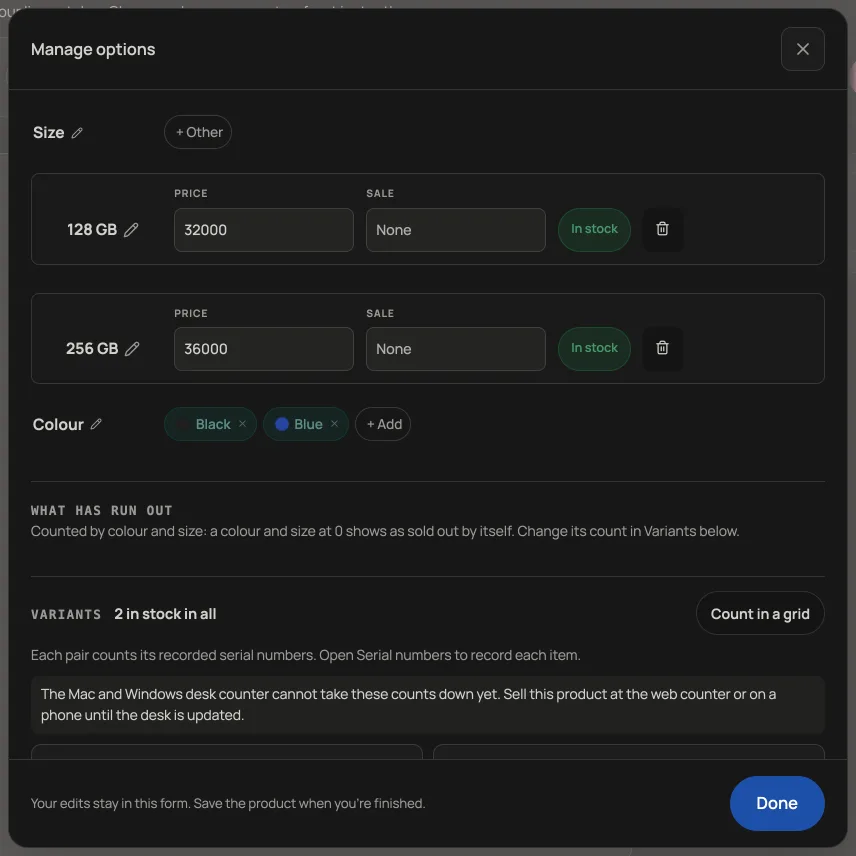
The two headings are yours to rename. Option name starts at Size and Colour, but a bakery selling cake by the pound wants Weight, and a jeweller wants Metal. Whatever you type is the heading your customer reads.
A price per size
Tap a size chip and its own fields open underneath. The Price box is empty by default and shows the product's own price in grey: leave it alone and that size charges the price at the top. Fill it in and that size charges its own. A large tea at NPR 90 next to a regular at NPR 60 is two numbers, not two products.
Each size can carry its own Sale price too. Colours do not carry prices, only sizes do, which keeps the arithmetic honest: the shopper is never shown two numbers that both claim to be the price.
Running out of one size
Three levels, smallest first:
- One size, or one colour, everywhere. Tap the chip and switch it to Sold out. Out of L in everything, whatever colour.
- One colour in one size. The What has run out grid at the bottom is a box per pair. Tick Indigo against M and only that combination goes; Indigo in L and Mustard in M carry on selling.
- The whole product. Toggle the product off in the catalog list, see Manage your catalog.
A sold-out size is shown to shoppers, greyed and untappable, rather than hidden. Somebody who wears L and sees L crossed out knows to come back; somebody who sees no L at all assumes you do not stock it.
Photos per colour
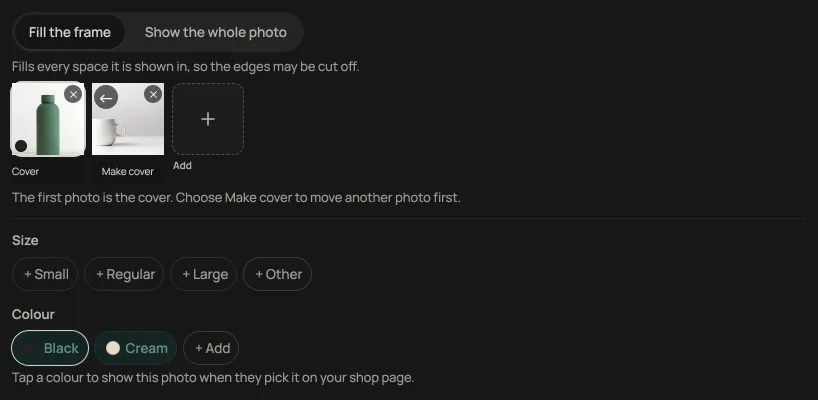
Colour chips live under the photograph, not in a separate pane. Tap Black while you are looking at the black shot and that picture is what the shop page shows when a shopper picks Black. Cream with no photo of its own falls back to the product gallery, so you can do your bestseller properly and leave the rest. Sizes do not get photographs. The size chips next to the photo add or price a size. They do not tag a picture.
What the shopper sees
Add on the shelf opens a sheet with those chips. Nothing goes in the bag until they pick and press Add to bag. Tapping the card still opens the product page, where colours are swatches, sizes are chips, and the price above updates as they choose. A size that costs more than the others says so on its chip; sizes that all cost the same do not clutter themselves with repeated prices. The sheet and the page use the same chips, see When Add asks the shopper to choose.
In the bag and on the order it reads Kurta (Indigo, M), and at checkout as Indigo · M · 1 under the name. That is one reason to name sizes the way you would say them out loud: whatever you type is what you will be reading off an order at seven in the evening.
Count each colour and size
Turn on stock counting in the product editor and fill the count for every pair you sell. A blank count is different from zero. If some are missing, use the offered action to set the remaining pairs to zero only when that is correct. The pair counts add up to the product total; they are not extra stock on top. When converting a whole-product count, split the stock you actually have between the pairs before saving.
The count grid is useful for several colours and sizes. You can still use the rows when you need to edit a barcode. Restocking a pair replaces its count in the editor. Hide public quantities throughDesign → Products/Menu → Show stock quantities; this does not stop counting or remove purchase limits.
Give a pair its own barcode
Enter a barcode on the pair's row and save. A code must identify one product or pair in your shop; reusing a code already assigned elsewhere is refused. Use the product labels tool to print pair labels. A barcode identifies the colour/size combination. An SN or IMEI identifies one physical unit instead, see Track a unit by its serial number.
At the counter and afterwards
- The counter asks. Tap a tile that has sizes and a sheet opens, then choose the actual colour and size. The selected pair travels with the line and draws from that pair's count. Scanning its own barcode selects that pair; a product-level barcode may still ask you to choose.
- The printed bill carries the option inside the line name, so the customer's copy says Kurta (Indigo, M) with no extra column.
- Returns started from the order keep the variant, because it is part of the line. A walk-in return with no order behind it has a Size / variant box to type it into. See Handle returns and exchanges.
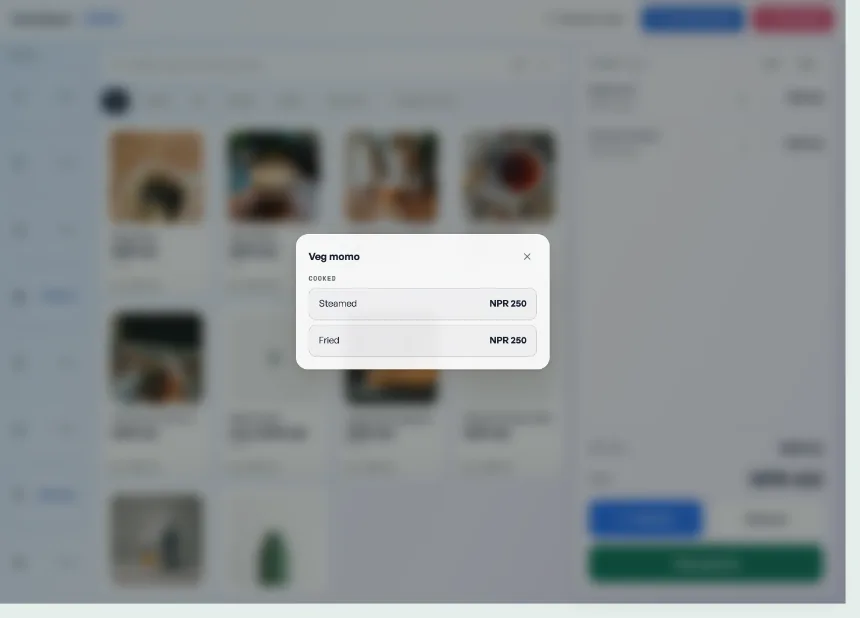
Use the web counter for exact colour/size or serial-unit selection. Retriever Desk does not yet offer the same selection. Finish syncing older device queues before enabling serial tracking.
Two things worth knowing
Renaming carries, deleting does not. Rename M to Medium and everything you had ticked as run out follows the new name. Delete a size and its ticks go with it, which is right, but it is not undoable.
A shopper mid-basket loses a line you delete. If someone has Indigo M in their bag and you delete that size, or mark it sold out, that line drops out of their bag rather than quietly repricing itself to something they did not choose. Better to edit sizes in the morning than at eight on a Friday.
Sizes and colours are for things sold by the piece. A shop selling by the kilo wants Sell loose goods by weight instead, and the two do not mix.
- Manage your catalogAdd products, photos, prices, and take items off the shelf when you are out of stock.
- When Add asks the shopper to chooseAdd opens a sheet on every product: the photo, the price, and any size, colour or weight to choose. Nothing is bagged until they press Add to bag.
- Sell loose goods by weightPrice rice, dal, sugar or oil per kilo and let customers pick an amount.