
Find your way around the dashboard
Your everyday pages, the account menu, the unified Settings window, search and working on a phone.
The web dashboard keeps everyday work in the main menu and setup in one Settings window. These screenshots use the Himal Beans demo shop. Retriever Desk can have a different menu; the pictures here show the web dashboard.
Your everyday pages
The left menu starts with your shop, Search and Open the counter when your shop uses one. Home, Orders, Products and other everyday pages depend on your shop type. A cafe can have Tables; a salon can have Bookings; a ticket seller can have Events and Door scan.
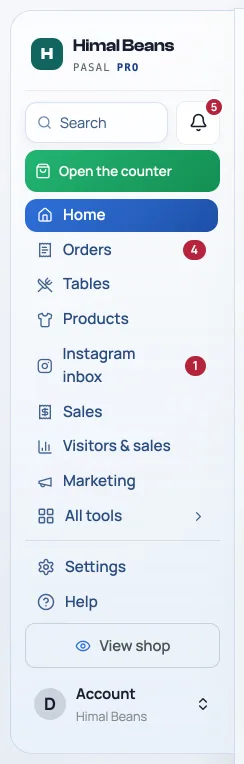
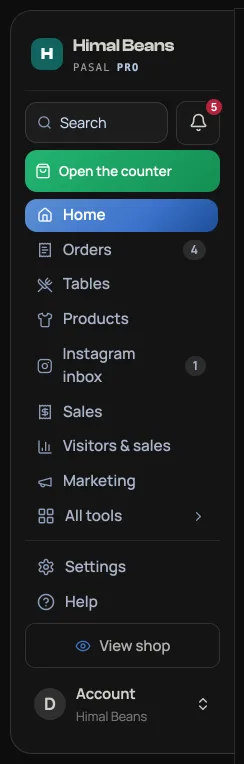
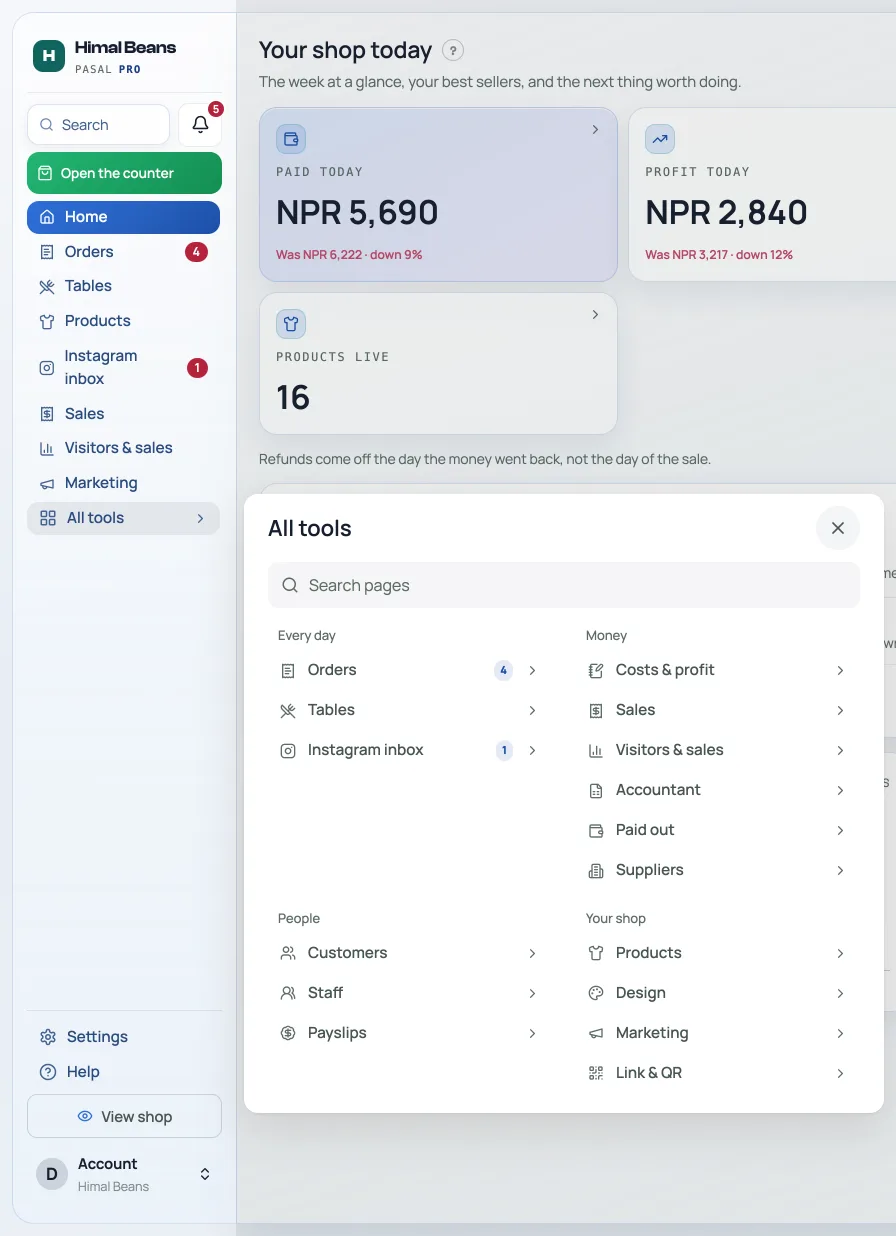
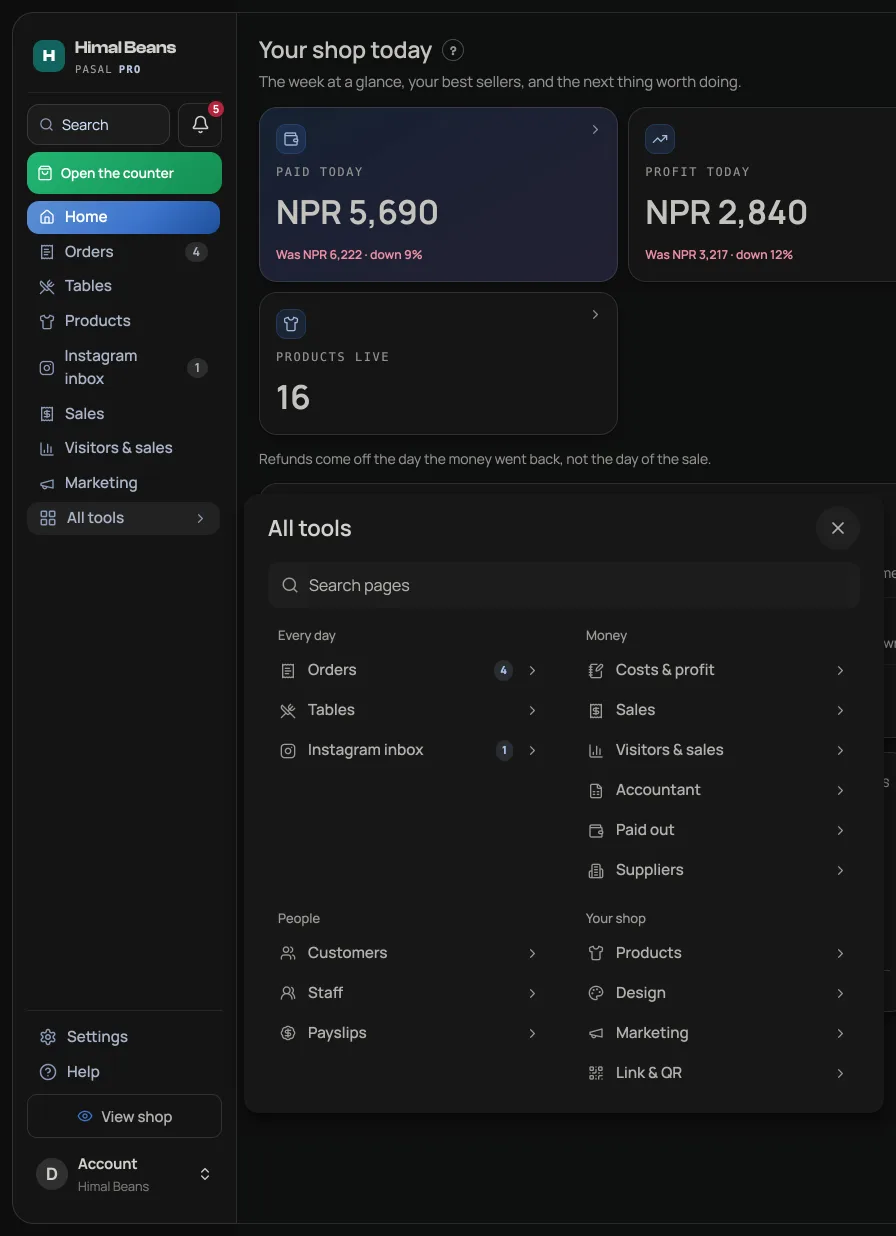
The other work pages are in All tools, the last row of the list. It opens beside the menu with the pages grouped under Every day, Money, People and Your shop, and a Search pages box at the top. You see only the pages your shop has and your login can use. Hover over a row and press its pin to keep it near the top; you can pin up to five pages per person, on this device.
Start on Home
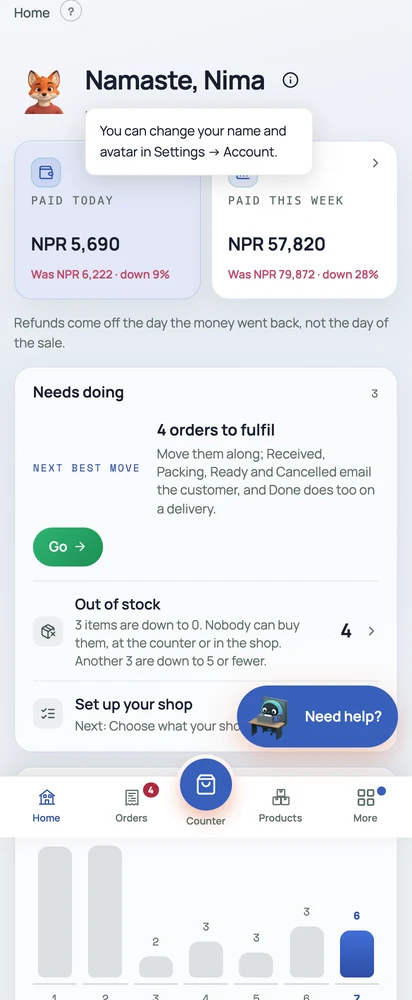
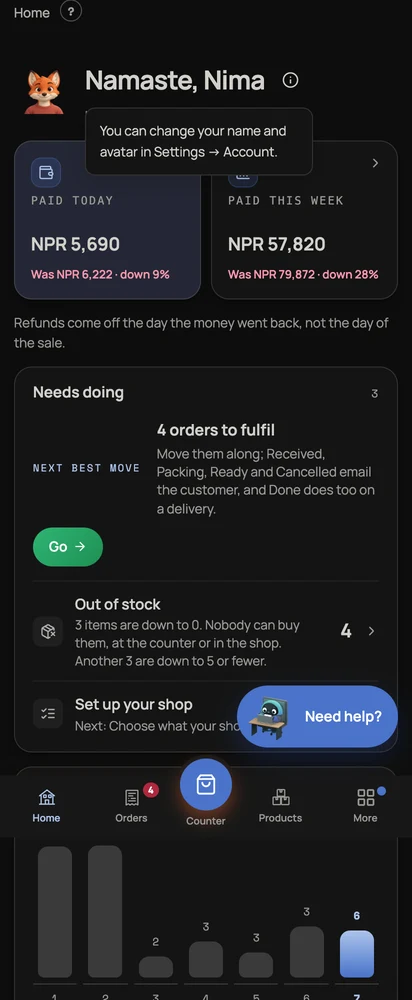
Home greets you with your account name and avatar. Press the info icon beside your name for where to change them: Settings → Account. Paid today, Profit today when available, and Paid this week use three separate cards on a computer. On a phone, Home shows only Paid today and Paid this week; owners can open Sales for profit. Each figure keeps its previous-period comparison. Press a figure to open the money page your login can use. Staff never see the owner's product profit.
Needs doing lists pending orders, stock to review and any setup steps. Press a row to open that work. Bookings, repairs and khata summaries appear when your shop uses them. The week shows recent activity; Best sellers lists quantity and sales for the last thirty days.
Open your account menu
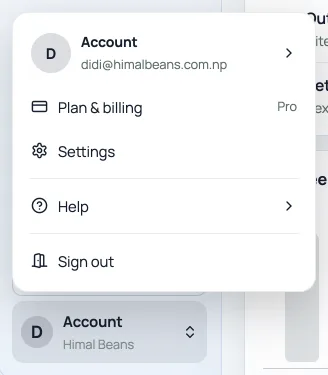
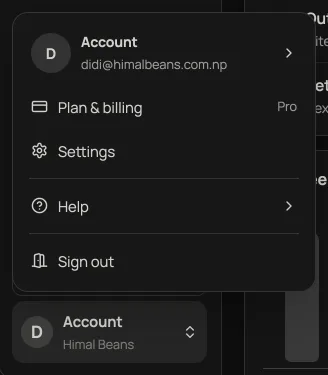
Press Account at the bottom of the left menu. On a phone, open Moreand use its account button. Choose Settings, Plan & billing,Help or Sign out. Settings and billing appear only when your login can open them. Press your name and avatar at the top of the open menu to go straight to Account in Settings. Help opens a choice of Help articles and Contact support. Contact support opens your email app.
Find a setting
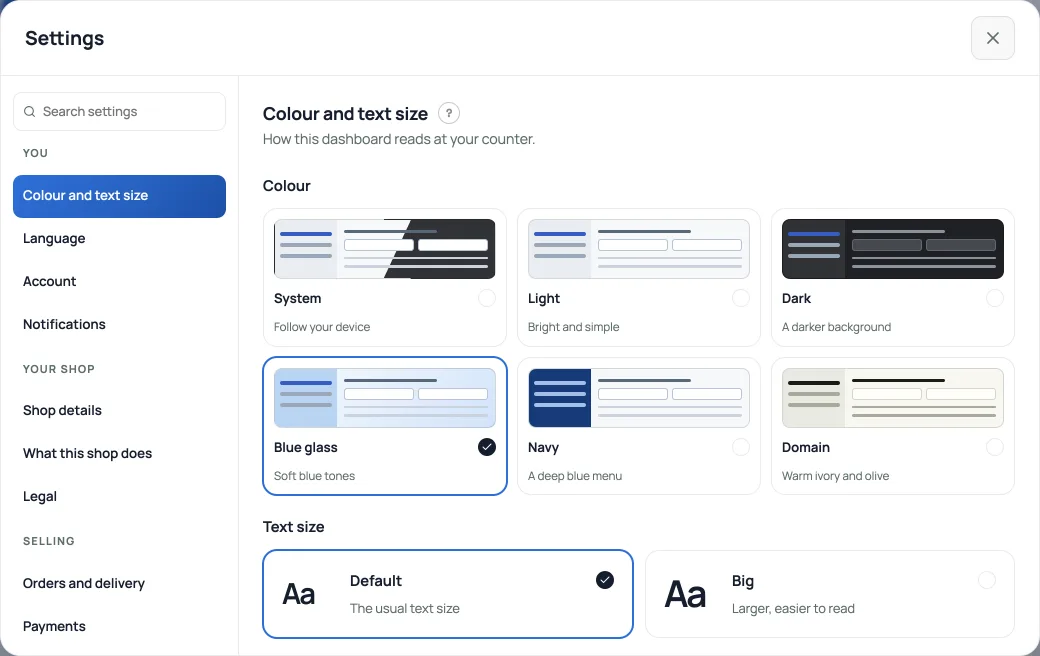
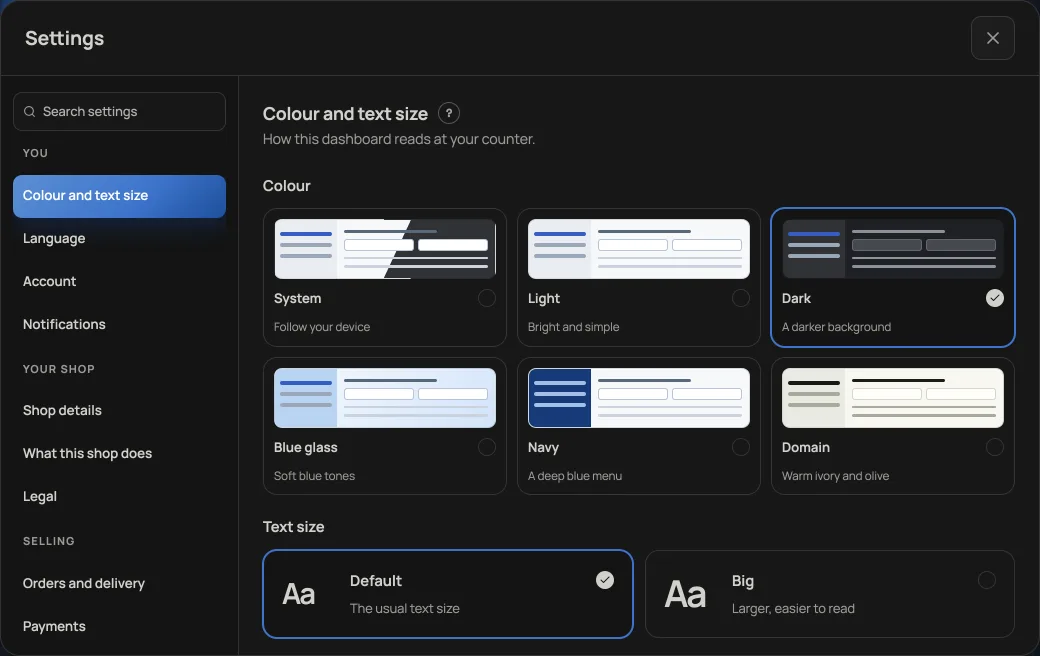
Settings has a list on the left and the selected section on the right on a computer. The selected row is highlighted and scrolls into view when you open it. On a phone, tap a row to open its section, then press All settings to return to the list.
- You: Colour and text size, Language, Account and Notifications.
- Your shop: Shop details, Apps and Legal.
- Selling: Orders and delivery (or Bookings, or Orders, bookings and delivery) and Payments.
- Money: Receipts and tax and Plan & billing.
- People: Who works here.
- Records: Backups and About Retriever billing.
Permission and shop-type rules can shorten the list. The Search settings box filters it as you type on both widths. For example, type "PAN" for Shop details or "roll" for Receipts and tax.
Use the Save button when the section offers one. Some switches save immediately. Closing Settings with unsaved edits offers Keep editing or Discard changes; closing while a save is running waits for it to finish. Browser Back closes Settings and returns to the page underneath; Forward reopens the same section. Unsaved edits are protected when you use browser Back too.
If you open a help article from a Settings section, use the article's Settings back button to return to that section. Links to another guide keep a trail back to the first article.
Search from any page
Press Search, Ctrl K, or Cmd K on a Mac. Search covers pages, settings, products, recent orders and customers. Results open the matching section: "VAT" opens Shop details, and "delivery fee" opens Orders and delivery. Use arrows to move, Enter to open and Escape to close.
You do not need the exact word. Search knows the words shops use in English, Nepali and romanised Nepali: "udharo" or "उधारो" finds Khata, "pan" finds Shop details, "saman" finds Products and "galla" finds the counter. One slip of the thumb still lands, so "prodcut", "kahta" and "setings" work too.
On a phone
The bottom bar holds everyday pages and More. Its pages depend on the shop type; More includes the rest and your account button. Add the dashboard to your home screen to open it like an app.Set up order alerts separately on each device that should buzz.
The box at the top of More searches pages, products, orders and customers, including the people on your Khata with what they owe. Before you type, it suggests pages: Recent ones you opened, then your Most used, or Suggested ones such as Products, Khata and Sales on a new phone. These are remembered on this phone only. If nothing matches, it says so and offers Search Help for your words, which opens these guides with your search already typed.
Colour and language
In Settings, open Colour and text size for System, Light, Dark, Teal, Navy or Domain, and Default or Big text. The colour cards show a miniature dashboard; the tick marks your choice. A live preview shows how the text reads. Changes apply immediately, with no Save button.Language offers English or नेपाली. Both are remembered on this device and change nothing on your public shop page. See Dates on your dashboard for how dates follow the language.
Help and page links
Read these guides from Account menu → Help → Help articles, or ask the cornerAsk Zuno / Need help? button. Relevant answers can include a link to the page or Settings section they explain. Press it to open that section; links respect your access. If a guide does not solve it, choose Contact support in the account menu to email us.
- Get alerted for every new orderInstall the dashboard like an app and turn on notifications so nothing is missed.
- Turn shop features on and offEach part of Retriever is an app you install or uninstall. Settings, Apps is where you change your mind.
- Dates on your dashboard, in Bikram SambatYour own screens read BS, from Shrawan to Ashad. What your customer gets stays in AD, on purpose.