
Connect Fonepay dynamic QR
A QR made for each bill, paid into your own Fonepay merchant account and confirmed automatically. Connect it in Settings → Payments, or ask support.
A dynamic payment QR is made for one bill, with its amount and reference, and the payment is confirmed without you checking. The money goes to your own Fonepay merchant account, not to Retriever.
If you have your own Fonepay merchant account
The shop owner opens Settings → Payments, opens Fonepay and chooses Automatic. Retriever reads the saved connection before showing the setup fields. Staff cannot view or change merchant credentials.
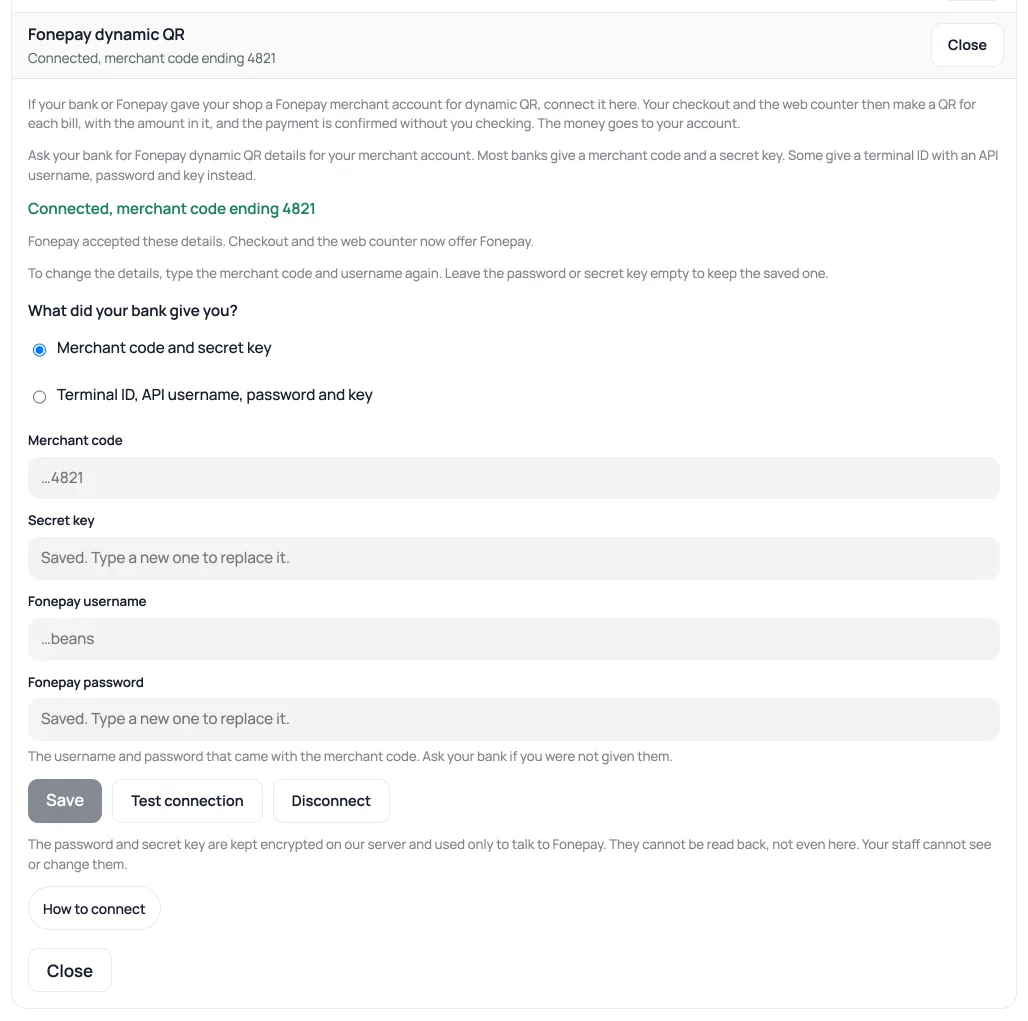
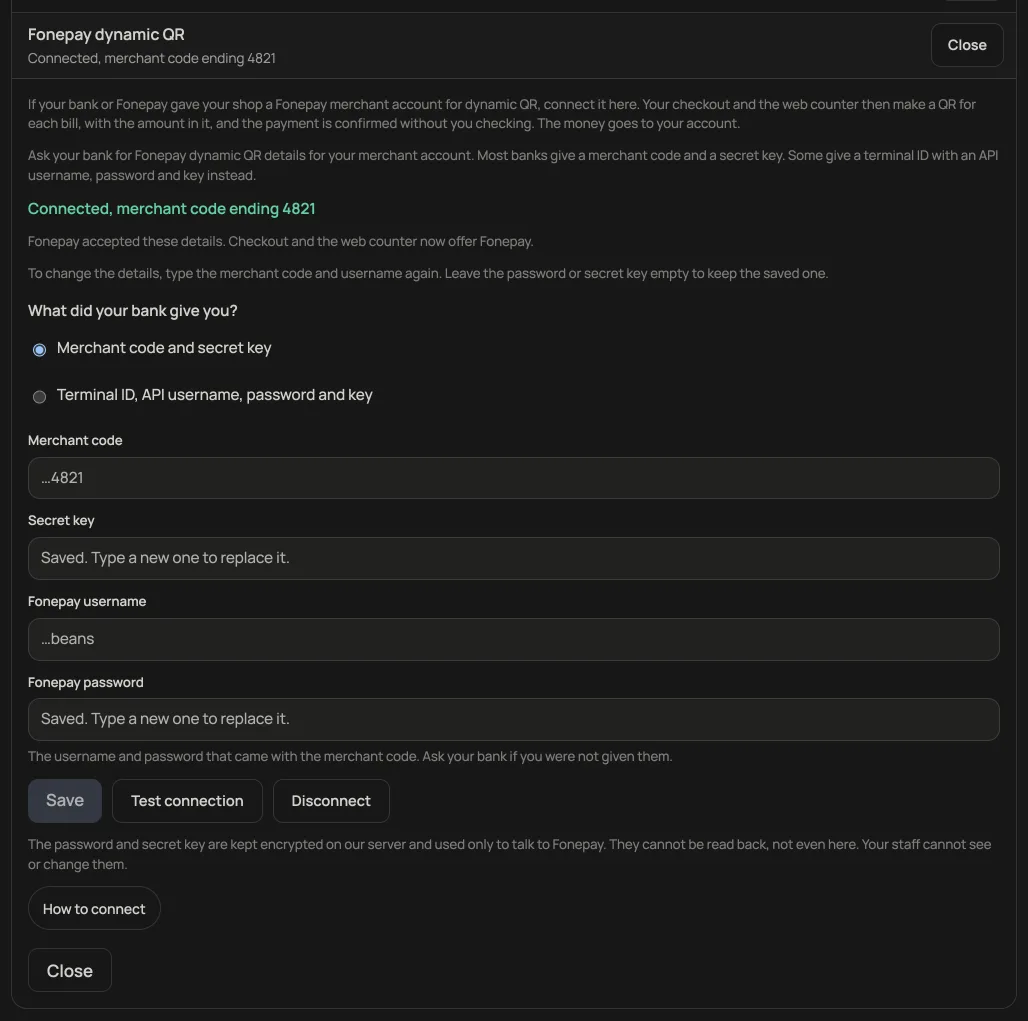
Ask your bank for Fonepay dynamic QR details for your merchant account. Banks give one of two kinds, and Retriever takes either:
- Merchant code and secret key, the kind most banks give, with the username and password for your Fonepay merchant account.
- Terminal ID, API username, password and key, for Fonepay's newer API.
With a merchant code and secret key
- Open Settings → Payments, press Connect on Fonepay dynamic QR, and choose Merchant code and secret key.
- Type the merchant code, the secret key, and the Fonepay username and password, then press Save. Retriever tests them by asking Fonepay for a one-rupee code that is never shown, so nobody can pay it and no money moves.
With a terminal ID and API login
- Ask your bank or Fonepay for the terminal ID, the API username and the API password, and ask whether they give you a private key or want a public key from you.
- Open Settings → Payments, press Connect on Fonepay dynamic QR, choose Terminal ID, API username, password and key, and type the terminal ID, username and password.
- If they gave you a private key, paste it and press Save. Retriever then signs in to Fonepay with those details to test them. No code is made and no money moves.
- If they want a public key from you, tick Make a key pair for me and press Save. Copy the public key Retriever shows and give it to Fonepay or your bank. Once they have added it, press Test connection. Testing before then fails, because Fonepay does not know the key yet.
Taking a payment
When the test works, your checkout offers Fonepay, and on the web counter, under Bank QR, you can press Make a Fonepay code for this bill. A checkout order is placed first and marked paid when Fonepay confirms the payment. On the web counter, the sale is recorded as Bank QR. Retriever Desk does not make these codes yet.
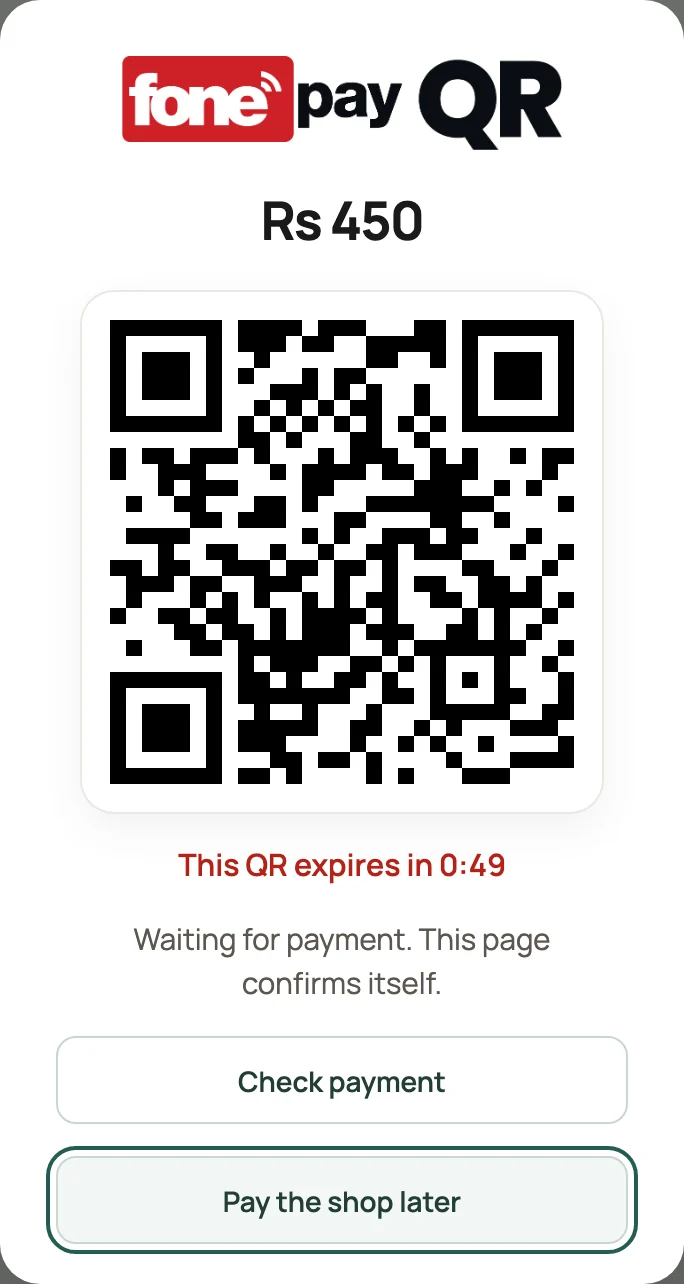
Each code shows how long it has left, about five minutes. The time turns red in the last minute. At zero the code is replaced by QR expired and a Make a new code button; Retriever checks the old code once more before making the new one. A checkout order can have up to five codes.
The page checks the payment by itself every few seconds. If the customer has paid and is waiting, press Check payment to ask Fonepay now. If the money has not arrived, it says “Payment has not been received yet.”
The password, secret key and private key are kept encrypted on Retriever's server and are never shown again, not even to you. To change them, type new ones and save. Saving the other kind of details replaces the saved ones. Making a new key pair replaces the saved key, and Fonepay must be given the new public key before payments work again. Disconnect removes them; your uploaded QR stays.
If the connection cannot be read
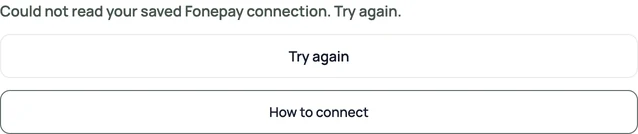
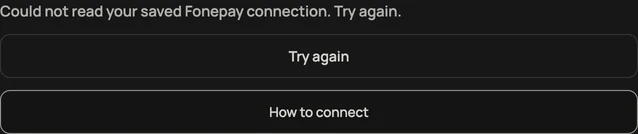
Wait while the saved connection is being read. If reading fails, press Try again in the connection panel. You do not need to enter credentials again to retry the status check. When Retriever confirms setup is not enabled for the shop, the panel shows Connection guide. Ask support about availability using your shop name and bank.
Every shop can upload its own QR today in Settings → Payments. Those orders stay unpaid until you check your account and press Mark paid. Read Take payment by QR for the steps.
Never send a banking password, an OTP or an API key in an email or a help chat. Type Fonepay details only into Settings → Payments.
- Take payment by QRPut your eSewa, Khalti, Fonepay or bank QR on checkout and collect the proof.
- Get a merchant QR: eSewa, Khalti, Fonepay and your bankWhere each QR comes from, the papers they ask for, and which one to tape to the counter first.
- Keep supplier bills, deliveries and balancesRecord who you buy from, receive counted stock in parts, and record payments you have already made.