
Take payment by QR
Put your eSewa, Khalti, Fonepay or bank QR on checkout and collect the proof.
Most shops here already have a QR taped to the counter. Retriever uses the same one. Upload it once and every checkout shows it, products and tickets alike, with the exact amount to send.
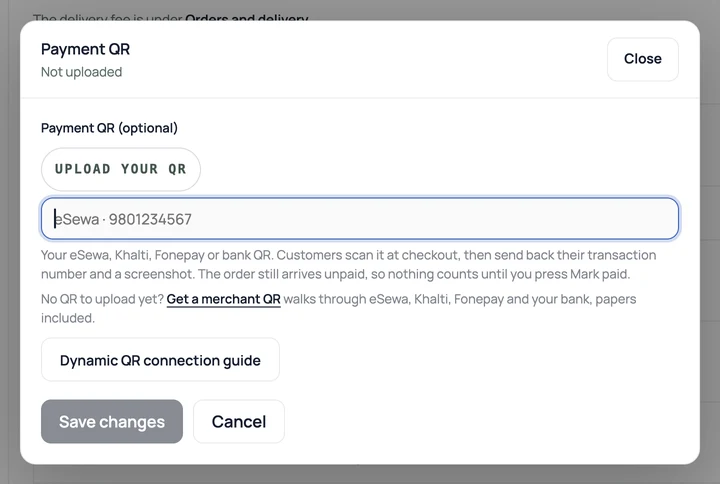
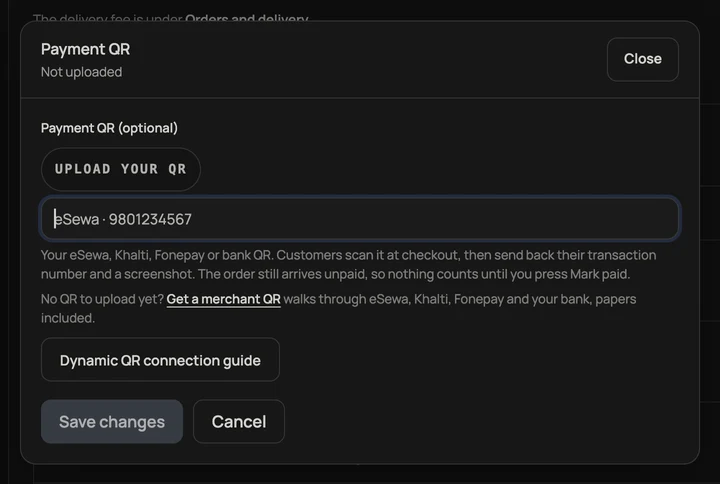
- Open Settings, Payments, press Set up or Manage beside eSewa, Khalti or Fonepay, choose Static QR, then upload the QR in the popup. Use the same image that wallet's merchant app gives you; a Fonepay QR from your bank goes under Fonepay. A QR from any other app, like NepalPay or IME Pay, goes under Other QR. The same pane holds your bank account details and a note on how customers can pay you, if you want either.
- Under Other QR, add a label like NepalPay · 9801234567 so customers know what they are paying into.
- Press Save. That is it; your storefront picks it up straight away.
What the customer sees
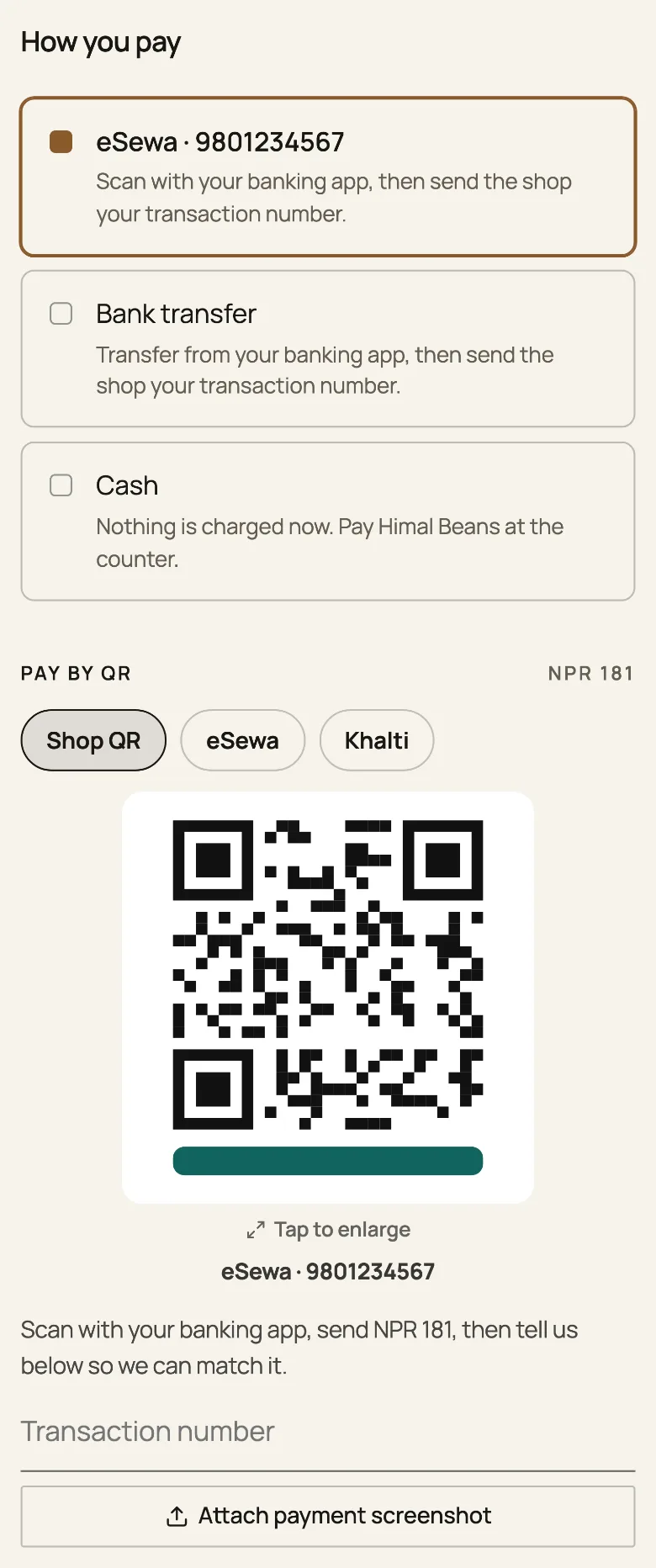
They fill in their details, press Continue to payment, and land on a screen with your QR, the amount, and two boxes: the transaction number and a screenshot. They scan in their own banking app, pay, and send both back.
At the counter
The same pictures. On Payment, the eSewa, Khalti and Bank QR pills show that wallet's code. If a customer screen is open, they see it too, so they can scan from their side of the counter. Cash and Card have no picture. A method with nothing uploaded stays a sentence, not some other organisation's code.
Then it is your call
The order lands on your board unpaid, with the transaction number and a View screenshot link on the row. Check it against your own account, then press Mark paid.
With an uploaded QR, Retriever does not automatically verify that money arrived; a screenshot is a claim, not a payment. For tickets it matters twice over: they stay refused at the door until you mark the order paid, so a faked screenshot buys nobody a seat.
No QR uploaded? Nothing changes. Checkout stays one step and customers pay you however you already arrange it.
No QR to upload at all yet? Get a merchant QR walks through where each one comes from: eSewa, Khalti, Fonepay and your bank.
For a QR made for each bill, with payment confirmed by the provider, see Connect Fonepay dynamic QR.
- Get a merchant QR: eSewa, Khalti, Fonepay and your bankWhere each QR comes from, the papers they ask for, and which one to tape to the counter first.
- Ring a sale at the counterOpen the counter, build a bill, take cash or QR, and hand over a receipt.
- Keep supplier bills, deliveries and balancesRecord who you buy from, receive counted stock in parts, and record payments you have already made.