
Show your products in WhatsApp
Put your products in WhatsApp's own catalog, so customers can look through them, fill a cart and send it to you in the chat.
WhatsApp has its own catalog for business accounts. A customer opens your shop's chat, opens the catalog and sees your products with their photo and price, with the old price struck through when you have a sale price. They choose how many they want, add them to a cart and send the cart to you. It arrives in the chat as a message. Retriever can fill this catalog from your products.
When a cart arrives
The cart is a WhatsApp message listing the items, how many and their prices. It is not a Retriever order: it is not on your order board, it does not take anything off your stock and nothing has been paid. Paying inside WhatsApp is not part of this.
- Record it yourself. Open Orders → New order, add the same items, and agree the total and delivery with the customer in the chat.
- Or send them your shop. Reply with the product's link, or your shop link, and they order and pay on your shop page as usual. Each product has its own page on your shop; open it and copy its address. See Share your shop link.
If your WhatsApp number is connected to the Retriever Inbox, the cart also shows in the WhatsApp tab as Order from the WhatsApp catalogue with the number of items. Open WhatsApp on your phone to see the items.
Two ways to set it up
A few products: add them in WhatsApp. In the WhatsApp Business app on your phone, open your business tools, then the catalog, and add each product with its photo and price. This suits a handful of items. WhatsApp does not know your Retriever prices or stock, so when one changes, change it in both places.
More products: let Retriever fill it. Your product feed keeps a Meta catalog the same as your shop, and that catalog can be connected to WhatsApp.
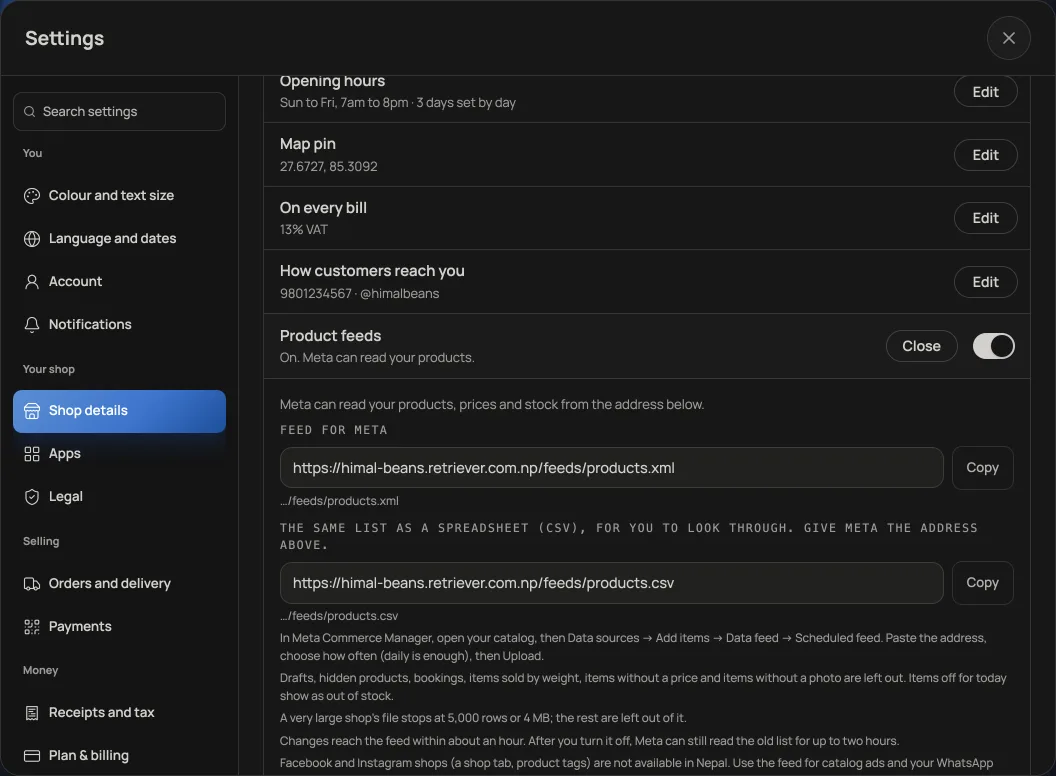
- Open Settings → Shop details, turn on Product feeds and copy the first address, Feed for Meta. It ends in /feeds/products.xml.
- In Meta Commerce Manager, create a catalog or open the one you have. Then open Data sources → Add items → Data feed → Scheduled feed, paste the address, choose daily and press Upload.
- Connect that catalog to your WhatsApp Business account. The catalog and the WhatsApp account need to be in the same Meta business portfolio, or the catalog shared with it. Meta's guide Connect a catalogue to your WhatsApp Business account has its current steps.
- From another phone, open your shop's chat and check that the catalog shows your products and prices.
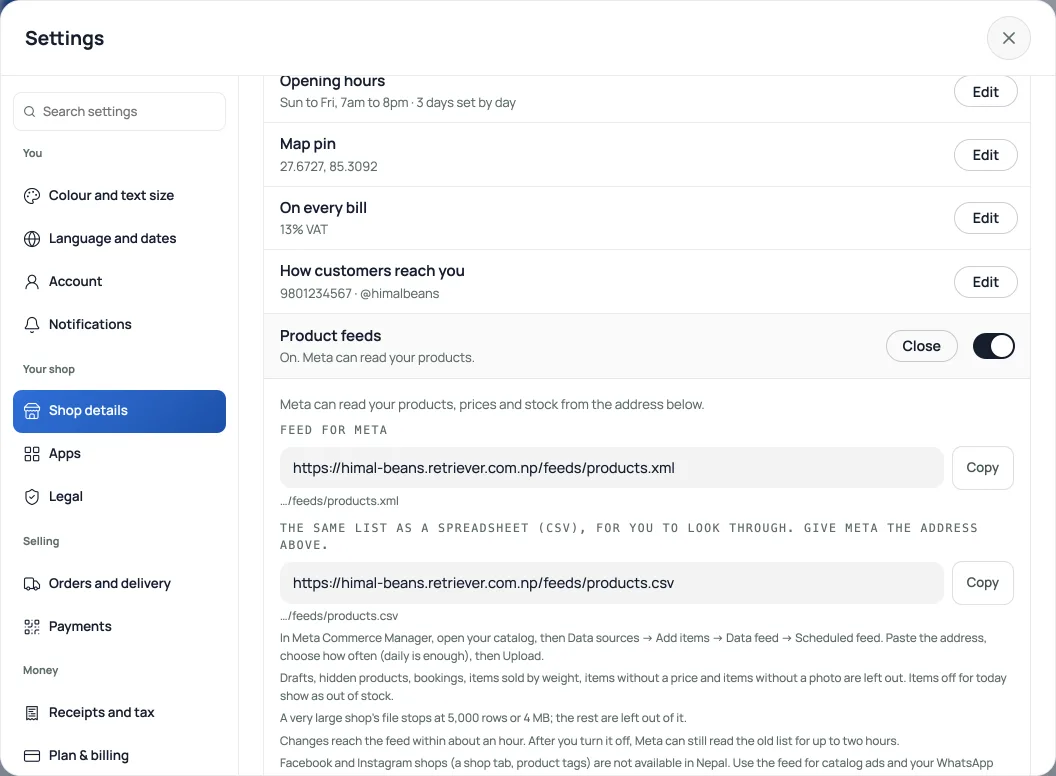
Meta reads the feed about once a day, so a new product, price or sale shows in WhatsApp within about a day, not at once. Until then, the catalog shows the last list Meta read.
Meta's steps start from a WhatsApp Business account in your business portfolio. If you connected your number to the Retriever Inbox, it is there. If Meta does not list your number, use the first way, or email support@retriever.com.np.
Good to know
- It needs WhatsApp Business. A catalog shows only on a number that uses WhatsApp Business. A regular WhatsApp account cannot show one.
- What the feed sends. Published products with a price and a photo, at your shelf price (before VAT if you are VAT registered), with your sale price when it is lower. Drafts, products you have hidden, bookings, items sold by weight and items with no price or photo are left out, so they are not in the catalog. Items sold out or off for today are sent as out of stock, not removed. See Product feeds for Facebook and Instagram catalogs.
- Nepal. Facebook and Instagram shops are not available in Nepal, as the product feed guide explains. The feed is for catalog ads and for your WhatsApp Business catalog, and customers pay you the way they do now.
- Add your own 360° photos or a 3D product modelLet shoppers rotate a set of product photos or explore a GLB model, alongside the usual gallery.
- Make the shop look like yoursTemplate, colours, logo, hero photo, and the order of the page, all from the Design tab.
- Preview a look before you save itTry a card in Browse designs, check the Not saved bar, then save the look or discard the trial.