
Ask Retriever from ChatGPT or Claude
Connect Retriever to ChatGPT or Claude and ask about sales, stock, orders, the credit book, repairs, payment setup and reports, and make changes after your yes. Pro, and off until the owner turns it on.
ChatGPT and Claude can read your shop's figures and answer questions like "How did this week go against last week?", "What is running low?" or "How much is owed on the credit book?". They can also make everyday changes, such as a price or opening hours, if the owner allows it and you tick it, each only after your yes (see Let ChatGPT or Claude make changes to your shop). They never move money. The yes page also has a separate, unticked box for saving new looks; leave it off unless you want that.
Connecting for the first time? Connect Retriever to ChatGPT or Claude walks through every step with pictures.
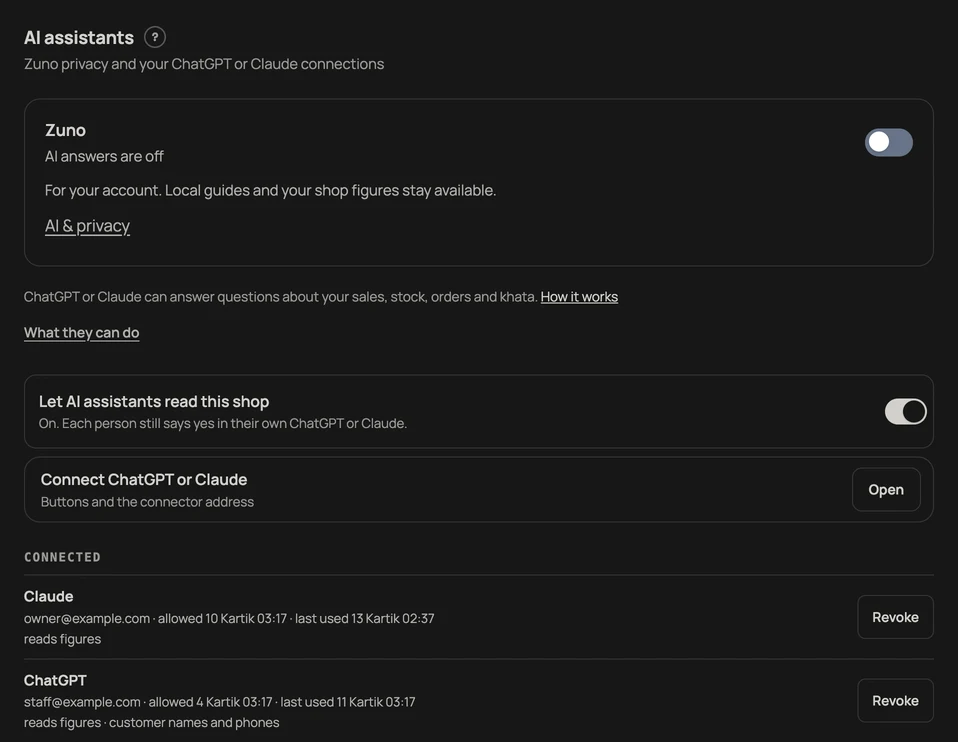
Before you start. This is part of Retriever Pro (a trial counts). The owner turns it on once: open Settings → AI assistants and switch on Let AI assistants read this shop. It is off until then.
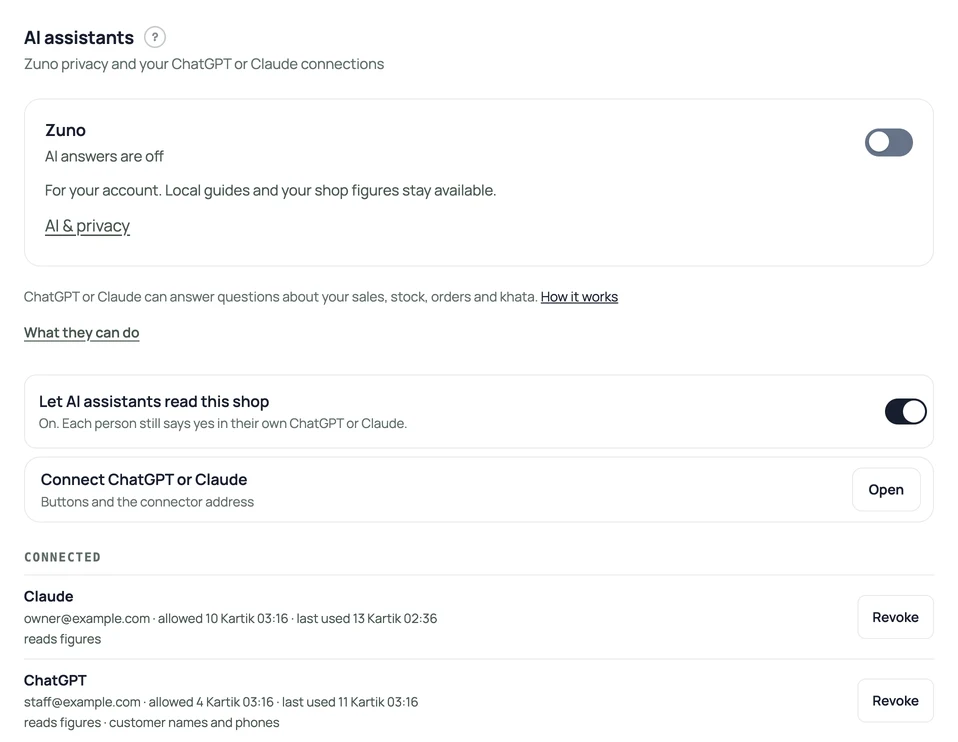
- Copy the address https://retriever.com.np/mcp from Settings → AI assistants. Retriever's listings in the ChatGPT and Claude directories are in review, so for now you add it by this address.
- In ChatGPT: Connect ChatGPT in Settings → AI assistants copies the address and opens Plugins (chatgpt.com/plugins). Press Add, then Add custom MCP server. Name it Retriever, paste the address and choose OAuth. ChatGPT warns that custom servers are not checked by OpenAI; read it, continue, and create it. If you do not see this option, your ChatGPT plan or workspace may not allow it.
- In Claude: Connect Claude in Settings → AI assistants opens Add custom connector with the name and address filled in; confirm it. Or open Customize, then Connectors, press Add at the top right, then Add custom connector. Name it Retriever and paste the address. On a Team or Enterprise plan an owner of the Claude organisation may have to add it first.
- The assistant sends you to retriever.com.np. Sign in, check the shop name, and choose what to allow, then press Allow.
What it can see. Sales for a day, week, month (Bikram Sambat or AD) or your own dates, with the payment-method split and the period before; best-selling items; low and out-of-stock items; orders still to fulfil, unpaid orders and open table bills; today's bookings; the credit book total and how many accounts are open. The numbers are the same ones Retriever shows you. Each person sees only what their own Retriever permissions allow: a cashier without Analytics gets no sales figures, and item lines go to the owner's sign-in only, as in the dashboard.
More shop questions
Where these tools are enabled, you can also ask about the following. Your connection and current Retriever permissions still decide what is available.
- Shop context: which features are enabled and what your own staff account can do.
- Payment setup: the owner can ask about saved connection status and missing setup. Credentials are never included. A saved status is not a fresh bank or payment test.
- Find a record: search the products, orders, bookings and repairs your account is allowed to read. Customer details still need their separate permission.
- Repairs: see repair queues by status and how long ago each repair was taken in.
- Sales CSV: get daily gross sales from paid orders for the chosen period, through a private download link that expires. This is not a profit report or the tax sales book.
- Recorded activity: the owner can read recorded product price and stock changes. This does not claim a history of every action in the shop.
- Busy times: "When is the shop busiest?" gives the hours of the day and days of the week when the shop sells most, in Nepal time. Needs Analytics.
- Spending: "What did we spend on what this month?" gives the expenses recorded in Costs & profit, by category, with the largest lines. Needs that permission.
- New and returning customers: "How many customers were new and how many came back?" also lists the best customers by spend, named only if customer details were allowed.
- What customers ask for: "What are customers asking for?" gives the products shoppers are waiting to see back in stock and the shop's published product reviews.
अनुमतिअनुसार पसलका सुविधा र आफ्नो अधिकार, सामान/अर्डर/बुकिङ/मर्मत खोजी, मर्मतको सूची र तिरेका अर्डरको दैनिक कुल बिक्रीको CSV सोध्न सकिन्छ। भुक्तानीको सेभ गरिएको स्थिति र सामानको मूल्य वा स्टक परिवर्तनको रेकर्ड मालिकका लागि मात्र हो। सेभ गरिएको स्थिति नयाँ बैंक वा भुक्तानी परीक्षण होइन। ग्राहकका नाम र फोनका लागि छुट्टै अनुमति चाहिन्छ। पसल कहिले व्यस्त हुन्छ, खर्च कुन कुरामा भयो, कति ग्राहक नयाँ र कति फर्केर आए, र ग्राहकले कुन सामान खोजिरहेका छन् भन्ने पनि सोध्न सकिन्छ।
Customer names and phone numbers. The yes page asks about these separately, and the box starts off. Leave it off and names, phone numbers and emails stay hidden. PAN and VAT numbers are never shown.
Where it goes. What the assistant reads goes to the company that runs it: OpenAI for ChatGPT, Anthropic for Claude, under their own terms. Retriever keeps the kind of question (sales, stock and so on), not the words or the answer, for three months, and the owner sees the last 50 in Settings → AI assistants.
Take it back. In Settings → AI assistants each connection is listed with who allowed it, when, what it covers and when it was last used. Revoke stops one; Revoke all stops every one, design ones included. Switching the setting off stops all reading at once until you switch it on again. It does not stop a yes to save looks; use Revoke for that. You can also remove Retriever in ChatGPT or Claude. A connection that is used keeps working without signing in again; one left unused for three months, counted from the last time it was used, ends by itself. Saving looks still ends thirty days after the yes.
To let ChatGPT save new looks for your shop, see Design your shop with ChatGPT.
- Connect Retriever to ChatGPT or ClaudeA first-time guide: turn on AI assistants in Retriever, add Retriever to Claude or ChatGPT by its address, say yes on retriever.com.np, ask your first questions, and take access back.
- Design your shop with ChatGPTAdd Retriever to ChatGPT, preview looks without saving, say yes on retriever.com.np before it saves, and take that yes back. Saving needs the owner's AI assistants switch and Retriever Pro.
- Let ChatGPT or Claude make changes to your shopTurn on changes from AI assistants, tick Make changes when you connect, say yes to each change in the chat, and undo it in Settings → AI assistants → Changes.