
Count stock so you cannot oversell
Give a product a number, watch it fall as you sell, and let it stop itself at zero.
For anything you hold a fixed number of, say how many and Retriever counts them down instead of trusting your memory at six in the evening.
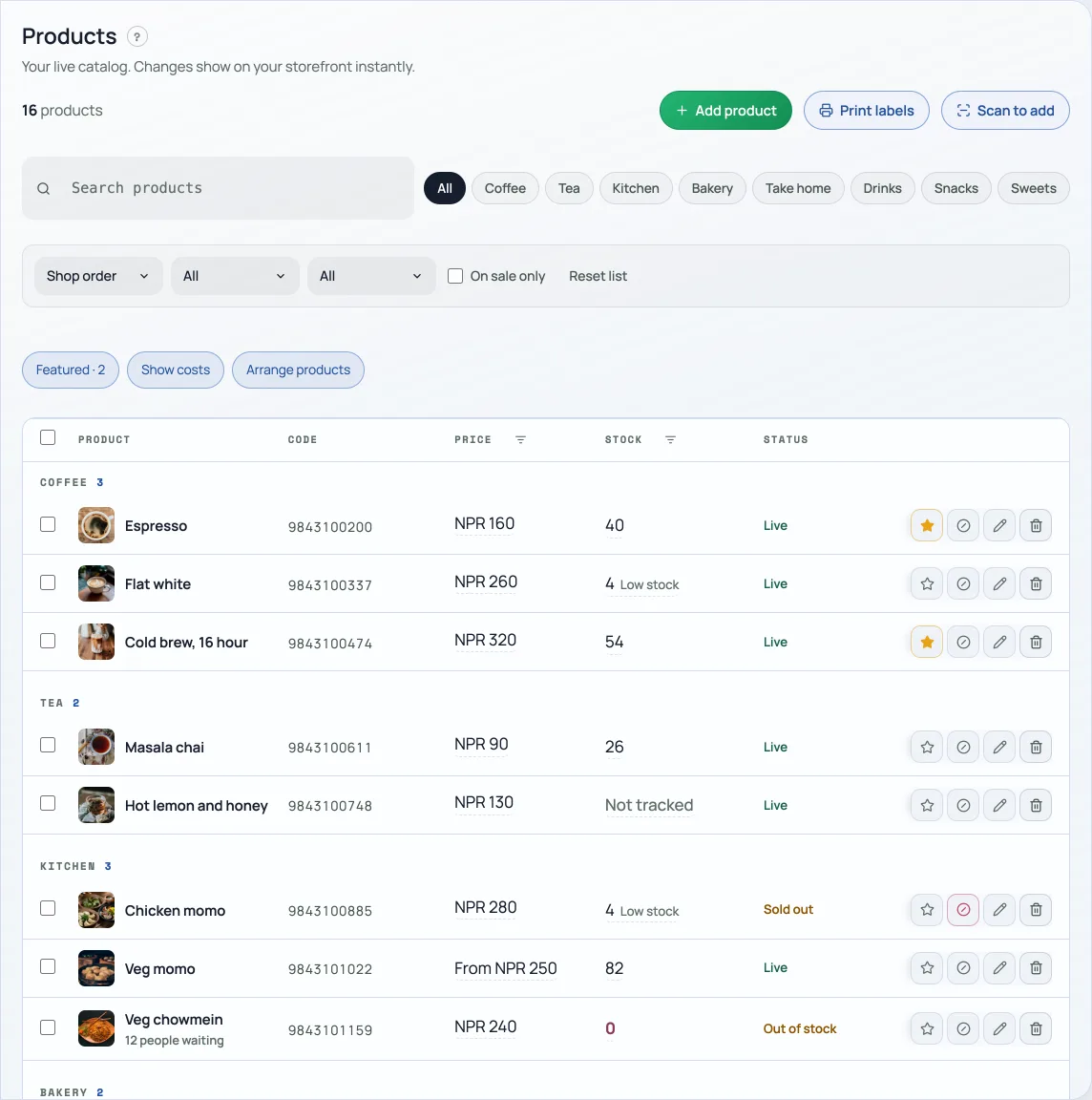
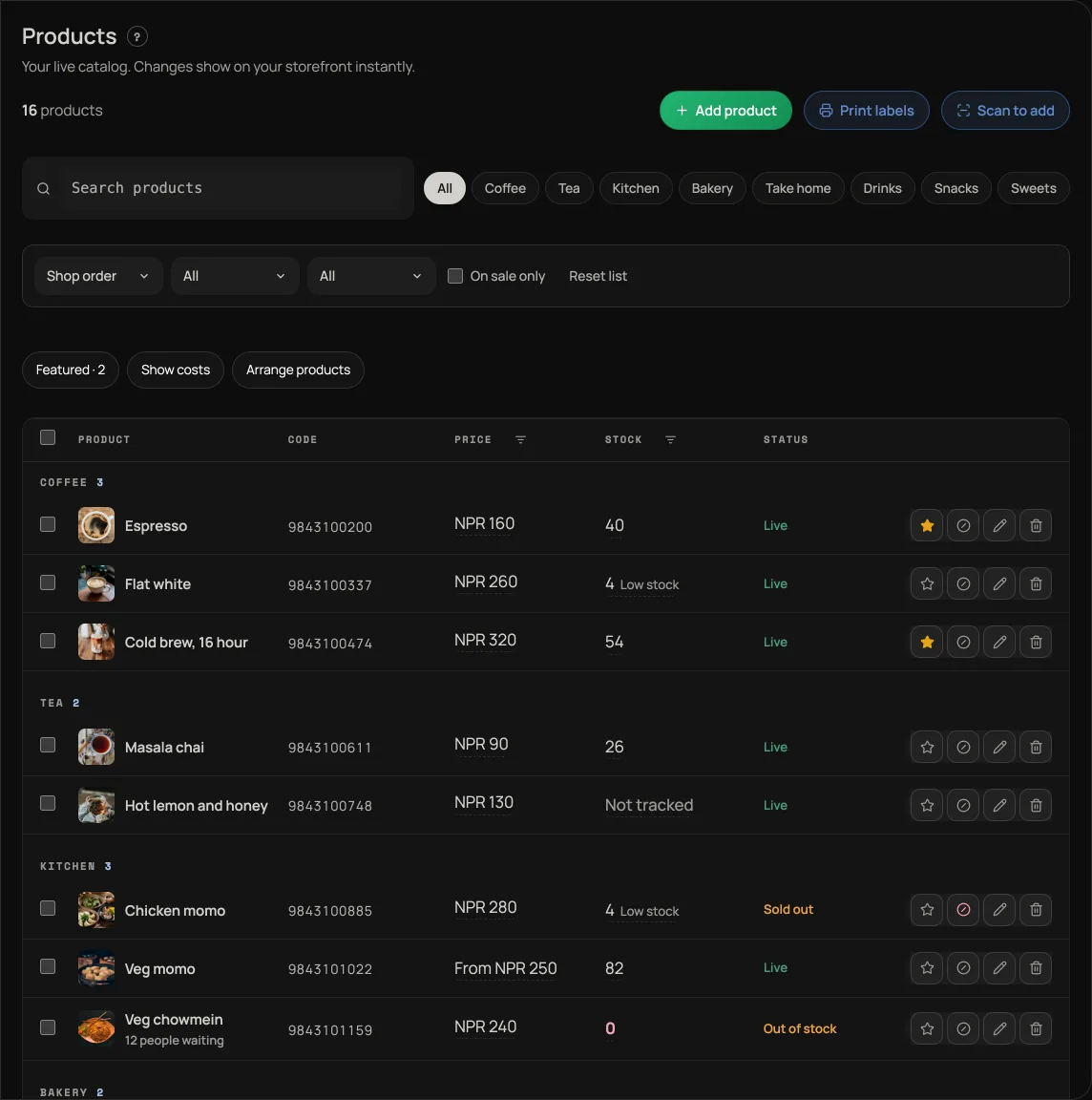
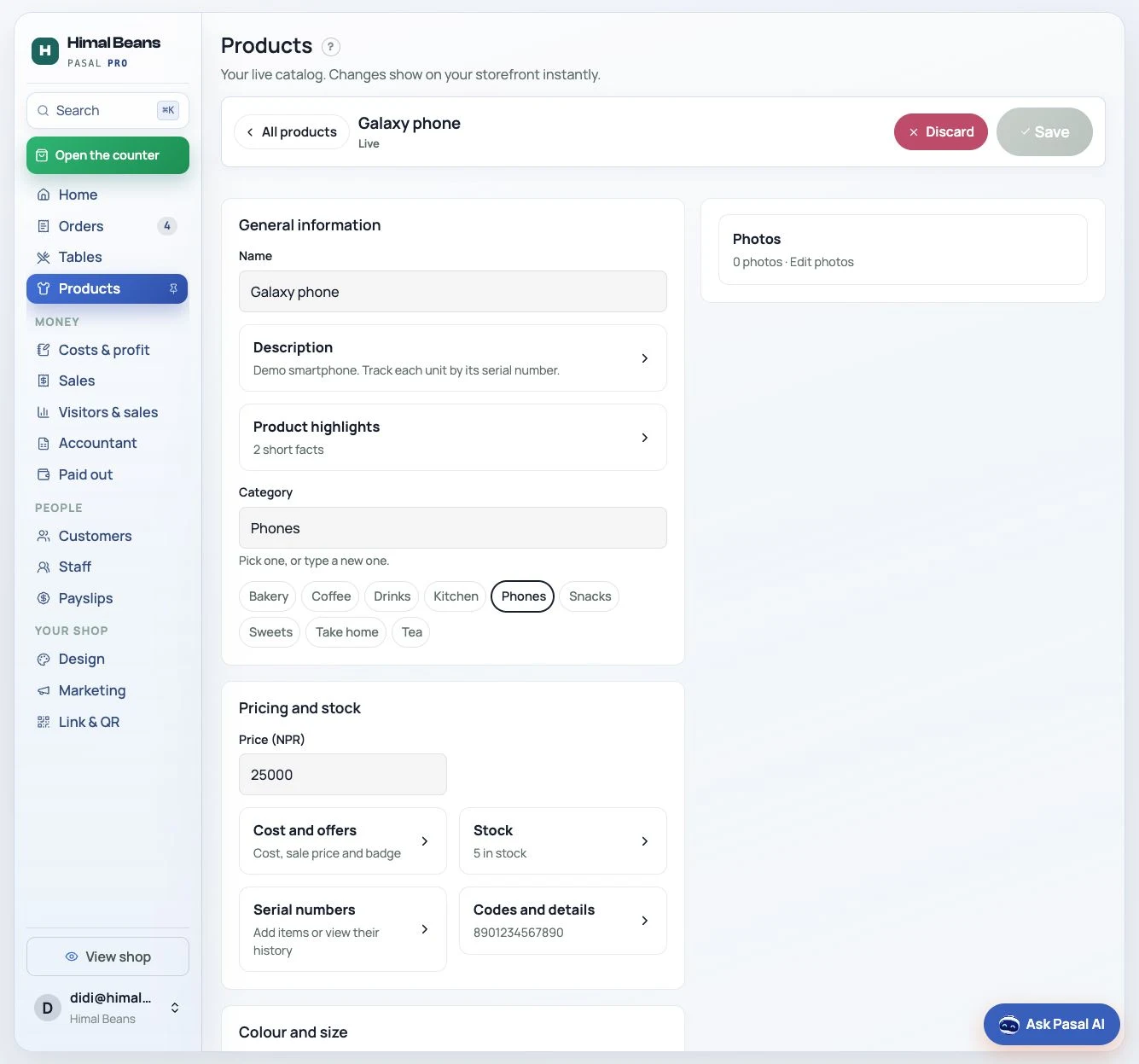
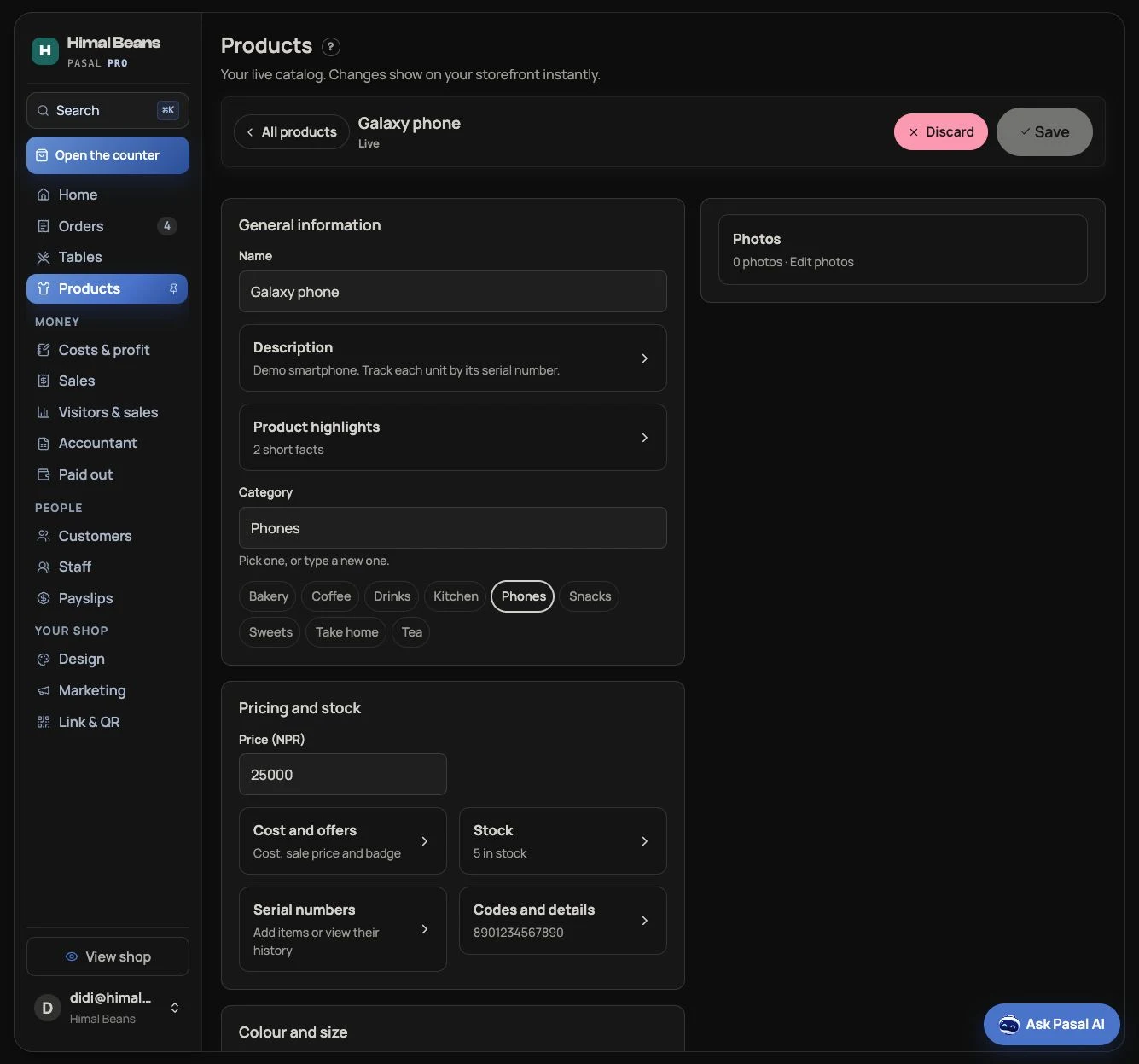
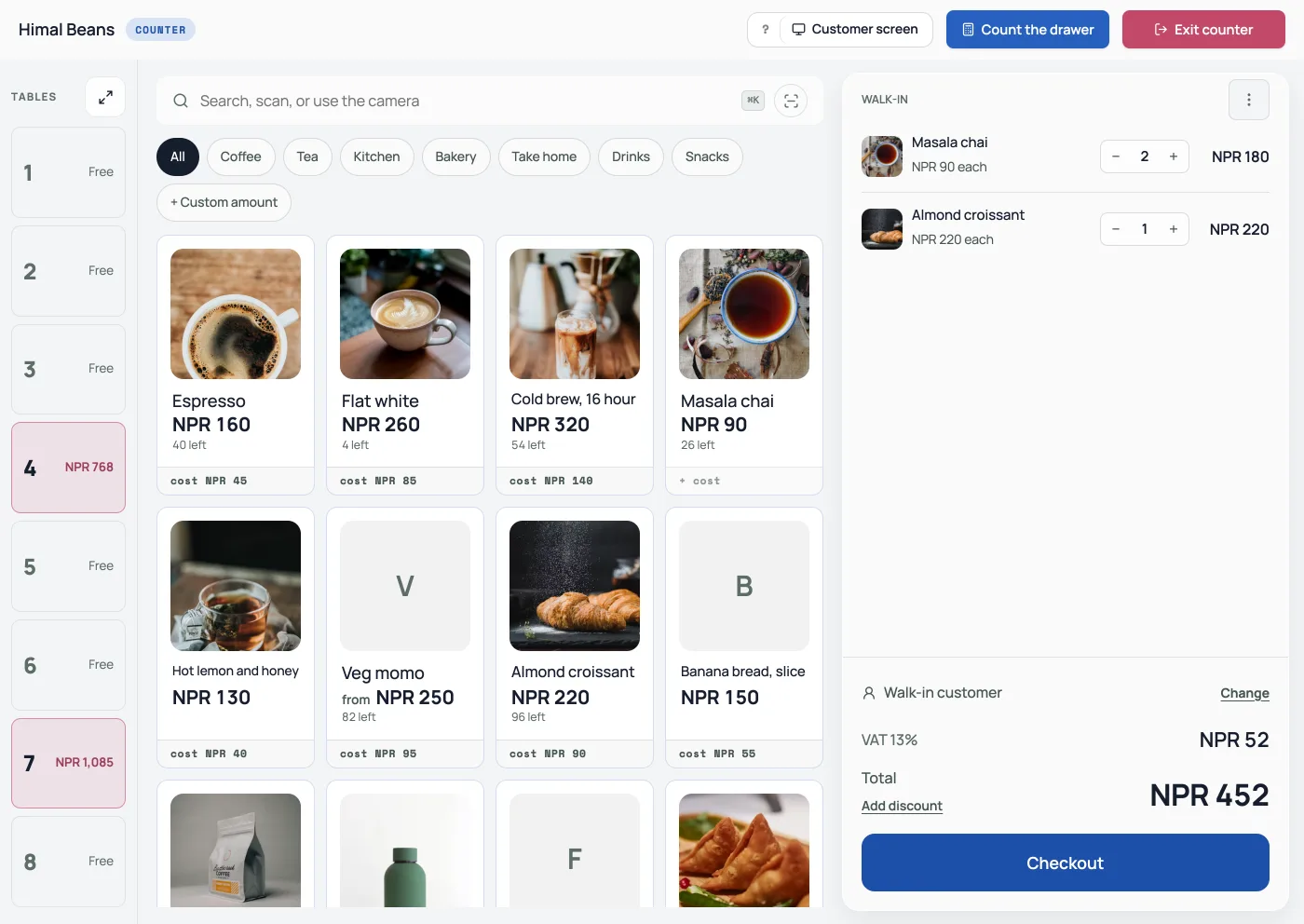
- Open Products and edit the item.
- Open Stock. Turn Track stock on, then enter the count. For colour/size stock, fill each pair rather than just the whole-product total.
- Press Done to return to the product form, then Save. Done keeps the edits in the form; it does not save the product.
What changes once an item is counted:
- On the counter, the tile shows 12 left under the price, and the number turns red at five or fewer. The bill will not take more than are left.
- Every counter sale takes its own amount off, including sales rung while the internet was down, once they sync.
- At zero it stops selling itself, on the counter and on your storefront, until you enter a new number.
Orders placed through your shop link count down too. An order takes its lines off the count the moment it lands, and an order asking for more than is left is refused before it reaches your board. So one number covers both doors, and there is nothing to correct by hand after a delivery.
Pairs and individual units
A product with colour/size counts draws from the pair selected on the shop page or web counter. Update that pair when you restock, rather than replacing the total alone. See sizes, colours, stock and barcodes. For serial-tracked products, available received units determine the count: receive the physical units instead of typing a whole-product quantity.
Home keeps an eye on the shelf
When counted items run down, your Home tab says so in one line: how many are down to 0, and how many are down to 5 or fewer. Down to 0 means already refused, at the counter and on your storefront. Down to 5 or fewer is a warning about next week. Top it up under the line opens Products. A shop that counts nothing gets no line, and staff see it only with the Products tick.
Three switches that sound alike
- Live or Hidden: whether the item is in your shop at all. Hidden is for what you are not selling this season.
- In stock or Sold out: today only. It stays on the menu greyed out and comes back overnight, see marking an item sold out.
- Counting: a real number that falls as you sell. At zero the item drops off the shop completely rather than sitting there greyed, so use the sold-out switch when you want it still on show.
To restock, edit the product and type the new number: it replaces the count rather than adding to it.
Choose whether customers see stock quantities
Open Design, then the Products or Menu part of your page. Turn Show stock quantitieson or off. This controls the remaining count on storefront cards and product pages, including a chosen colour and size. It saves automatically. Counting and the limit on what customers can buy stay active when quantities are hidden.
- Sell one product in several sizes and coloursOne product page, a price per size, and stock and barcodes for each colour/size pair.
- Mark an item sold out for the dayRun out of momo at eight? Grey it out on the menu and let it come back tomorrow.
- Manage your catalogAdd products, photos, prices, and take items off the shelf when you are out of stock.