
Write your shop policy
Returns, delivery rules and terms, shown on your site without sending customers anywhere else.
If your shop has rules (returns within a week, no refunds on custom work, delivery areas), write them once and every customer can find them.
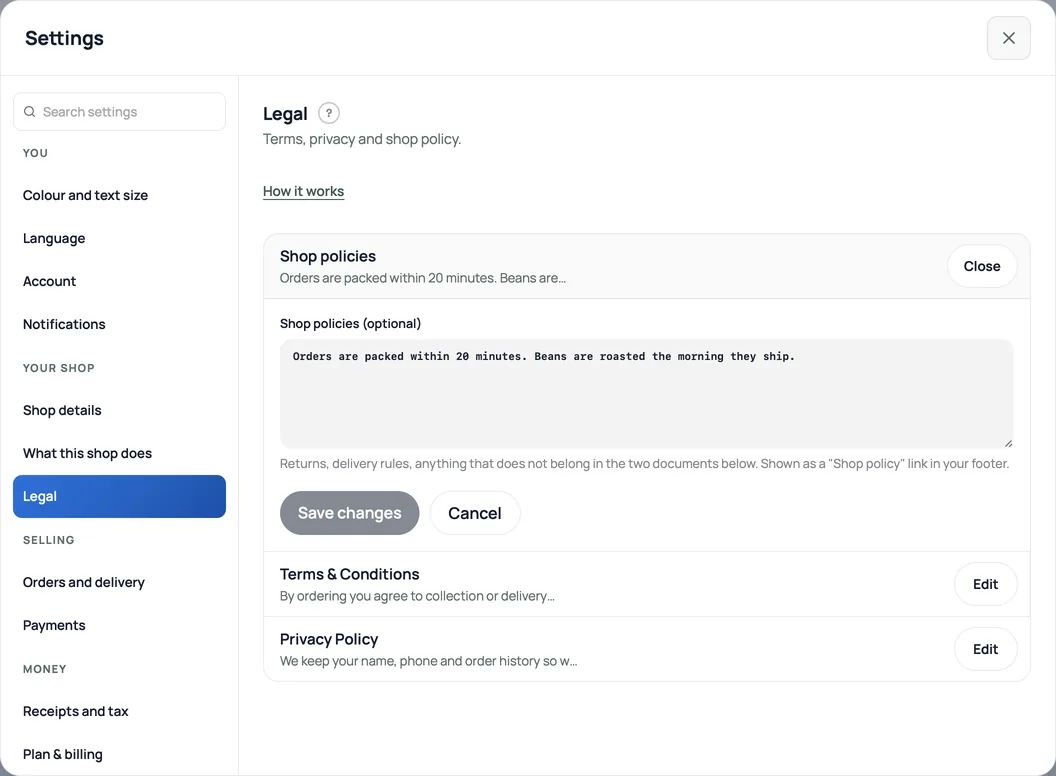
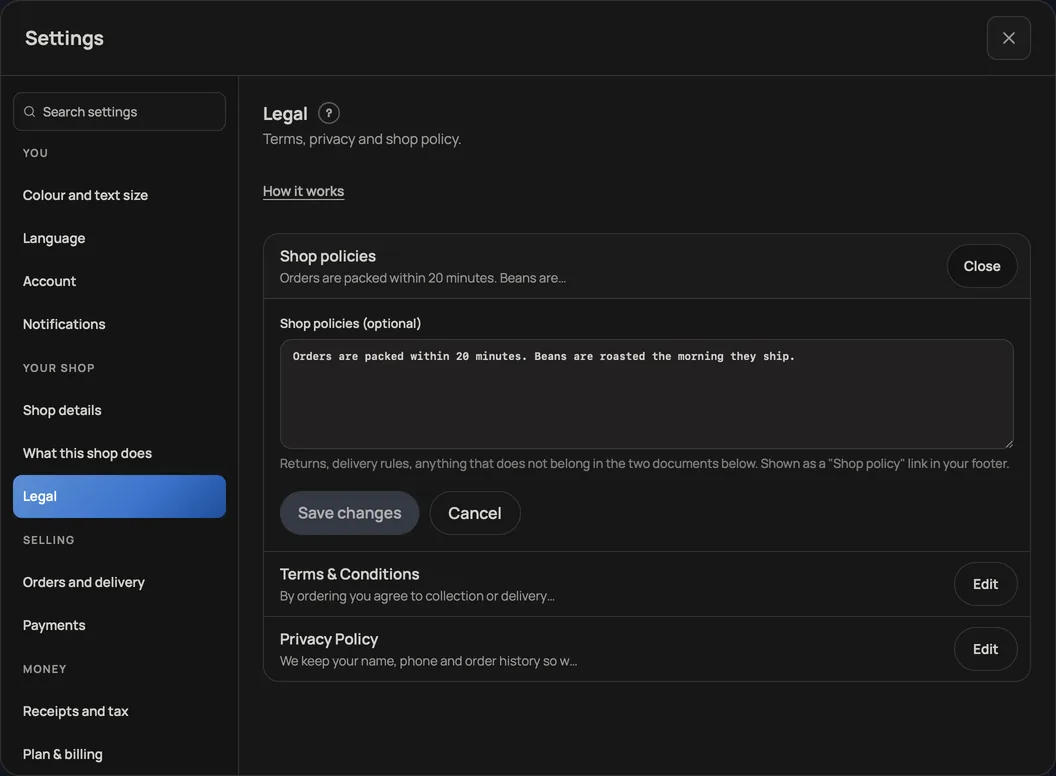
- Open your account menu, choose Settings, then Legal under Your shop. Press Edit beside Shop policies, the first row, and write in the box.
- Write your rules in plain language; line breaks are kept as you type them.
- Press Save changes. A Shop policy link appears in your site footer. It shows at the checkout step too, unless you have written Terms or a Privacy Policy: then the checkout links to those two instead, because they are what a customer is told they accept by ordering. The shop policy stays one tap away in the footer.
Customers read it in a small sheet on your page, so they never leave your shop. Leave the box empty and no link shows at all.
Read next
- Publish your terms and privacy policyWrite the two documents customers accept when they order, in your own words.
- Add your own 360° photos or a 3D product modelLet shoppers rotate a set of product photos or explore a GLB model, alongside the usual gallery.
- Make the shop look like yoursTemplate, colours, logo, hero photo, and the order of the page, all from the Design tab.
Still stuck? Message usTell us what is happening and we will reply, usually the same day.
WhatsApp usOr email support@retriever.com.np