
Your Retriever account
Choose your name and cartoon avatar, manage your sign-in password, and find notification settings.
Open the account menu at the bottom of the left menu, then press your name and avatar at its top. This opens Settings → Account. You can also choose Settings, then Accountunder You. On a phone, reach the account menu through More.
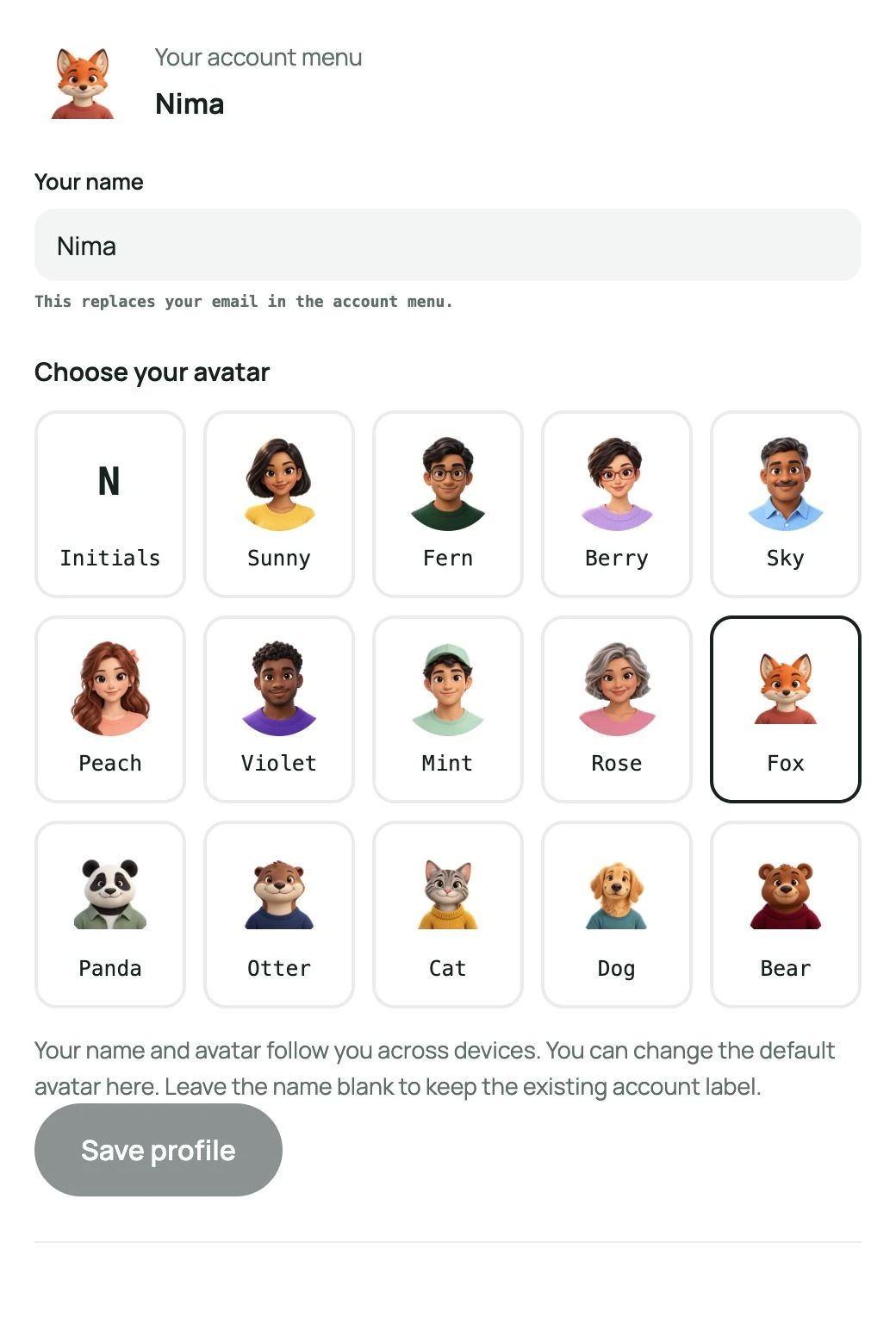
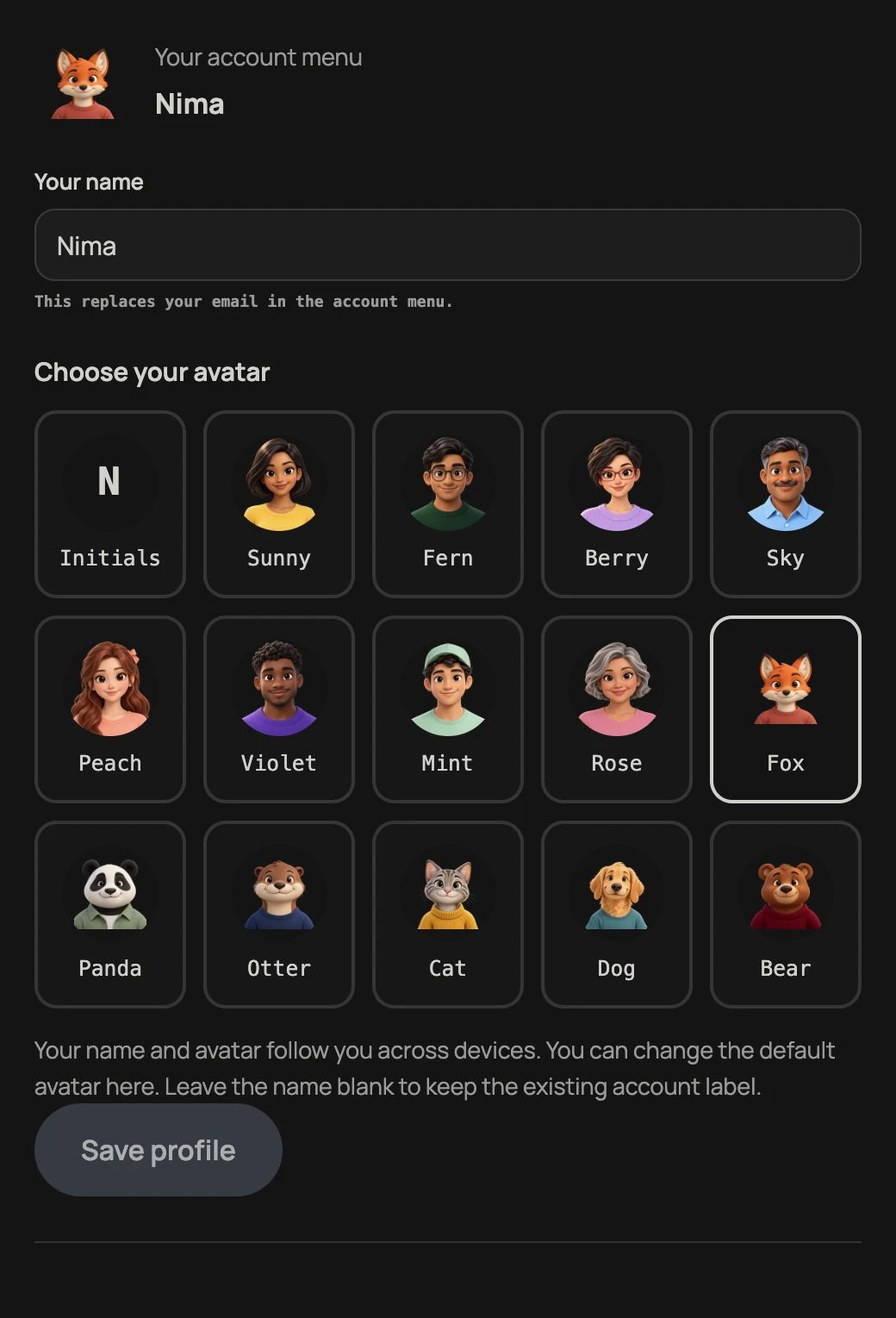
Your name and avatar
In Account, press Edit beside Your name and picture, enter Your name, choose a cartoon avatar and pressSave profile. The account menu uses this name instead of your email, on desktop and phone. Your email still identifies your sign-in account. These choices follow your account across devices; they do not change staff names on sales records.
Accounts without an avatar choice get a default portrait that stays the same across devices. Fox, Panda, Otter, Cat, Dog and Bear are available alongside the existing human cartoon portraits. A saved avatar or initials choice is kept. Choose Initials to return to a letter avatar. Leave the name blank to keep the existing account label. If saving fails, your draft stays here so you can try again. Closing Settings or pressing browser Back asks before discarding unsaved changes.
A password as a spare way in
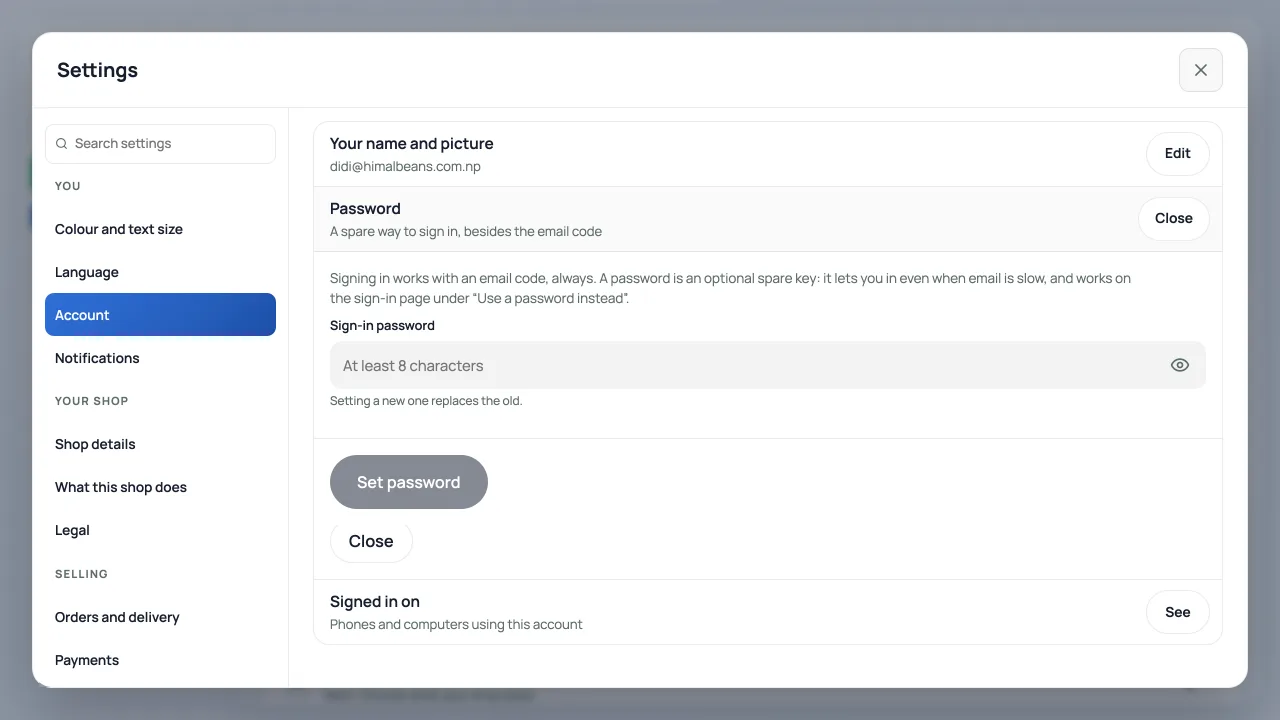
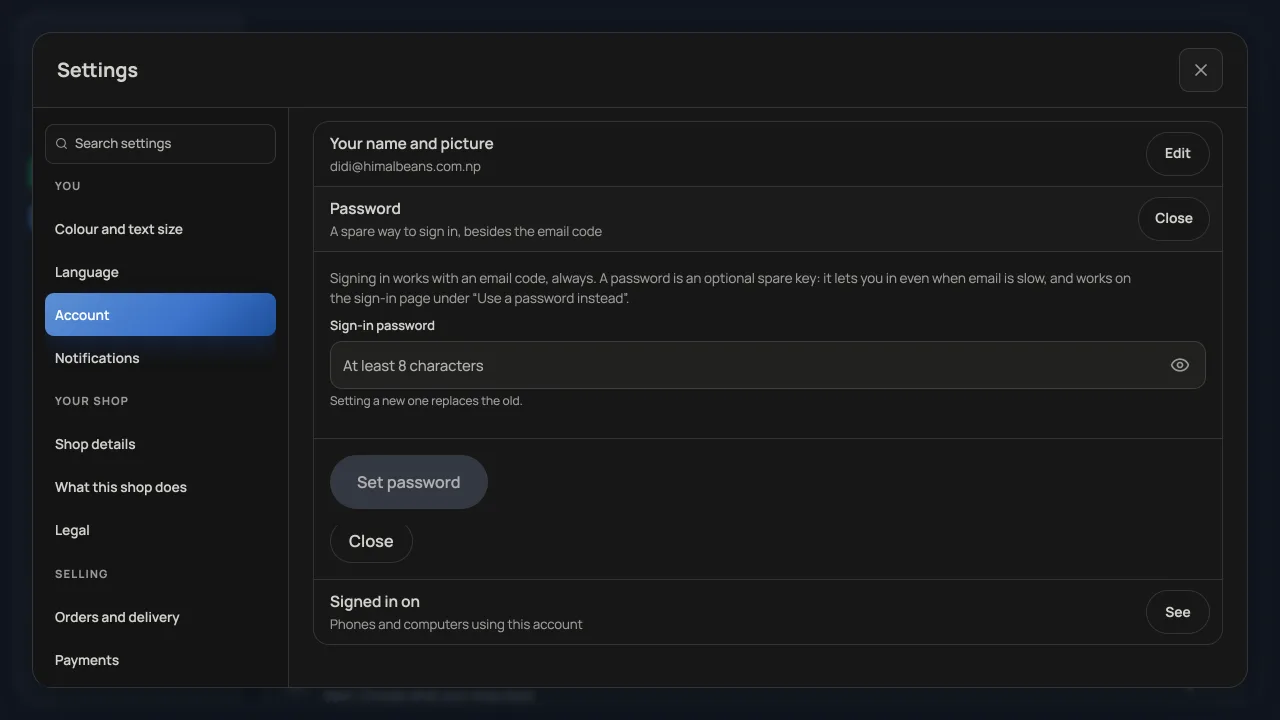
A password can help when email is slow. In Account, press Edit beside Password and set a sign-in password of at least eight characters. Press the eye icon inside the password box to show or hide what you typed, then pressSet password to save it. A new password replaces the old one; signing in with a six digit email code still works. See Signing in to your dashboard for the full walk.
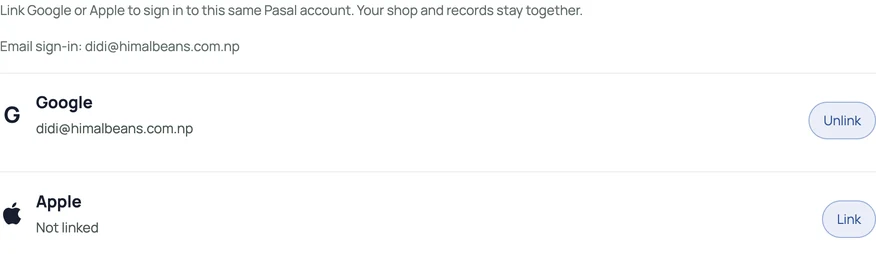
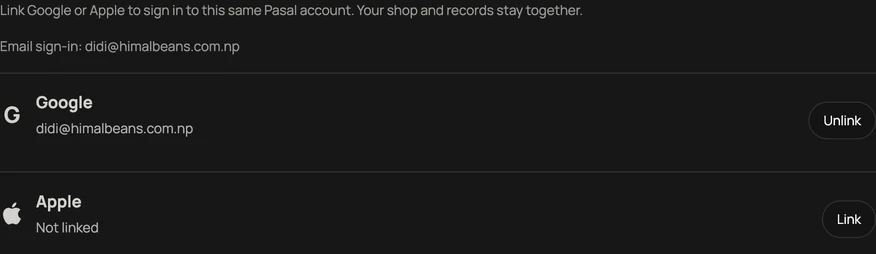
Link Google or Apple to this account
Open Settings → Account → Linked accounts. Press Link beside Google or Apple and finish that provider's sign-in. Return to Account and check the linked list. This adds a way into the same Retriever account; it does not move your shop or merge two accounts.
If a method is already used by another account, Retriever explains the conflict and leaves the accounts separate. Sign in to that account to manage its methods. Apple may use a private relay email that differs from the email you normally use for your shop. Use the linked provider rather than guessing which email to enter.
To remove a method, press Unlink and confirm. Another usable sign-in method must remain; an unconfirmed email does not count. A refused unlink leaves the method linked. If your account changes or the list cannot be confirmed, refresh it before continuing.
Choose how dashboard dates appear
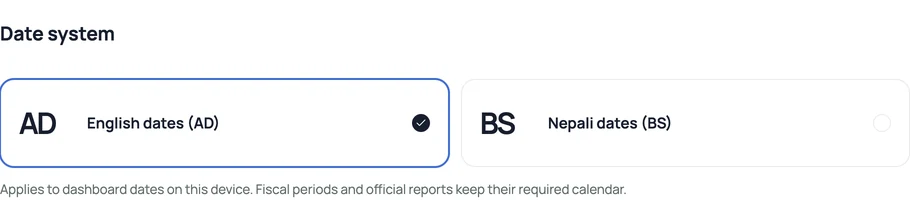
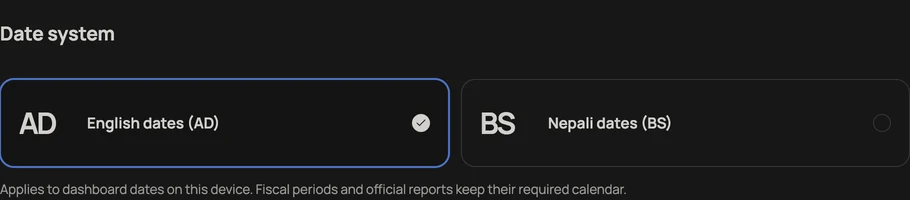
Open Settings → Language and dates → Date system. Choose English dates (AD) or Nepali dates (BS). AD is the default. This browser remembers the display choice; it does not sync through your account. Display dates and date inputs follow it. Stored dates, order identities and fiscal or official report calendars keep their explicit rules. Dates outside the BS conversion table are shown as AD.
Your Zuno choice
Change your saved AI-answer choice in Settings → AI assistants → Zuno. It belongs to your account. See Zuno, AI and privacy.


Daily email and order and message alerts
Open Settings → Notifications. Daily summary email sends a recap to your sign-in address the morning after a day with sales. Order and message alerts belong to this device and browser, so each phone or laptop that should buzz needs its own setup. See Get alerted for every new order.
Owners also set the Google review link and optional automatic requests in Notifications. See Ask customers for an honest Google review. Saving a review link does not turn email requests on.
Colour and text size and Language are separate sections under You. They are remembered on this device. Find your way around the dashboardexplains the whole Settings list.
- Signing in to your dashboardSign in with Google, Apple or email, manage linked methods, and find the right shop.
- Find your way around the dashboardYour everyday pages, the account menu, the unified Settings window, search and working on a phone.
- Get alerted for every new orderInstall the dashboard like an app and turn on notifications so nothing is missed.